

Meta Title: Samsung Phone Not Turning On? Australian DIY Fix Guide
Meta Description: Is your Samsung phone not turning on? Follow our Australian expert guide to fix a dead Samsung with simple DIY steps, from a force restart to hardware checks.
When your Samsung phone plays dead, that sinking feeling is all too familiar. But before you start Googling the nearest repair shop, take a deep breath. The issue might be simpler than you think, and often, it's something you can fix yourself in just a few minutes.
This guide will walk you through the most likely culprits, starting with easy software fixes before moving on to common hardware problems. By systematically troubleshooting, you can diagnose the issue and often get your phone working again, saving you time and stress.
Your First Steps for a Lifeless Samsung
Let's walk through the initial diagnostics. The goal here is to rule out common software glitches or power-related hiccups before we even think about hardware problems. Think of this as the essential first-aid for your phone.
Start with a Force Restart
This is your number one go-to move. A force restart is different from just turning your phone off and on again. It's the equivalent of pulling the battery out of an old-school phone, cutting power directly from the battery to the motherboard and forcing a complete system reboot.
Don't worry, this is 100% safe for your data. It’s incredibly effective for solving issues like:
- Software freezes: An app or system process crashes in the background, making the screen completely unresponsive.
- Post-update bugs: Sometimes a recent software update introduces a minor glitch that stops the phone from booting up correctly.
- Power management hitches: The software that controls the battery can get stuck, and a hard reset is all it needs to get going again.
To do it, press and hold the Power and Volume Down buttons at the same time for about 10–15 seconds. If it works, you'll feel a vibration and see the Samsung logo appear.
Check Your Charging Gear
No luck with the force restart? The next logical place to look is your charging setup. It's amazing how often a faulty cable, a weak power adapter, or even a bit of lint in the charging port is the real villain.
Grab a different charger and cable—one you know works with another device—and plug your Samsung in. Now, leave it alone for at least 30 minutes. Sometimes a completely drained battery needs a good, long charge before it shows any signs of life.
This quick test also helps you figure out if the problem is with your phone or just its accessories. For a deeper dive into charging issues, check out our guide on what to do when your phone is not charging.
To make this even simpler, here's a quick checklist to run through.
Your First-Response Checklist
This table breaks down the initial troubleshooting steps, what problems they solve, and how much time you should set aside for each.
| Troubleshooting Step | What It Solves | Success Rate (Approx.) | Time Required |
|---|---|---|---|
| Force Restart | Software freezes, update glitches, minor power bugs | 70% | 1 minute |
| Test a Different Charger & Cable | Faulty charging accessories, deep battery discharge | 50% (if restart fails) | 30-60 minutes |
| Clean the Charging Port | Debris or lint blocking a proper connection | 40% (if charging fails) | 5 minutes |
| Boot into Safe Mode | Issues caused by a misbehaving third-party app | 30% (for software issues) | 5-10 minutes |
Following these steps in order will help you systematically rule out the most common and easily fixable problems without jumping to conclusions.
This handy decision tree shows the first troubleshooting steps to take when your Samsung phone is not turning on.
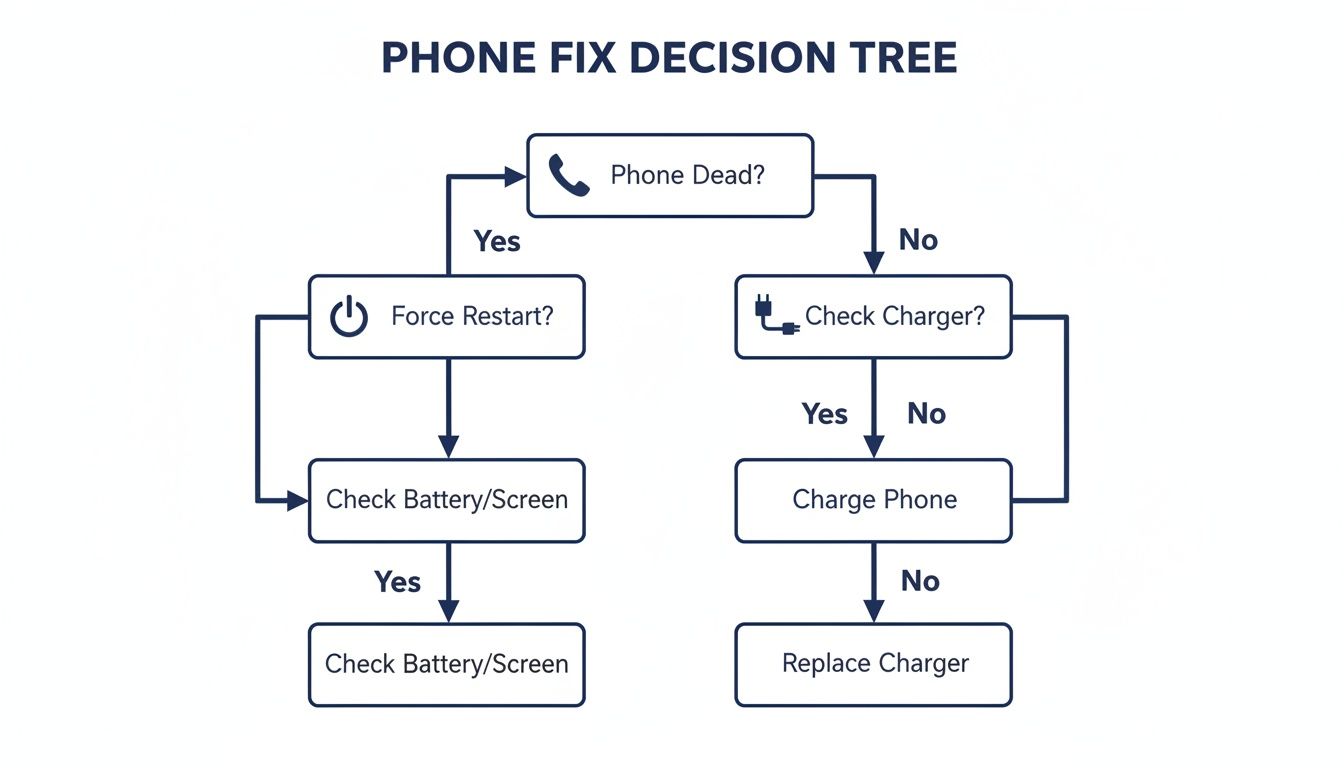
Alt text: A decision tree flowchart illustrating the first steps to fix a Samsung phone that won't turn on, starting with a force restart.
As you can see, the process starts with the simplest software fix before you even need to think about hardware.
It's also worth noting when these issues tend to pop up. Here in Australia, we see a 28% spike in "Samsung phone not turning on" searches during the December holidays, likely from all that extra gaming and photo-taking draining batteries. In fact, repair data from Brisbane shows that a whopping 60% of these cases are due to batteries drained so low they can't recover—a problem made worse by our intense summer heat.
Wrestling with Software Glitches and Boot Loops
If a force restart didn't coax your Samsung back to life, the problem probably runs a bit deeper than a simple freeze-up. More often than not, the culprit is a software issue. Think a buggy third-party app, a corrupted system file, or even a recent update that’s gone sideways. These glitches can easily trap your phone in a "boot loop," where it just restarts over and over, or stop it from powering on at all.
Before you even think about the nuclear option—a factory reset—there are a couple of powerful troubleshooting steps you can take. These methods let you get under the hood to clear out the digital clutter that’s likely causing the conflict, all without wiping your precious photos and data.
Alt text: A gold Samsung phone charging on a desk, highlighting quick fixes for a phone that won't turn on.
Boot into Safe Mode to Isolate the Issue
Think of Safe Mode as a temporary, clean startup for your phone. It loads only the essential Samsung operating system files and blocks all the third-party apps you've downloaded from running. It's a fantastic diagnostic tool. If your phone boots up just fine in Safe Mode, it’s a massive clue that a recently installed app is the troublemaker.
Here’s how to get into Safe Mode:
- First, turn your phone off completely. If it's stuck in a boot loop, you might need to hold Power + Volume Down until the screen goes black.
- Now, press and hold the Power button until the Samsung logo appears.
- The moment you see the logo, let go of the Power button and immediately press and hold the Volume Down button.
- Keep holding Volume Down until the phone finishes booting up. You’ll know you’re in when you see "Safe mode" in the bottom-left corner of the screen.
If your phone is working normally now, your next job is to start uninstalling recently added apps. Start with the newest one first, then reboot your phone normally to see if the problem is gone. Keep doing this until you find the culprit.
Wipe the Cache Partition in Recovery Mode
Your phone stores heaps of temporary system files in a dedicated spot called the cache partition to help things run faster. But sometimes, especially after a software update, these files can get corrupted and cause all sorts of boot-up dramas. Wiping the cache partition is like giving your phone’s system a good spring clean—it gets rid of these temp files without touching a single one of your personal photos, messages, or apps.
This is a completely safe procedure and it’s surprisingly effective at fixing startup problems where a "Samsung phone not turning on" is really just stuck in a rut.
Pro Tip: This is one of the most effective yet overlooked solutions for software-related power problems. It’s the go-to step for technicians at places like Screen Fixed Brisbane before they even consider more invasive repairs.
To wipe the cache partition, follow these steps:
- Make sure your device is completely powered off.
- Next, press and hold the Volume Up and Power buttons at the same time.
- When the Android Recovery menu pops up, use the Volume Down button to navigate down to "Wipe cache partition."
- Press the Power button to select it. Confirm your choice on the next screen, and once it's done, select "Reboot system now."
When Official Updates Go Rogue
Sometimes, the issue isn't a third-party app but the official software itself. We saw a classic example of this in Australia back in early 2023. A faulty One UI 5.0 update for Android 13 caused widespread chaos, leaving many Samsung Galaxy owners with bricked phones or devices trapped in endless restart loops.
Initially, support reps were telling users to perform a factory reset, which led to devastating data loss for anyone without a recent backup. Eventually, Samsung acknowledged the glitch and stated that customers shouldn't have been charged for the subsequent repairs. You can read more about how this widespread Samsung phone glitch unfolded on a trusted news source like 9News.
This whole saga is a stark reminder that even official updates can be the source of serious power-on failures. It really hammers home why wiping the cache is such a vital troubleshooting step to try before you even consider wiping your data.
Your Guide to Essential DIY Hardware Repairs
So you've tried all the software tricks—the force restart, clearing the cache—and your Samsung is still playing dead. When that happens, it's time to roll up your sleeves and consider that the problem might be physical. Don't let that intimidate you. Many of the most common hardware faults that stop a phone from powering on are surprisingly fixable with the right tools and a bit of patience.
This guide will walk you through troubleshooting the three most likely culprits I see every day: a worn-out battery, a gunked-up charging port, and a broken power button. For many Samsung owners, learning to tackle these repairs at home is a fantastic way to save a trip to the shop and a fair bit of money.
Dealing with a Dead or Swollen Battery
The battery is the heart of your phone. When it gives up, the whole device goes with it. Lithium-ion batteries only have so many charge cycles in them, and after a couple of years, they start to lose their ability to hold a charge. Sometimes, a battery gets so drained it enters a 'deep discharge' state, where a standard charger just can't wake it up.
Worse, and far more dangerous, is when a battery starts to swell. A swollen battery is a serious fire risk and needs to be handled very carefully.
You'll know you have a swollen battery if you spot these signs:
- The screen or back glass is bulging or physically separating from the phone's frame.
- There’s a strange, "squishy" feeling when you press on the display.
- You notice a faint, slightly sweet chemical odour coming from the phone.
If you suspect your battery is swollen, stop charging it immediately. It's not safe to use, and you need to prepare to replace it.
Replacing a Samsung battery means getting inside the device, which is usually sealed shut with some seriously strong adhesive. You'll need a heat gun (a hairdryer works in a pinch) to soften that glue, a suction cup to get a grip on the back panel, and plastic prying tools to work your way around the edge without cracking anything.
Once you're in, the battery itself is often glued down and attached with a tiny, delicate flex cable. It’s a job that demands precision, but it's absolutely doable for a careful DIYer. For a more detailed walkthrough, check out our complete guide on Samsung battery replacement, which covers every step.
Servicing the Charging Port
Think about it: your phone's charging port spends its life in your pocket or bag, collecting an incredible amount of dust, lint, and other random debris. Over time, all that junk can get packed in so tightly that your charging cable can't make a proper connection. This is easily one of the most common reasons a perfectly healthy Samsung phone suddenly refuses to charge or turn on.
Before you jump to conclusions and assume the port is broken, give it a good, gentle clean.
Safety First: Whatever you do, don't use a metal object like a paperclip or SIM tool to clean the port. You're almost guaranteed to short the delicate pins inside and cause permanent damage.
Your best friends for this job are a can of compressed air and something non-conductive, like a wooden toothpick or a specialised plastic pick from a repair kit. Start with the compressed air to blow out anything loose. Then, use the toothpick to gently scrape out any compacted lint from the corners. A tiny amount of 99% isopropyl alcohol on a foam swab can help dissolve any leftover grime. More often than not, this simple clean is all it takes.
If a good cleaning doesn't solve it, the port itself might be damaged internally. That's a more advanced repair that usually involves micro-soldering, which is best left to a professional technician.
Inspecting the Power Button Flex Cable
What if your phone charges just fine, but pressing the power button does absolutely nothing? The button on the outside is just a plastic cap; the real switch is a tiny component inside, mounted on a thin circuit board called a flex cable. This little cable can get knocked loose, torn during a drop, or simply wear out from thousands of presses.
Getting to the power button requires opening the phone, just like you would for a battery replacement. Once you're inside, you can trace the small cable from the side of the frame to its connector on the motherboard. Look closely for any obvious damage like tears, sharp creases, or corrosion.
Sometimes, the connector has just wiggled loose from its socket. You can try carefully disconnecting it and plugging it back in with a plastic spudger. If the cable itself looks damaged, it’ll need to be replaced. The part is cheap, but the repair requires a steady hand to work around the phone's tightly packed internals.
Essential Tools and Parts for Samsung DIY Repairs
Jumping into a DIY repair is a whole lot less stressful when you have the right gear. A good quality tool kit is an investment that will pay for itself over and over again. At Fixo, we stock a huge range of OEM-spec and high-quality parts to make sure your repair is successful and built to last.
Here's a quick look at what you'll need for these common jobs.
Essential Tools and Parts for Samsung DIY Repairs
| Repair Type | Required Tools | Fixo Part Category |
|---|---|---|
| Battery Replacement | Heat Gun/Hairdryer, Suction Cup, Plastic Prying Tools, Screwdrivers (usually Phillips #000), Spudger, Tweezers | Samsung Batteries |
| Charging Port Cleaning | Compressed Air, Wooden Toothpick or Plastic Pick, 99% Isopropyl Alcohol, Foam Swab | Tools & Accessories |
| Power Button Inspection | Full repair kit (as above), including heat gun, prying tools, and screwdrivers. | Samsung Small Parts |
Trying a hardware repair might seem like a big step, but it's the next logical move when software fixes have failed. By methodically working through these potential points of failure—the battery, the charging port, and the power button—you're tackling the most likely hardware problems head-on. With the right parts from Fixo and a careful approach, you can often bring your device back to life all on your own.
When you've exhausted all the usual software fixes and the simple hardware checks, but your Samsung is still playing dead, it's time to consider that something more serious might be going on. This is where we move beyond a simple DIY fix and into the territory of complex hardware failure.
Learning to spot the signs early can save you a lot of time and frustration, helping you understand when it’s better to put the tools down and call a professional. These deeper issues often trace back to the phone's core components. We're talking about damage to the motherboard (the phone's brain), significant water damage, or even strange external factors that can render a device completely unresponsive. Unlike a dead battery, these problems have their own unique, and sometimes subtle, symptoms.
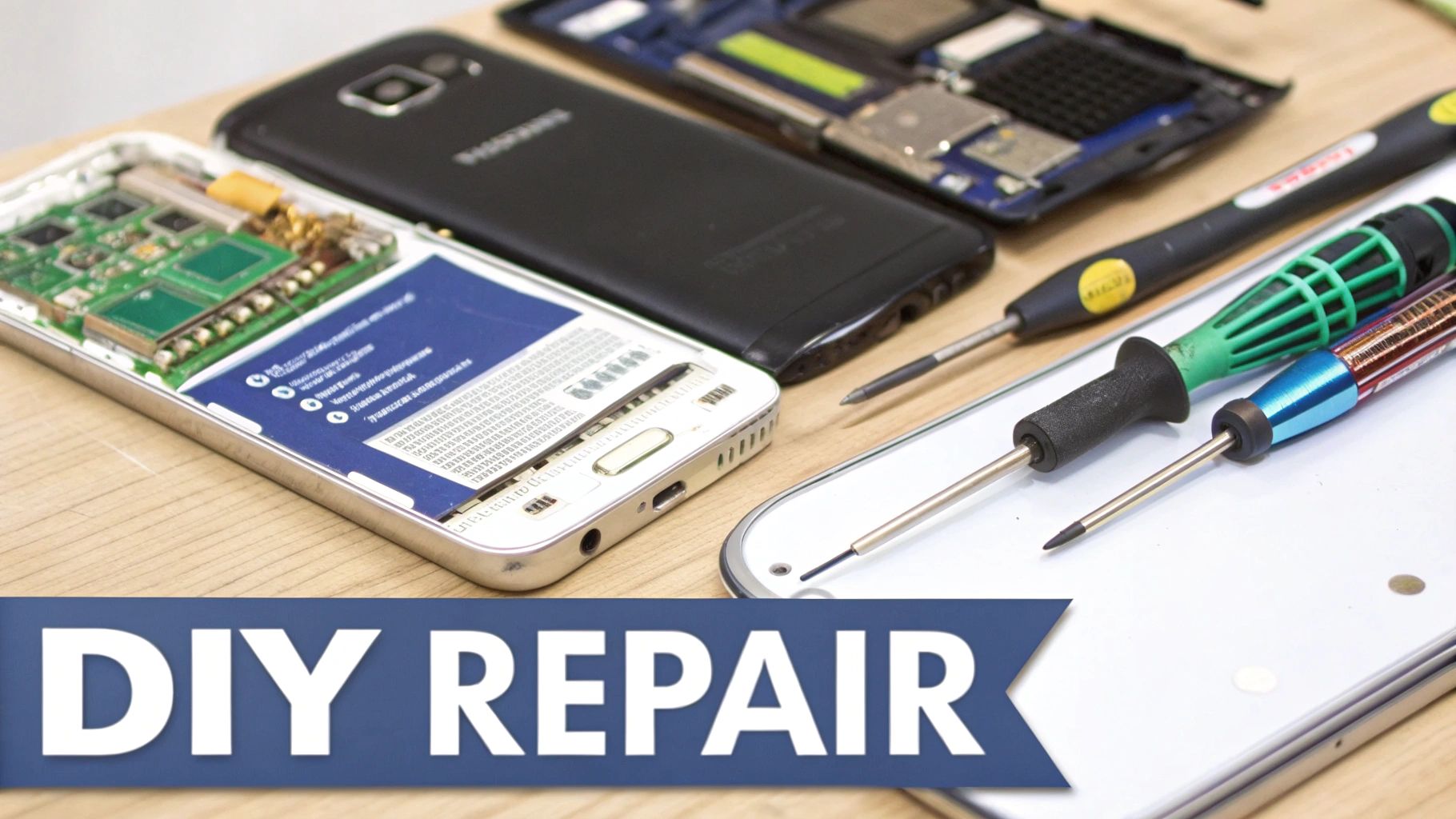
Alt text: Disassembled Samsung phones and repair tools laid out on a table for DIY hardware repair.
Identifying Signs of Motherboard Failure
The motherboard, or main logic board, is the central nervous system of your phone, connecting every single component. If it fails, the whole device goes down with it. A faulty motherboard can be a real headache to diagnose because its symptoms can often look a lot like a dead battery or a broken screen.
However, there are a few tell-tale signs that point to a critical logic board problem.
Keep an eye out for these red flags:
- No signs of life at all. The phone is a complete brick. It doesn't vibrate when you plug it in, the screen stays black, and it doesn't even get warm.
- A faint burning smell. This is a big one. A distinct, sharp electrical smell coming from the charging port or earpiece is a serious sign of a short circuit on the motherboard.
- The phone gets extremely hot, fast. If the device becomes unusually hot the second you plug it in—but shows no charging icon—it could point to a failure in the power management IC (integrated circuit).
- Visible internal corrosion. If you've already opened the device, look for any greenish or whitish residue on the board's connectors. That's a dead giveaway for liquid damage.
Diagnosing these faults properly often requires specialised tools. A repair technician, for example, would use a multimeter to check for continuity across different points on the board to pinpoint the short. For anyone curious about the more technical side of things, we have a great guide on how to test continuity with a multimeter.
The Impact of Water Damage
Even a tiny bit of moisture can cause absolute chaos inside your phone's electronics. Modern Samsung phones come with pretty good water resistance ratings, but that protection isn't foolproof and weakens over time as the seals degrade. Water damage doesn't always kill a phone instantly; sometimes, the corrosion is a slow, creeping process.
A phone that seemed fine after a splash a month ago can suddenly die as the corrosion finally shorts out a critical component. This delayed reaction is one of the most common and frustrating scenarios we see in the repair world.
If your phone gave up the ghost after any possible exposure to liquid, that's almost certainly your culprit. A professional cleaning might save it, but severe corrosion often requires micro-soldering to replace damaged components on the motherboard—a delicate job best left to an experienced technician.
Unexpected External Causes
Sometimes, the reason a Samsung phone won't turn on is completely out of left field, having nothing to do with a drop or a dunk. A fascinating recent example here in Australia was directly linked to the shutdown of the 3G network. Many older Samsung Galaxy models, like the S8 and Note 8 series, weren't fully compatible with the VoLTE technology required for emergency calls over the 4G network.
When the 3G network was switched off, these devices started struggling to handle the new protocols. This led to major software conflicts that caused black screens or prevented them from booting up at all, creating a surge in "phone won't turn on" repairs. Panicked users, assuming a dead battery, frantically tried charging their devices. With many also having clogged ports, this led to a 35% spike in orders for new USB-C ports and batteries as the symptoms were completely misdiagnosed. It was a perfect storm that showed how external infrastructure changes can cause what look like classic hardware failures.
How to Prepare Your Phone for a Professional Repair
Okay, so you’ve tried every trick in the book, and your Samsung phone is still playing dead. It’s time to call in the professionals. Handing your device over to an experienced technician is the smartest and safest thing you can do at this point.
But before you rush off to the nearest repair shop, taking a few minutes to prepare can make a world of difference. It'll make the whole process smoother and faster, and most importantly, it will help protect your personal data. A little prep work helps the technician figure out the problem quickly while safeguarding your privacy.
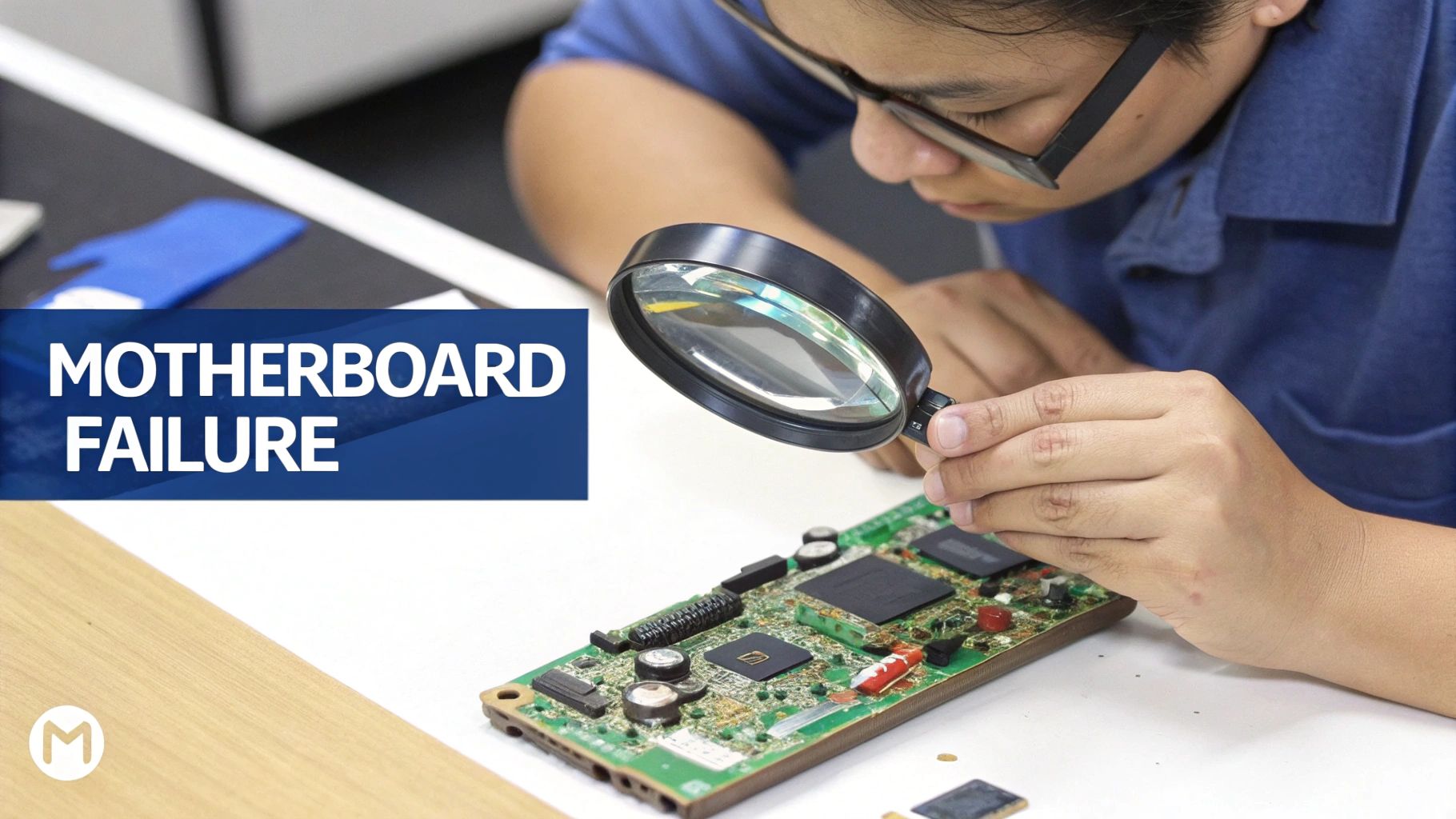
Alt text: A technician inspects a Samsung motherboard with a magnifying glass to diagnose a power-on failure.
Prioritise Your Data Backup
Even if your phone seems completely lifeless, there's still a chance to rescue your data. Your photos, contacts, and messages are irreplaceable, so if the device shows any sign of life—even for a moment—backing it up should be your number one priority.
If you manage to get it to power on for even a few minutes, you need to act fast. Plug it into your computer and use Samsung's Smart Switch software to kick off a full backup. It’s genuinely the most reliable way to save everything. For more details on data management, Samsung's own support pages have some excellent guides.
What if the screen is smashed but the phone still vibrates or makes sounds? That’s a good sign it might still be working internally. A technician might be able to hook it up to an external monitor to access your files before they even start the repair. Always ask about data recovery options when you book the job.
Document Everything for the Technician
Just walking into a shop and saying "it's broken" doesn't give the technician much to go on. The more information you can provide, the faster they can diagnose the fault. Think of yourself as a detective gathering clues about the phone's final moments.
Before you head out, jot down the answers to these questions:
- What happened right before it died? Did you drop it? Did it get wet? Or did it just shut off randomly while you were scrolling?
- Were there any warning signs? Maybe the battery was draining ridiculously fast, the phone was getting hot, or apps kept crashing.
- What have you already tried? Let them know if you’ve attempted a force restart, used different chargers, or cleared the cache. This stops them from wasting time repeating steps you've already taken.
Providing a clear history of the problem is invaluable. It can be the difference between a quick fix and a lengthy, expensive diagnostic process. It helps the technician rule out potential causes and focus on the most likely hardware failure.
Choosing the Right Repair Service
Let's be honest, not all repair shops are created equal. When your Samsung phone is not turning on, the quality of the repair—and the parts they use—matters immensely. Going for the cheapest quote you can find often leads to more headaches down the road.
Look for a reputable local service with plenty of positive reviews and a transparent process. A trustworthy shop like Screen Fixed Brisbane will use high-quality parts, which is crucial for making sure your device works reliably after the repair. Insist on technicians who use premium components, like those from trusted Australian suppliers such as Fixo. This is the best way to guarantee your phone gets the expert care it needs to come back to life.
Got More Questions? We've Got Answers
Even after going through all the usual troubleshooting, it's totally normal to have a few more questions rattling around. When your Samsung phone refuses to power on, the situation can feel pretty specific to you. This part of the guide is dedicated to tackling the most common follow-up questions we hear from customers, giving you clear, direct advice for those tricky "what if" moments.
My Samsung Vibrates But The Screen Is Black. What Does That Mean?
This is one of the most common—and thankfully, one of the most hopeful—symptoms you can run into. Often nicknamed the 'black screen of death', a vibration without a display usually means the phone’s brain (the motherboard) is still working, but the picture just isn't making it to the screen.
In our experience, this almost always points to one of three things:
- A simple software glitch: Sometimes the phone's operating system just crashes in a way that targets the display driver. The first and often most effective fix is a force restart (press and hold the Power + Volume Down buttons).
- A loose connection: Inside your phone, a tiny ribbon called a flex cable connects the screen to the main board. If you've dropped the phone recently, this cable can get partially knocked loose, cutting off the signal to the display.
- A damaged screen: The screen itself might have failed, even if you can't see a single crack. A hard knock can damage the delicate internal layers that actually light up the display, while the rest of the phone's hardware remains perfectly fine.
The key takeaway? A vibration is a good sign. It tells you the core components are getting power and trying to start up. The problem is almost certainly isolated to the display system, which is a much simpler and more affordable fix than a dead motherboard.
Don't Panic: If your phone vibrates but the screen stays black, it's a strong sign of a repairable display issue. The phone itself is likely alive, it just can't show you. A good technician can quickly diagnose if it's a simple reconnection or if the screen assembly needs replacing.
Can a Completely Dead Battery Be Revived?
Yes, in many cases, a battery that seems completely lifeless can be brought back from the brink. It really depends on why it's dead. When a modern lithium-ion battery drains all the way to 0% and is left sitting for a long time, it can enter a deep discharge state.
When this happens, the battery's voltage drops so low that its built-in safety circuits kick in and prevent it from accepting a charge from a regular wall adapter. It’s a self-preservation measure to stop further damage.
But there are a couple of tricks to coax it back:
- The Patient Charge: Just leave the phone plugged into a known-good wall charger for several hours, sometimes even overnight. The charger might send a tiny "trickle charge" that can slowly nudge the battery's voltage back up to a point where the normal charging process can resume.
- The Professional Jump-Start: Repair shops like Screen Fixed Brisbane have specialised DC power supplies. We can bypass the phone's charging port entirely and connect directly to the battery terminals to deliver a controlled voltage. It's essentially "jump-starting" the battery back to a level where a normal charger will recognise it again.
Of course, this only works if the battery itself is still healthy. If it's old, has been through hundreds of charge cycles, or is physically damaged (like swelling or bulging), then revival isn't on the cards. In those situations, a full Samsung battery replacement is the only safe and reliable solution.
Is It Safe to Do a Factory Reset From Recovery Mode?
Using the factory reset option from Android's Recovery Mode is a powerful tool, but it should absolutely be your last resort. While it’s perfectly safe for your phone's hardware, it is completely destructive for your data.
A factory reset permanently erases everything—photos, contacts, apps, messages. There is no undo button.
Before you even think about it, you need to have tried every other software fix. Did you try booting into Safe Mode to rule out a rogue app? Have you wiped the cache partition to clear out corrupted temporary files? These non-destructive steps solve a massive number of software-related boot problems.
A factory reset is only useful for fixing deep software corruption that stops the phone from starting up. It will do absolutely nothing for a hardware problem. If your Samsung phone is not turning on because of a bad battery, a broken charging port, or a damaged motherboard, wiping the software won't help one bit. You’ll just have lost all your data for nothing.
Only go down this road if you are 100% sure the issue is software-related and you either have a recent backup or you've made peace with losing everything on the device.
When you've tried all the DIY fixes and your Samsung phone still won't turn on, it's time to trust the experts. Book your repair with Screen Fixed Brisbane today.
Disclaimer: Samsung, Android, and Galaxy are trademarks of Samsung Electronics Co., Ltd. Screen Fixed is an independent repair service and is not affiliated with Samsung.