

That gut-wrenching moment you see a spiderweb of cracks across your Pixel 7 Pro screen is a feeling we all dread. The problem is immediate: your premium device is damaged, and your mind instantly starts calculating the cost, the hassle, and how long you’ll be without your phone. While a Pixel 7 pro screen replacement is a common repair, your first decision—whether to trust a professional or tackle it yourself—is the most critical.
Your Pixel 7 Pro Screen Is Cracked—What Now?
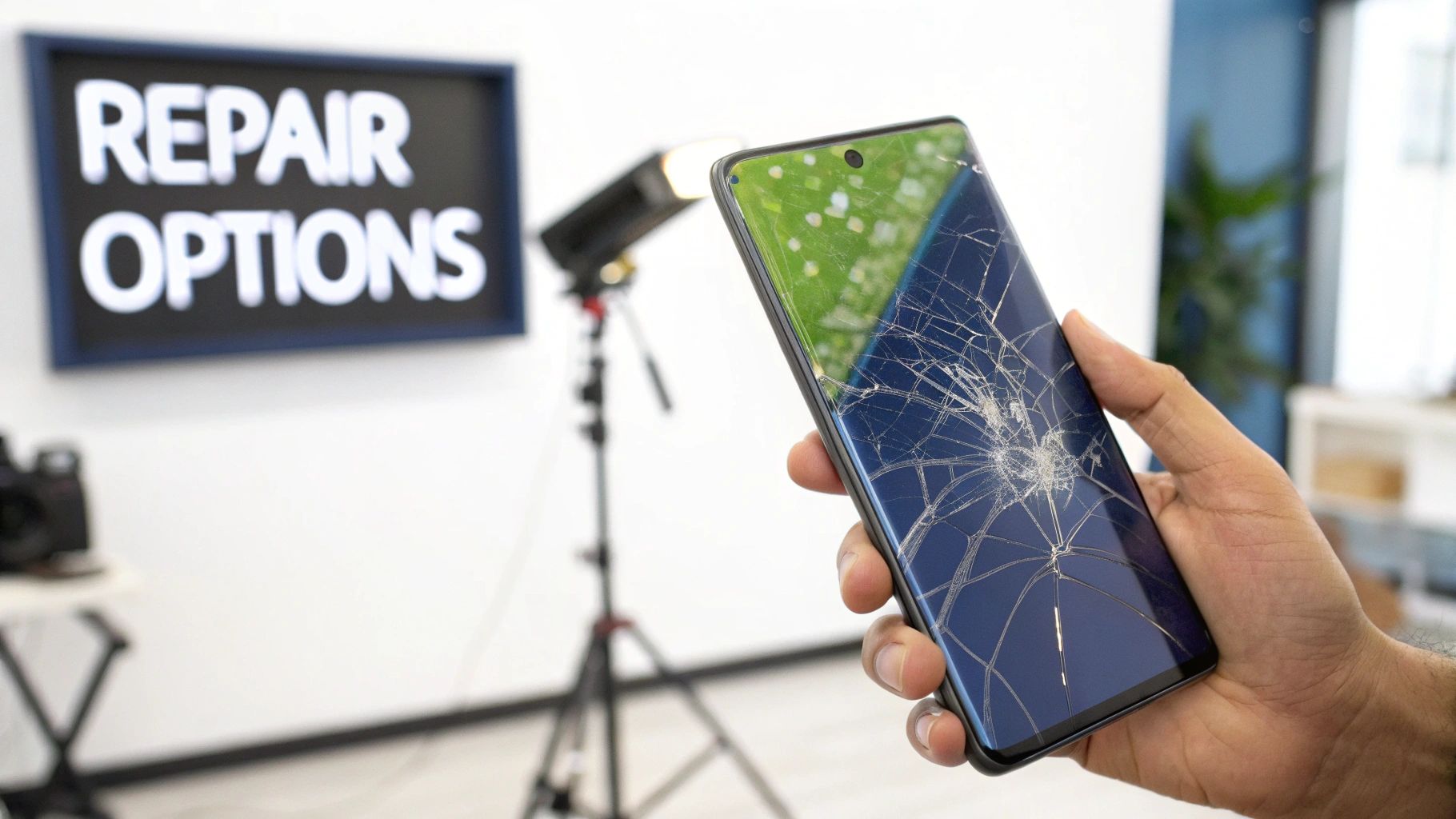
Alt text: A person holds a Google Pixel 7 Pro with a shattered screen, considering their repair options.
So, you're faced with a busted screen. In Australia, you've really got two main paths forward. Each route comes with its own trade-offs in terms of money, time, and the quality of the final fix.
The first option is to find a trusted, independent repair shop. This is the ideal solution for anyone who just wants it done quickly and correctly, without the stress. A skilled technician can perform the replacement efficiently, ensuring every component—especially that finicky fingerprint sensor—is working perfectly after the repair.
Your second path is the do-it-yourself (DIY) route. If you've got a steady hand and a bit of patience, you can save some money by ordering a replacement screen and the right tools. Just be aware that this approach comes with risks, like accidentally causing more damage. It's also vital to understand the difference between various replacement phone screens before you even think about starting.
Understanding the Costs Involved
Let's be honest, cost is a huge factor. In Australia, the price for a Google Pixel 7 Pro screen replacement can swing wildly depending on who you go to and what kind of replacement part they use.
You can expect to pay anywhere from AUD $339 to AUD $550. Some repairers might offer a cheaper "glass only" replacement if the display underneath is still working fine. At the other end of the scale, authorised service centres will charge a premium for official parts and their specialised tools, pushing the cost towards that higher $550 mark.
Choosing between professional and DIY isn't just about the upfront cost. It’s about weighing the value of a warranty, the technician's expertise, and your own time against the money you might save.
Pixel 7 Pro Screen Repair Options At a Glance
To make the decision a bit easier, here’s a quick rundown of what to expect from both professional and DIY repairs for your Pixel 7 Pro screen in Australia.
| Factor | Professional Repair (e.g., Screen Fixed Brisbane) | DIY Repair |
|---|---|---|
| Cost | Higher upfront cost (AUD $339 - $550+) | Lower cost for parts and tools only |
| Time | Fast, often same-day or within a few hours | Can take several hours, depending on your skill |
| Quality | Guaranteed results with high-quality parts | Varies based on part quality and your expertise |
| Risk | Minimal risk; covered by warranty | High risk of further damage (e.g., to cables, battery) |
| Warranty | Typically includes a warranty on parts and labour | No warranty; if you break it, you buy it |
| Tools | Professional-grade tools and adhesives provided | You need to source all necessary tools and adhesives |
Ultimately, professional repair offers peace of mind and a guaranteed outcome, while a DIY fix is a great way to save money if you're confident in your skills.
The Risk of Ignoring the Damage
Tempted to just live with that crack to save a few dollars? It's a bad idea. A small crack can quickly spread, weakening the phone's structural integrity and leaving it vulnerable to dust and moisture getting inside.
Even worse, a damaged screen tanks your phone's trade-in or resale value. No one wants to pay top dollar for a device with a broken display. Investing in a quality repair at a professional shop like Screen Fixed Brisbane doesn't just get your phone working again; it protects its value for the long haul.
Gathering Your Tools and the Right Parts
A successful Pixel 7 Pro screen replacement starts well before you even think about opening the phone. Getting your setup right is the difference between a smooth, satisfying repair and a frustrating, costly mistake. This isn't just about having a screwdriver; it’s about having the correct tools and a high-quality replacement part ready to go.
But before you touch a single tool, back up your phone. Seriously. Use Google One or plug it into your computer. Making sure your photos, contacts, and files are safe is a non-negotiable first step. No repair is worth losing your data.
Essential Tools for the Job
Working on modern smartphones like the Pixel 7 Pro requires precision. Using a blunt kitchen knife or the wrong screwdriver is a surefire way to cause irreversible damage to the frame or slice a critical cable.
Here's what your basic toolkit should look like:
- Heat Gun or iOpener: The Pixel 7 Pro is sealed with strong adhesive. You'll need a controlled heat source to soften it without damaging the delicate OLED display or the battery underneath.
- Suction Cup: This provides the initial leverage you need to create a tiny gap between the screen and the frame once the adhesive is warm.
- Plastic Prying Tools (Spudgers) and Opening Picks: Keep metal away from the phone's internals. Metal tools will scratch the frame and can easily slice through fragile ribbon cables. Thin, anti-static plastic picks are what the pros use.
- Precision Screwdriver Kit: You'll encounter several different types of tiny screws holding down internal brackets. A good quality kit is a must-have.
- Tweezers: Essential for handling small connectors and screws without fumbling and losing them to the carpet forever.
Sourcing a Quality Replacement Screen in Australia
The quality of your replacement screen will make or break this repair. Here in Australia, you'll generally come across three types of screens for a Pixel 7 Pro.
- OEM/Service-Pack Screens: These are genuine parts, identical to the one your phone came with. They guarantee perfect colour accuracy, touch response, and durability, but they're also the most expensive.
- High-Quality Aftermarket: These are new screens made by third-party manufacturers. Quality can vary, but reputable suppliers offer premium aftermarket parts that come incredibly close to the original's performance at a much friendlier price.
- Refurbished Screens: This involves taking an original screen and replacing the cracked glass. You keep the genuine OLED panel, but the quality of the refurbishment can be inconsistent from unknown vendors.
When gathering your parts in Australia, don't forget to factor in postage. You can find resources online to help plan your budget, like this overview of Australian parcel postage costs.
Safety First: Electrostatic Discharge (ESD) Precautions
Your phone's internals are incredibly sensitive to static electricity. One small, unnoticed zap can fry the main board, turning a simple screen repair into a very expensive paperweight.
Pro Tip: Always work on a clean, non-conductive surface. An anti-static wrist strap connected to a grounded point is the best way to protect your device from ESD. If you don't have one, regularly touch a grounded metal object to discharge any static buildup from your body.
The good news is that the growing availability of genuine parts is making DIY repairs a more viable option for many Australians.
Finally, you’ll need the right adhesive to seal the device back up properly. A strong, waterproof seal requires more than just any old glue. You'll want to use specialised two-sided sticky tape designed for phone repairs to ensure a lasting, professional-grade fix.
The Pixel 7 Pro Teardown Process
Right, with your workspace sorted and tools at the ready, it’s time to get into the nitty-gritty of disassembling your Google Pixel 7 Pro. This is where patience is key; rushing can quickly turn a straightforward screen swap into a disaster.
The biggest hurdle is the strong adhesive Google uses to bond the screen to the frame. It's fantastic for water resistance, but a stubborn barrier for repairs.
Getting the Heat Just Right to Loosen the Adhesive
First, apply gentle, consistent heat around the entire edge of the screen using a heat gun on a low setting or an iOpener. Your aim is to warm the adhesive until it becomes soft and gummy, making it easier to slice through. The screen should be hot to the touch, but not so hot you can't briefly leave your finger on it.
Keep the heat source moving in steady sweeps around the phone’s perimeter. Don't let it linger in one spot, as that can kill the sensitive OLED panel.
Crucial Tip: This adhesive cools down and re-hardens fast. You’ll almost certainly need to re-apply heat multiple times as you work. Be patient. Every time you feel resistance build up, stop and reheat. Trying to force it is the number one reason screens get cracked during removal.
Before you make the first cut, a quick mental check is always a good idea.
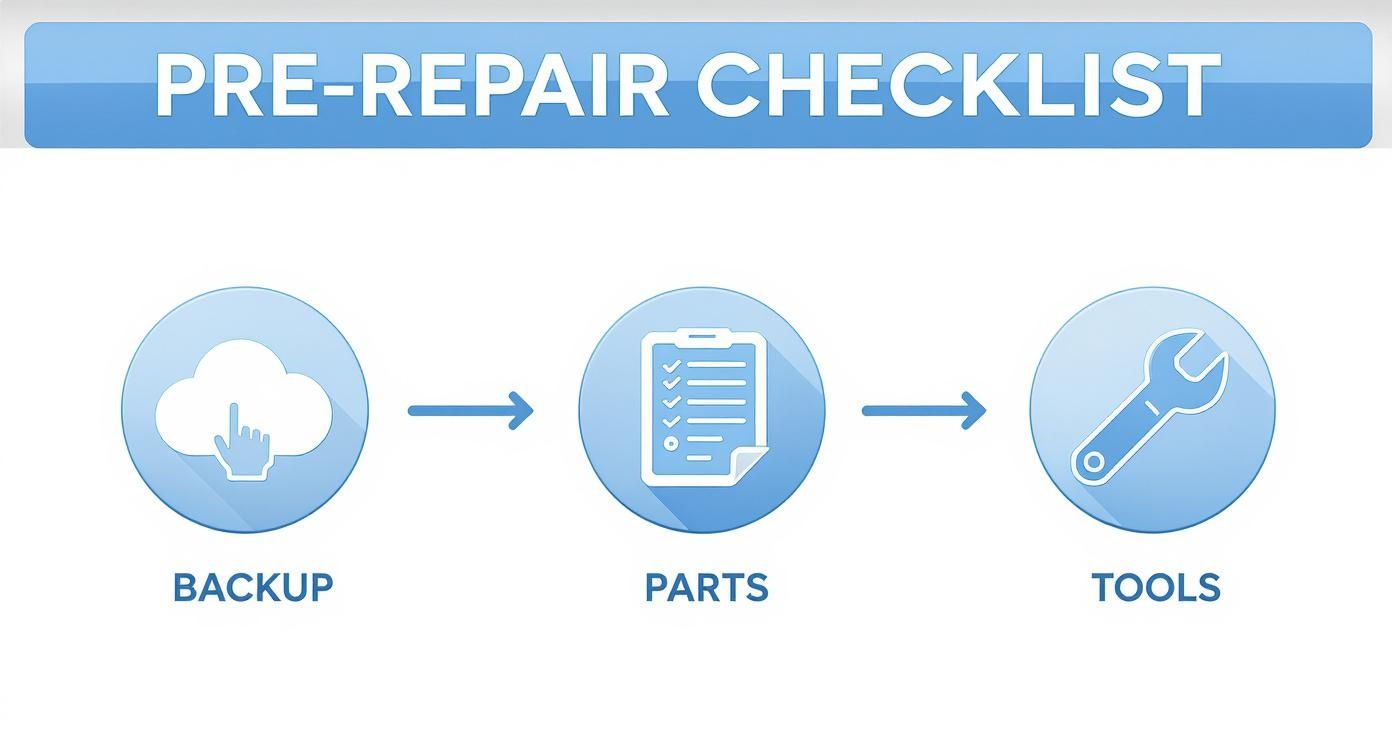
Alt text: A simple diagram showing the pre-repair checklist for a Pixel 7 Pro: backup data, source quality parts, and organise tools.
This simple workflow is the bedrock of any successful repair.
Making the First Gap and Prying the Screen Up
Once the edges are warm, create an opening. Attach a strong suction cup to the screen, as close to the bottom edge as possible. While pulling up gently, try to create a tiny gap between the display and the frame—just big enough to slip a thin opening pick inside.
Use a thin plastic pick, as metal tools will scratch the frame. Once the first pick is in, start sliding it along the bottom edge to cut through the softened adhesive.
Now, it's a slow and steady process working up the sides.
- Insert more picks as you go to stop the adhesive from re-sticking.
- Be super cautious around the top and side edges where delicate display cables are located.
- If your pick gets stuck, stop immediately and apply more heat.
Take your time here. The screen is attached to the main board by two fragile ribbon cables on the left side. If you slide your pick in too deep, you’ll slice right through them.
Disconnecting the Power and Managing the Internals
The moment you can lift the screen assembly, pause. The screen opens from the right side, like a book. Don't try to rip it off completely. The absolute first thing you must do once inside is disconnect the battery.
You'll see a metal shield covering the battery and screen connectors held by a few small screws. Remove them and keep track of them—they aren't all the same size, and putting the wrong screw in the wrong hole can puncture the battery or crack your new screen from behind.
Once the shield is off, use a plastic spudger—never metal—and gently pop the battery connector off the main board. This cuts all power to the device. Only then should you move on to disconnecting the two display cables. For a broader look at screen repairs, have a read of our comprehensive guide on Google Pixel screen replacement.
This teardown is a precise job, but if you follow these steps with care, you’re setting yourself up for a successful Pixel 7 Pro screen replacement.
Installing the New Screen and Reassembling Your Pixel
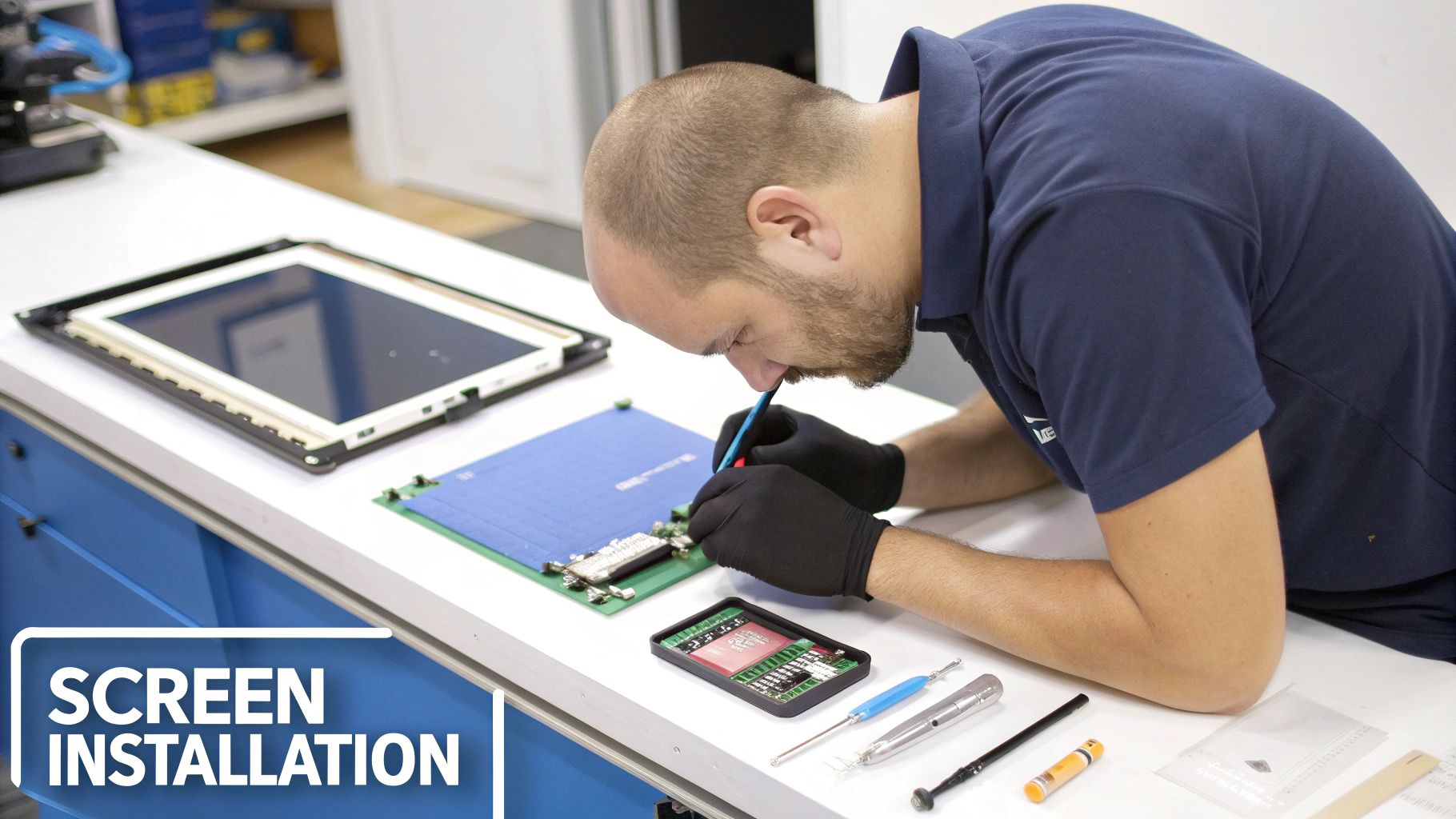
Alt text: A technician carefully performs a Pixel 7 Pro screen replacement at a workbench in Brisbane.
Caption: Google Pixel 7 Pro screen replacement in Brisbane.
Alright, you’ve removed the old, busted screen. Now comes the part where patience and attention to detail really pay off. Rushing the reassembly is a surefire way to cause new problems, like a screen that starts lifting or components that don’t work correctly.
The next few steps are all about careful preparation. Any leftover dust or old adhesive on the phone's frame will stop the new screen from sitting flush and bonding properly.
Creating a Pristine Surface for the New Screen
First things first: get that frame spotless. The factory adhesive leaves behind a stubborn residue that has to go. If you skip this, the new adhesive won't get a proper grip, which compromises the fit and the phone's resistance to dust and moisture.
Use a plastic spudger to gently scrape away the bigger chunks of old glue. Take your time and work your way around the entire frame. Don't use a metal tool—it’ll gouge the aluminium frame in a heartbeat.
Once the main gunk is gone, use a soft, lint-free cloth lightly dampened with isopropyl alcohol. A quick wipe-down will dissolve any remaining sticky residue, leaving the surface perfectly clean and ready for the new screen. A clean frame is non-negotiable for a professional-grade Pixel 7 Pro screen replacement.
Transferring Essential Components
Before you attach the new display, you might need to transplant a few small but critical parts from the old screen. The most common is the earpiece speaker mesh—that tiny filter that stops dust and pocket lint from getting into the speaker.
A classic DIY mistake is forgetting to move the earpiece speaker mesh from the old screen to the new one. This tiny component is crucial for preventing dust from clogging the speaker and muffling your call audio over time.
You may need to apply a tiny bit of heat to the old screen to soften the adhesive holding the mesh. Then, using fine-point tweezers, carefully lift it out and place it into the slot on your new screen.
Depending on your replacement screen's source, other parts like sensor brackets might also need to be transferred. Always lay your new screen next to the old one for a side-by-side comparison to ensure you haven't missed anything.
Connecting Cables and Performing a Dry Test
Now it’s time to connect the new screen, but hold off on sealing it up. We’re going to do a "dry test." This pro-level move lets you check that the new screen is fully functional before you stick it down for good.
Gently line up the two ribbon cables from the new display with their connectors on the main board. Use a plastic spudger to press down gently until you feel a solid click. Never force a connector; if it doesn't snap in easily, it's not aligned properly.
With the display connected, reconnect the battery. Now you can power the phone on and run through the basics.
- Touch Functionality: Open a notes app and type on the keyboard. Drag an app icon all over the screen to check for dead spots.
- Display Quality: Pull up a few different images and check for any weird colours, dead pixels, or lines.
- Brightness Control: Slide the brightness up and down to make sure it responds correctly.
Once you’re happy that everything is working perfectly, power the phone off and disconnect the battery one more time.
Applying the New Adhesive and Sealing the Device
With a successful test done, it's time to seal it up. Give the frame one final check for any stray dust or fingerprints.
Most quality screen kits come with pre-cut adhesive strips designed for the Pixel 7 Pro's frame. These are much better than liquid glue.
Peel the first backing layer off the adhesive strips and carefully apply them to the phone's frame. Press down firmly, then peel off the top protective film.
Now, gently fold the new screen over onto the frame like you’re closing a book. Align the top and bottom edges first. Once you're satisfied, press down firmly but gently around the entire perimeter to seat it into the adhesive.
For a strong, lasting bond, apply light, even pressure for about 30–60 minutes. You can use proper repair clamps or place the phone under a small stack of books. This gives the adhesive time to cure properly, leaving you with a durable, factory-finish seal.
Post-Repair Testing and Fingerprint Sensor Calibration
You’ve got the new screen on and the Pixel 7 Pro is sealed up. The final phase—thorough testing and calibration—is absolutely crucial. A lot of people skip this, which is a classic mistake that can leave you with a phone that looks perfect but doesn't work correctly.
This last check-up makes sure every single function is back to 100%, from touch response to that notoriously finicky under-display fingerprint sensor.
The Essential Post-Repair Checklist
Before using the phone, put that new screen through its paces.
- Display Quality Check: Pull up full-screen images of solid white, black, red, green, and blue to hunt for dead pixels, discolouration, or pressure marks.
- Brightness and Adaptive Brightness: Slide the brightness control up and down. Next, cover the ambient light sensor at the top of the phone to see if the screen dims automatically, then uncover it to check if it brightens.
- Touch and Multi-Touch Functionality: Use a drawing app to scribble all over the screen to find any potential dead spots. Then, use a multi-touch tester app to confirm it registers several fingers at once for gestures like pinch-to-zoom.
A successful Pixel 7 Pro screen replacement is about more than just a crack-free display; it's about restoring full functionality. That includes the often-forgotten proximity sensor. Make a test call and bring the phone to your ear; the screen should reliably turn off.
Calibrating the Fingerprint Sensor
This is the big one. After you replace the screen on a Pixel 7 Pro, the under-display fingerprint sensor will almost certainly refuse to work. This isn't a faulty part—it's by design. The sensor is factory-calibrated to the optical properties of the original screen.
The fix requires Google's official Fingerprint Calibration Tool. It's a simple web-based program that re-links the original sensor to your brand-new display. Connect your Pixel 7 Pro to a computer, go to the tool's website, and follow the prompts. The whole thing only takes a few minutes but it's a non-negotiable step.
Nailing this final step has real financial implications. A glance at local Aussie forums shows that a phone with a cracked screen often has a $0 trade-in value. A proper repair, with a fully calibrated fingerprint sensor, is often the only way to get any of that resale or trade-in value back. You can see how Aussie consumers weigh up these repair costs in discussions around Pixel 7 Pro trade-in values.
Your Pixel 7 Pro Repair Questions, Answered
Even with a detailed guide, it's natural to have questions. A Pixel 7 Pro screen replacement is a significant undertaking, so let's walk through some of the most common queries we get from our customers here in Australia.
Will a Screen Replacement Affect My Phone's Water Resistance?
Yes, it absolutely will. As soon as you open a phone, the original factory-applied water-resistance seal is broken. While a good technician will use high-quality, specialised adhesives to reseal the device as tightly as possible, it won’t be the same as when it was new.
After any screen repair, it's smart to treat your Pixel 7 Pro with more caution around water. The new seal should handle splashes or a bit of rain just fine, but definitely don't submerge it. Think of it as splash-resistant, not waterproof.
How Long Does a Professional Screen Replacement Take?
For a seasoned technician, this is a routine job. At a dedicated repair shop like Screen Fixed Brisbane, a Pixel 7 Pro screen replacement usually takes about 60 to 90 minutes.
This timeframe allows the technician to carefully disassemble the phone, meticulously clean the frame of old adhesive, install the new screen, and run a full set of post-repair diagnostics. This includes the essential fingerprint sensor calibration, making sure every function is perfect before it gets back to you.
A huge advantage of going professional is the speed. A DIY repair can easily take up an afternoon, but an expert can have your phone looking and feeling new in the time it takes to grab lunch.
Should I Repair My Screen or Just Buy a New Phone?
This almost always boils down to a cost-benefit analysis. A top-notch screen replacement for the Pixel 7 Pro can cost up to $550 in Australia. Now, weigh that against the price of a new Pixel or even a good-quality refurbished one.
If your phone is in great shape otherwise—the battery life is still decent and it’s running smoothly—then repairing it is nearly always the more sensible path. Not only is it easier on your wallet, but it's also a far better choice for the environment, keeping a perfectly good device out of e-waste.
Why Won't My Fingerprint Sensor Work After a DIY Repair?
This is, without a doubt, the most common pitfall for at-home repairs on this model. The Pixel 7 Pro’s under-display fingerprint sensor is uniquely paired to its original screen. When you install a new display, that software connection is broken.
To get it working again, you must run Google’s official software calibration tool. It’s a straightforward process that re-links the sensor to the new screen hardware. Without this crucial software step, the sensor simply won't work, no matter how perfectly you've fitted the new display.
Ready to get your Pixel 7 Pro back to perfect condition without the DIY drama? The solution is simple. The expert team at Screen Fixed has the skills, tools, and premium parts to get the job done right.
Book your Pixel 7 Pro screen replacement with Screen Fixed Brisbane today!
Disclaimer: Screen Fixed is an independent repair service and is not affiliated with Google or its authorised service network. All brand names and trademarks are the property of their respective owners.