

That sinking feeling when you check your phone only to find a missed call—despite it being right next to you the whole time—is incredibly frustrating. We've all been there. More often than not, the reason your iPhone isn't ringing isn't a catastrophic failure. It's usually just a simple setting that's been accidentally flipped or forgotten about. Before you jump to conclusions, let's walk through the most common causes and get your phone ringing again.
The Usual Suspects Behind a Silent iPhone
When you realise you’ve missed a call, it’s easy to jump to the worst conclusion: a broken speaker, a major software bug, or an expensive repair bill on the horizon. But before you panic, take a breath. It’s always best to run through the most common (and easily fixable) causes first.
Nine times out of ten, the problem is either a physical switch or a software setting you enabled for a meeting or a movie and forgot to turn off. The solution is often right at your fingertips; you just need to know where to look.
Is It a Physical Switch or a Software Setting?
First things first, check the most obvious culprit: the physical Ring/Silent switch on the upper-left side of your iPhone. This is hands-down the most common reason for a silent iPhone. We flick it to mute our phones in meetings or at the cinema, and it's just so easy to forget to flick it back.
When the switch is pushed towards the back of the phone, you'll see a small orange or red strip, which means you're in Silent Mode. In Australia, this setting stops all ringtones and alert sounds, though your phone might still vibrate. For a deeper dive, you can always check out Apple's official guidelines on this feature.
This simple troubleshooting flowchart gives you a quick visual on where to start. Check the switch, then move on to software settings like Focus mode.
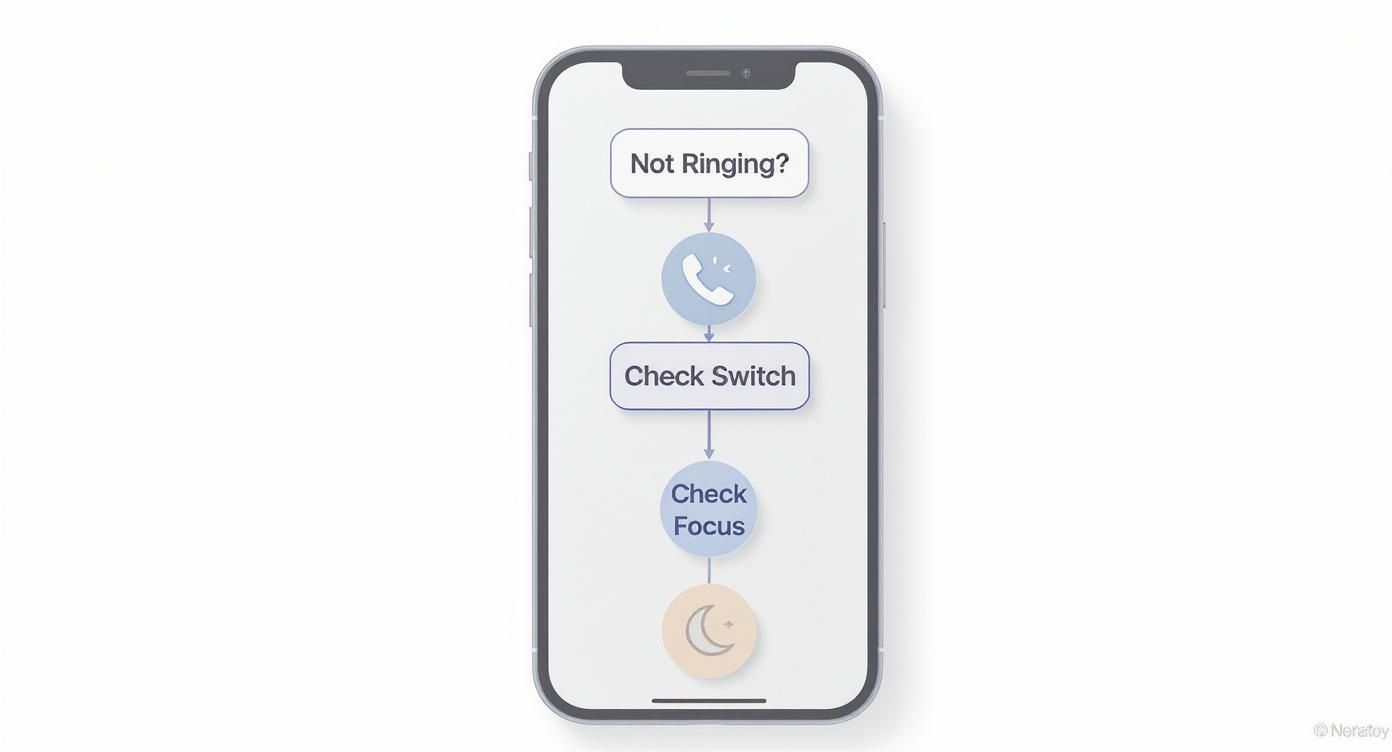
alt text: A flowchart on an iPhone screen showing troubleshooting steps for a silent iPhone, starting with 'Check Silent Switch' and moving to 'Check Focus Mode'.
As you can see, the path to fixing this usually starts with the simplest things before we need to dig any deeper.
Quick Fix Checklist For a Silent iPhone
To help you run through these checks quickly, here's a simple table covering the most common issues at a glance, so you can diagnose and solve the problem in just a few minutes.
| Potential Cause | What to Check | How to Fix It |
|---|---|---|
| Silent Mode is On | Look at the switch on the left side of your iPhone. | If you see an orange strip, flip the switch towards the screen. |
| Focus/Do Not Disturb | Check the Control Centre (swipe down from the top-right). | Look for the Focus icon (moon, bed, etc.). Tap it to turn it off. |
| Volume is Too Low | Press the "Volume Up" button on the left side. | Make sure the ringer volume bar appears on-screen and is turned up. |
| Bluetooth Connection | Check if your iPhone is connected to a Bluetooth device. | Turn off Bluetooth in the Control Centre or disconnect the device. |
| Call Silencing | Go to Settings > Phone > Silence Unknown Callers. | Toggle this setting off if it's enabled and you're missing calls. |
This checklist should cover the majority of software-related reasons your phone isn't ringing. If you've gone through these and are still having trouble, we'll need to look at a few other possibilities.
Understanding Focus and Do Not Disturb Modes
If the silent switch wasn't the problem, your next stop should be the Focus or Do Not Disturb settings. These are brilliant features for cutting out distractions, but they're also notorious for silencing calls you actually wanted to receive.
It's easy to activate a "Work," "Sleep," or "Driving" Focus and not realise it's still running, automatically sending all your calls to voicemail.
The quickest way to check is by swiping down from the top-right corner of your screen to open the Control Centre. Look for the Focus tile—it might show a moon icon for Do Not Disturb or a person icon for Personal Focus. If it's highlighted, a Focus mode is active.
A quick tip from experience: If a Focus mode is on, you'll usually see its icon next to the clock on your Lock Screen. Tapping that icon is the fastest way to get to the setting and turn it off, getting your phone back to ringing in seconds.
Navigating iOS Settings to Unmute Your Calls
Alright, so the physical switch is fine and you’re not stuck in a Focus mode. The next port of call is to dive into your iPhone's software settings. It’s amazing how often a simple, forgotten setting buried deep in iOS is the real reason your phone isn't ringing. These are often the culprits you'd least expect.
One of the most common digital roadblocks is a feature called Silence Unknown Callers. It’s fantastic for stopping spam calls, but it's ruthless – it also blocks calls from any number not saved in your contacts. Think about it: a call from the doctor's office, a new client, or even the delivery driver will go straight to voicemail without making a peep.
To check this, head over to Settings > Phone > Silence Unknown Callers. If that toggle is green, any number that isn't in your contacts, your recent outgoing calls, or from Siri Suggestions is getting silenced. Flicking this off is a critical step to make sure you’re not missing those important, unexpected calls.
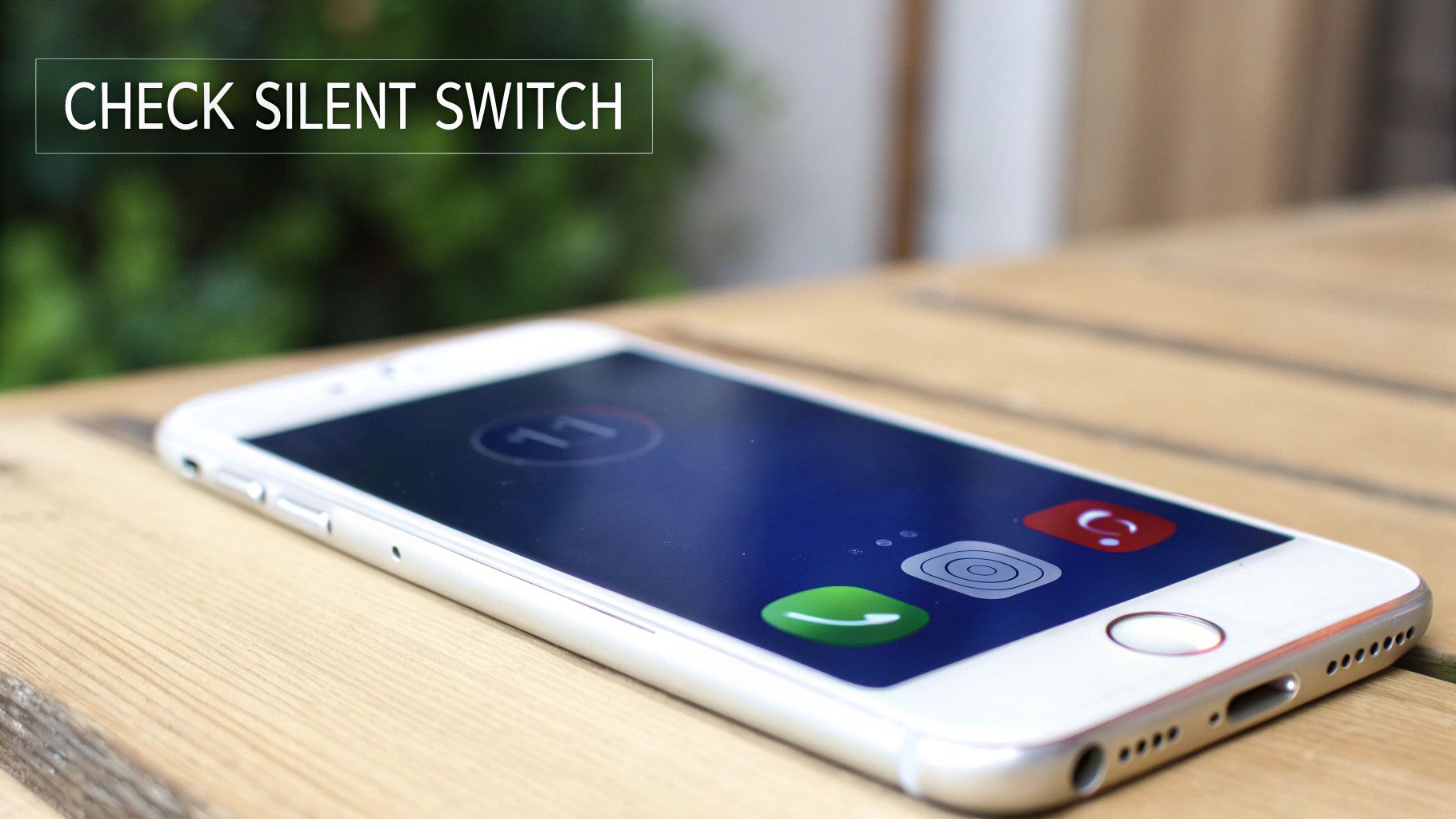
alt text: An iPhone on a wooden table displays an incoming call. An overlay text says 'CHECK SILENT SWITCH', pointing to the ringer switch on the side of the device.
Check Ringer Volume and Selected Ringtone
This one might sound almost too obvious, but you’d be surprised how often it's the simple answer. It's easy to turn down the ringer volume with the side buttons while you're watching a video, thinking you’re only adjusting the media sound.
Let's make sure. Go to Settings > Sounds & Haptics. See the "Ringer and Alerts" slider? If it’s pushed all the way to the left, that's your problem. Slide it back to the right to crank the volume up.
Here's a pro tip: You can enable "Change with Buttons" on this screen. It lets the side volume buttons control your ringer, which is handy, but just be aware that it also makes it easier to accidentally silence your phone.
While you're in that menu, tap on "Ringtone." Just double-check that you actually have a sound selected and not "None." It’s a simple mistake, but one that guarantees a silent phone for every single call.
The Phantom Bluetooth Connection
Here's another classic scenario: the phantom Bluetooth connection. Your iPhone might be quietly sending all its audio to a device you're not even using anymore. We're talking about those headphones left in your gym bag or a portable speaker sitting in another room. Your phone thinks it's ringing loud and clear, but the sound is playing somewhere else entirely.
The quickest way to diagnose this is by opening the Control Centre. If the Bluetooth icon is blue, something is connected. Tap the icon to temporarily disconnect everything. If your phone suddenly starts ringing properly again, you've found your culprit.
A few things to check:
- Glance at the Control Centre: Swipe down from the top-right corner and look at the Bluetooth icon. If it's lit up, there's an active connection.
- Review Connected Devices: For a more detailed look, go to Settings > Bluetooth. This will show you a full list of paired and connected devices.
- "Forget" Old Devices: If you spot old speakers or headphones you don’t use anymore, tap the little 'i' icon next to them and select "Forget This Device." This will stop your iPhone from automatically connecting to them in the future.
Working through these iOS settings is really just a process of elimination. By methodically checking each one, you can rule out the digital gremlins and get your phone ringing again. Of course, if you’ve tried all these software fixes and are still met with silence, it might be time to consider the problem is hardware-related and look into professional iPhone Repairs Brisbane.
Tackling Common Software and Update Glitches
So, you’ve double-checked all the settings and your iPhone still won’t ring. What gives? At this point, it’s probably not something you did. Often, the real culprit is a sneaky software bug or a glitch that snuck in with the latest iOS update.
These issues are frustrating because there's no obvious setting to flip. The good news? The fixes are usually pretty straightforward.
Software conflicts are more common than you might think. In Australia, issues like notification failures can be a common complaint after a big iOS update, which can sometimes throw a spanner in the works for core functions like sound and alerts. You can even see how software glitches cause strange issues for other products, like a mute button that seems to glitch out during meetings.
alt text: A close-up view of an iPhone lock screen at 10:44, showing a notification that says 'Check Focus Mode' as a reminder.
The Power of a Simple Restart
Before you get lost in complex solutions, let's start with the oldest trick in the book: a simple restart. It’s also called a soft reset, and it’s the first thing you should always try.
Turning your phone off and on again clears out its temporary memory (RAM), shuts down every single running process, and reloads the operating system from scratch. Think of it as giving your iPhone a fresh start without touching any of your personal data, apps, or settings.
This one step fixes a surprising number of minor bugs that mess with your phone's sound. It's a powerful tool for all sorts of unexplained problems, from a frozen app to, you guessed it, a phone that refuses to ring. If your device is also freezing or lagging, you might want to check out our guide on how to fix a phone that keeps hanging.
Keep Your iOS Up to Date
This might sound a bit odd, especially if you think an update caused the problem in the first place. But keeping your iOS current is vital for your phone's long-term health.
Apple often pushes out smaller, follow-up updates specifically to crush bugs that were found in a major release. If a lot of people are suddenly reporting their iPhones aren't ringing, it’s likely a known issue that Apple will patch in the next minor update (like an iOS 17.1.1 coming right after 17.1).
To check for an update, just head over to:
- Settings
- General
- Software Update
Your iPhone will look for any new updates. If you see one, download and install it. This not only squashes bugs but also keeps your device safe with the latest security fixes.
Identifying Potential Hardware Issues
So, you've gone through every software setting imaginable and your iPhone is still giving you the silent treatment. At this point, it’s time to consider that the problem might not be with the software at all. It could be a hardware issue.
This doesn't automatically mean your phone is a goner. Sometimes it’s something as simple as pocket fluff clogging up the works. Other times, it could point to a more serious problem with the speaker or its internal connections. Let’s walk through a few practical ways to figure out if you're dealing with a hardware fault.
The Speaker Test Beyond Ringtones
First things first, we need to find out if your iPhone’s speaker is even capable of making a sound. Your ringtone is just one specific type of audio, so a great diagnostic trick is to try playing something else entirely.
Fire up an app that plays audio—think YouTube, Spotify, or Apple Music. Pick a song or a video and crank the volume right up with the side buttons.
If you hear clear, loud audio, then you can breathe a little easier. It means your speaker is physically fine, and the issue is almost certainly hiding somewhere in your software or notification settings.
But, if the sound is fuzzy, distorted, or there’s just dead silence, you’re probably looking at a hardware problem. This is a big clue that the speaker component itself might be on its last legs.
A Close Inspection for Debris
Think about where your iPhone spends most of its time—pockets, bags, you name it. The speaker grilles, those tiny holes at the bottom of your phone, are prime real estate for dust, lint, and all sorts of gunk. Over time, this debris can get so packed in that it physically blocks sound, effectively silencing your ringtone.
Grab a bright light and have a good look at the speaker grilles and the charging port. See anything blocking the way? If so, you can try to gently clean it out.
A Word of Caution: Whatever you do, don't go poking in there with sharp metal objects like paper clips or pins. It's a surefire way to cause permanent damage to the delicate speaker mesh or charging contacts. Instead, a soft, dry, unused toothbrush or a can of compressed air (used in short bursts from a distance) is a much safer bet.
If you’ve given it a clean and the sound hasn’t improved, the problem is likely more than just surface-level grime. The internal components of modern phones are incredibly complex. For a better idea of what's involved, you can learn more about what goes into an iPhone 14 loudspeaker replacement.
Software Fix vs Hardware Repair
Knowing when to stop tinkering and when to call in a professional can be tricky. This quick comparison should help you make the right call.
| Symptom | Likely Cause | Recommended Action |
|---|---|---|
| No sound from any app (Music, YouTube, etc.) | Hardware | Your speaker is likely faulty and needs a professional diagnosis. |
| Sound is crackly, muffled, or distorted | Hardware | This usually points to debris or a damaged speaker component. |
| Ringtone works on speakerphone, but not normally | Hardware/Software | This could be a complex issue that needs an expert to diagnose properly. |
| All software fixes failed, still no ringtone | Hardware | It's highly likely a hardware failure that requires a repair. |
If all signs are pointing to a hardware problem, your best bet is to consult a professional. Continuing to mess with it yourself could easily make things worse. A trusted technician can diagnose the issue correctly and get your phone ringing again.
Knowing When It's Time for Professional Help in Brisbane
So, you've tried every trick in the book. You’ve restarted your iPhone, meticulously combed through every software setting, and even gently cleaned the speaker grille. But your phone is still stubbornly silent, and you're left wondering why your iPhone is not ringing despite all your efforts.
This is the point where DIY troubleshooting hits a wall.
If you keep poking around when the problem is clearly deeper, you can actually risk causing more damage. And if you’ve gone as far as a full factory reset and the issue still persists, that's a massive clue. It's almost certainly not your software anymore—it points directly to a hardware failure.
alt text: A white iPhone on a desk shows 'Test Speaker' on its screen. Next to it are earbuds and a plant, symbolizing audio hardware testing.
Clear Signs of Hardware Failure
Sometimes the signs of a hardware issue are subtle, but often they're pretty obvious. If you've reached this stage, it's time to stop guessing and get an expert opinion. Trying to fix a hardware problem without the right tools can quickly turn a small issue into a major—and more expensive—one.
Here are the definitive signs that it's time to bring your device to a specialist:
- Total Silence: You’ve tested audio in multiple apps (like YouTube or Spotify), and there is absolutely zero sound coming from the main speaker.
- Intermittent Audio: The sound cuts in and out, or maybe it only works when you hold the phone at a weird angle. This often points to a loose connection or a component that's on its last legs.
- Distorted or Crackling Sound: Any audio you can hear is heavily distorted, muffled, or crackles, even at low volumes. This is a classic symptom of a physically damaged speaker.
- No Improvement After a Full Reset: A factory reset is the ultimate software fix. If the problem is still there afterwards, it is 100% a hardware issue.
Once you see these symptoms, it's best to stop troubleshooting. A professional diagnosis is the fastest and safest way forward, protecting your device’s delicate internal components from accidental damage.
Why a Professional Diagnosis Matters
Bringing your silent iPhone to a specialist is the smartest next step. Technicians don't just guess; they use specialised diagnostic tools to pinpoint the exact source of the problem. This is a crucial distinction, because a dead speaker isn't always caused by the speaker itself. For a better idea of what's involved, our guide to iPhone repair in Brisbane shows the skilled work that goes into these fixes.
The real culprit could be a failed speaker component, a damaged flex cable connecting it to the logic board, or even a tiny fault on the logic board itself.
A professional assessment finds the specific failed part, ensuring that only the necessary components are replaced. This approach not only guarantees a reliable, lasting repair but also saves you time and money in the long run. Most importantly, it will finally put an end to the frustrating silence when your iPhone is supposed to be ringing.
Common Questions About iPhone Ringing Issues
Even after trying all the standard fixes, you might still be scratching your head. It's completely normal. The way iPhones handle calls and notifications can feel a bit like a mystery, especially with so many settings that can overlap and cause confusion.
Here are some straightforward answers to the most common questions we get from our customers in Brisbane when they come to us asking, "why is my iPhone not ringing?"
Why Does My iPhone Only Ring For Certain People?
This is almost always a classic case of Focus mode or Do Not Disturb doing its job a little too well. These features are designed to create a VIP list for your phone, letting calls from specific contacts get through while silencing everyone else.
To sort this out, head into Settings > Focus. Tap on whichever Focus profile is active (it might be "Do Not Disturb," "Work," or "Sleep") and check the "Allowed People" list. If a contact isn't on that list, their calls will go straight to voicemail whenever that Focus is on.
Can a Bad iOS Update Stop My iPhone From Ringing?
Yes, absolutely. We see this happen from time to time. While Apple's updates are meant to bring improvements and security patches, they can occasionally introduce new bugs that mess with core functions like sounds and notifications. If your ringing problem started right after you updated your iPhone, the update itself is the most likely culprit.
Your best bet is to check for a small follow-up update. Apple is usually pretty quick to release patches for these kinds of bugs. You can check by going to Settings > General > Software Update. If there's nothing new available, a simple soft reset can often clear the glitch and get things back to normal.
My iPhone Only Vibrates But Makes No Sound What Is Wrong?
This is the number one symptom of your iPhone being in Silent Mode. Before you dive back into the settings, check the physical switch on the upper-left side of your device.
If you can see a little orange line, it means your phone is set to silent. Just flick the switch back towards the screen to turn the ringer back on. If that doesn't fix it, your next stop is Settings > Sounds & Haptics. Make sure the ringer volume slider is turned up and that you actually have a ringtone selected.
Will a Factory Reset Fix My iPhone Not Ringing?
A factory reset is the nuclear option of software troubleshooting. It often does fix stubborn, unexplainable glitches because it wipes the slate clean. However, it also completely erases all your data—photos, contacts, apps, everything. For this reason, it should always be your absolute last resort, and only after you’ve made a full backup of your iPhone.
If the problem is purely software-related, a factory reset will likely solve it. But if the issue is a hardware failure (like a dead speaker), the problem will remain even after the reset. This confirms you need a professional repair.
For more advanced call management, especially when you know your iPhone isn't ringing reliably, you could look into third-party solutions. Something like the Onsilent Smart Voicemail app can help manage calls you might otherwise miss.

Ultimately, if software fixes fail, it's a strong sign that you're dealing with a hardware problem. Don’t hesitate to get a professional opinion for a reliable fix.
If you've exhausted all options and your iPhone still won't ring, the team at Screen Fixed is here to help. We offer expert diagnosis and professional iPhone repairs in Brisbane to get your device working perfectly again. Book your repair with Screen Fixed Brisbane today!
Disclaimer: Screen Fixed is an independent repair service and is not affiliated with Apple Inc. iPhone, iOS, and Apple are trademarks of Apple Inc.