

Is your MacBook acting up? Maybe it’s running painfully slow, crashing randomly, or just flat-out refusing to start. Before you panic, there’s a powerful built-in tool that can help you figure out what’s wrong: MacBook Safe Mode. It’s the first step any seasoned technician takes, stripping your Mac back to basics to see if a troublesome app or a corrupted file is causing the chaos.
This guide explains what Safe Mode is, how to use it, and what the results can tell you about your Mac's health.
Meet Your Mac's Built-In Mechanic
Think of Safe Mode as putting your Mac into a diagnostic lockdown. A normal startup is a busy affair—your Mac loads your desktop background, every login item, all your custom fonts, and a whole bunch of system extensions and background processes. Usually, this all works together seamlessly. But if just one of those items is buggy or conflicts with something else, it can bring your entire system to a grinding halt.
Safe Mode cuts through the noise. It deliberately stops all non-essential software from loading, firing up macOS with only the bare minimum needed to run. This clean, simplified environment is the perfect starting point for your detective work. If your MacBook suddenly behaves perfectly in Safe Mode, you’ve got a massive clue: the problem is almost certainly software-related, not a deep-seated hardware failure.
When Should You Use Safe Mode?
You don't need to be a tech wizard to know when it's time to call on Safe Mode. It’s the go-to first step for a reason. Here in Australia, it's standard practice; repair shops often report that nearly 45% of MacBook troubleshooting jobs start with a simple boot into Safe Mode. It’s exactly what Apple themselves recommend for tracking down stubborn issues.
Here are a few classic signs that it's time to give Safe Mode a try:
- Your Mac is stuck on the startup screen: If you’re staring at the Apple logo or a progress bar that never moves, Safe Mode can often force it past the piece of software that’s causing the jam.
- The system is incredibly slow or keeps freezing: By shutting down all the extra processes that could be secretly hogging your Mac's resources, Safe Mode helps you see if a rogue app is the real culprit.
- Apps are crashing for no reason: Software conflicts are a common cause of instability. If the crashing stops in Safe Mode, you know a third-party app or extension is likely to blame.
- Problems started right after installing new software: This is a classic. Booting into Safe Mode is the quickest way to confirm if that new app or driver is the source of your headaches.
By isolating the operating system from all the optional extras, MacBook Safe Mode gives you a clean, controlled space to work. It’s not designed to fix the problem on the spot, but to create the perfect conditions to figure out exactly what’s gone wrong.
Ultimately, Safe Mode helps you answer the most important question: "Is this a software problem or a hardware problem?" Getting that answer can save you hours of guesswork and point you toward the right fix, whether that’s just uninstalling an app or booking a professional repair with a service like Screen Fixed Brisbane. The next steps will walk you through how to get into this mode and what to check once you’re there.
How to Start Your MacBook in Safe Mode
Getting your MacBook into Safe Mode is pretty straightforward, but the steps are totally different depending on what kind of chip is running the show. Since Apple swapped from Intel processors to its own Apple Silicon (the M1, M2, and M3 chips), we now have two distinct ways to get this done.
First things first, you need to know which type of Mac you have. Don't worry, it's easy to figure out. I'll walk you through the right steps for your machine so you can get into this powerful diagnostic mode without any drama.
For Macs with Apple Silicon (M1, M2, M3 Chips)
If you've bought a MacBook in the last few years, it's almost certainly running on Apple Silicon. For these newer models, the whole startup process is handled through a special 'Startup Options' screen, which you get to by using the power button in a specific way.
Here’s the step-by-step for getting an M-series Mac into MacBook Safe Mode:
- Shut Down Your Mac Completely: Head to the Apple menu in the top-left corner and click "Shut Down." Make sure you wait until the screen is totally black and the machine is fully powered off.
- Press and Hold the Power Button: Find the power button (it's also your Touch ID button) and press it down. Keep it held; a quick tap won't work here.
- Wait for Startup Options: Keep holding that button until you see "Loading startup options" pop up on the screen. Once you see that message, you can let go.
- Select Your Startup Disk: You’ll see an icon for your main drive, usually called "Macintosh HD." Go ahead and select it.
- Press and Hold the Shift Key: Now, hold down the Shift key on your keyboard. While you're holding it, click the "Continue in Safe Mode" button that appears.
- Release the Shift Key: As soon as you click the button, you can release Shift. Your Mac will restart, and you might have to log in twice. On the second login screen, look for the words "Safe Boot" in red text up in the top-right corner—that's your confirmation.
This flowchart gives you a quick visual on when Safe Mode is your best bet.
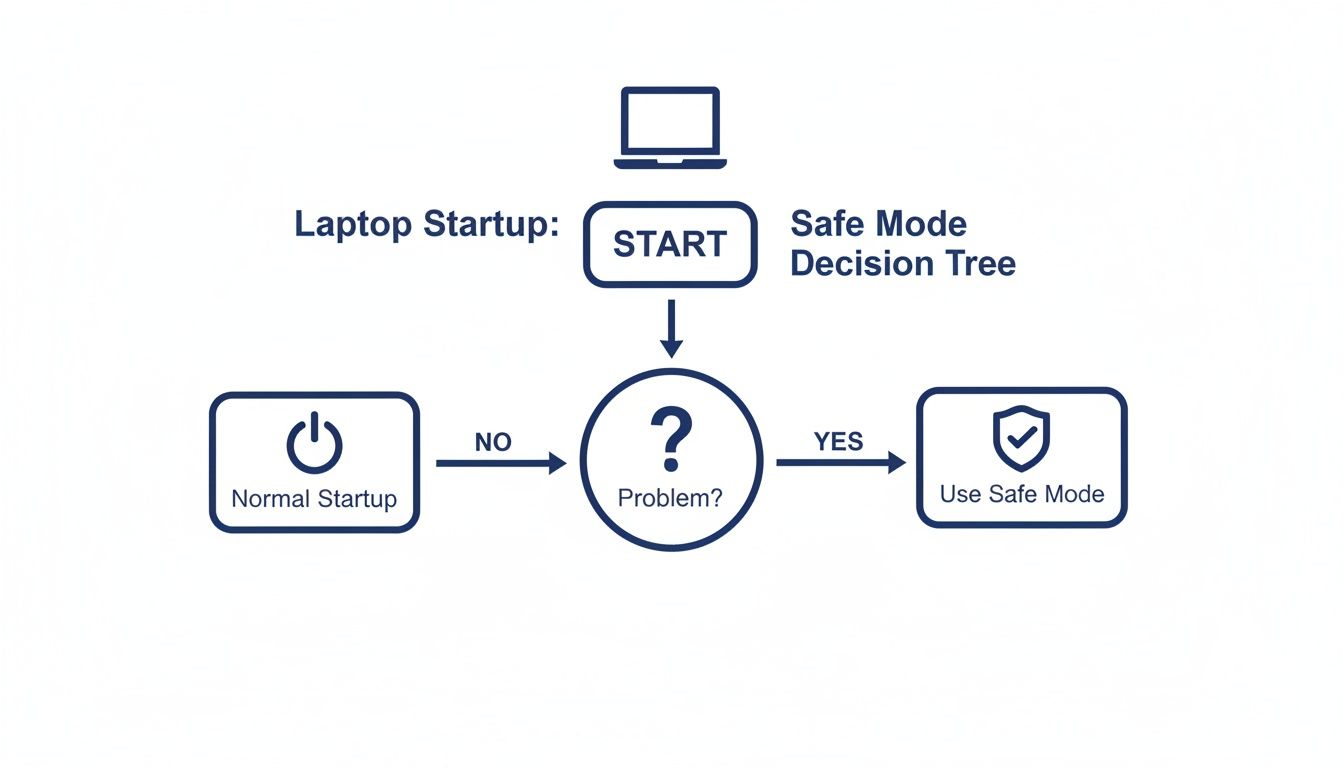
As you can see, if your laptop is giving you grief, Safe Mode is the first diagnostic stop.
For Macs with an Intel Processor
For older MacBooks running on an Intel chip, booting into Safe Mode uses the classic method Mac users have known for years. It's all about a simple key combination you hit right after you power it on.
Here’s how to do it on an Intel-based Mac:
- Turn On or Restart Your Mac: If it's off, press the power button. If it's already on, just go to the Apple menu and choose "Restart."
- Immediately Press and Hold the Shift Key: The second you hear the startup chime or see the Apple logo appear, press and hold the Shift key. Timing is everything here, so do it right away.
- Keep Holding the Shift Key: Don't let go of the Shift key until the login window appears on the screen. This will take a bit longer than a normal startup because macOS is running a disk check in the background.
- Release and Log In: Once you see the login screen, you can finally release the Shift key. You might be asked to log in twice. Just like the Apple Silicon Macs, you'll know you're in when you see "Safe Boot" in red in the menu bar.
If your Mac refuses to power on at all, getting into Safe Mode is a great first move once you've got it running again. For those deeper power issues, this guide on fixing a MacBook Pro that won't turn on can be a real lifesaver. And if your keyboard is acting up and preventing you from holding down Shift, our article on what to do when a MacBook keyboard not working might have the fix.
Important Note: Starting up in Safe Mode is always going to feel slow. That's completely normal. Your Mac is busy running health checks on your startup disk and loading only the bare essentials, so don't be alarmed by the delay.
Once you’ve successfully booted into Safe Mode, you're all set to start troubleshooting.
What to Do Once You Are in Safe Mode
Alright, you've successfully booted your Mac into Safe Mode. You'll know it's worked because of that little red “Safe Boot” text tucked away in the corner of the login screen. Now, the real detective work begins.
You’ve basically created a clean, controlled environment for your Mac. Your next job is to use it to gather clues and figure out what’s causing all the trouble. Think of it like being an investigator at a quieted-down crime scene—all the usual noise is gone, and you can finally focus on the actual evidence.
The very first thing to do is simply observe. Is the problem you were experiencing gone? If your Mac was crashing, freezing, or running at a snail's pace before, see how it behaves now. Use it for a few minutes. Open Finder, browse some system folders, and see if that sluggishness or instability is still there.
If your Mac is suddenly running smoothly, that's fantastic news. It’s a massive clue that strongly suggests the culprit is a piece of software, not a hardware fault.

Begin Your Diagnostic Checklist
Now that you have this crucial piece of information, it’s time to move from just watching to taking action. A methodical approach is absolutely key here; don't just start deleting things randomly. Follow a logical sequence of checks to narrow down the potential troublemakers.
Your primary suspects are almost always third-party applications and the various files they install. These can include:
- Login Items: Apps that launch automatically every time you start your Mac.
- Launch Agents and Daemons: Sneaky background processes that run without you even seeing them.
- Recently Installed Software: An app or driver you added right before the problems began.
- Corrupted Cache Files: Temporary files that have become damaged over time.
By tackling these areas one by one, you can systematically rule out possibilities and zero in on the source of the issue. This isn’t about a quick fix, but a deliberate process of elimination.
Check Your Login Items
One of the most common causes of startup problems and general sluggishness is a misbehaving Login Item. These are the applications you’ve set to launch automatically when you log in. While super convenient, a buggy or outdated app in this list can wreak havoc. Since Safe Mode disables all of them, it’s the perfect place to manage them.
Here's how you can check them out:
- Click the Apple menu in the top-left corner and go to System Settings.
- Navigate to General and then select Login Items.
- You'll see a list under "Open at Login." This is your list of suspects.
- Select an item you don't recognise or one from a recently installed app and click the minus (-) button to remove it.
Don't stress, removing an app from this list doesn't uninstall it. It just stops it from starting up on its own. After removing one or two items, restart your Mac normally to see if the problem is resolved. If it is, you've found your culprit.
By methodically removing and testing your Login Items, you are performing one of the most effective troubleshooting steps available in MacBook Safe Mode. It’s a simple process that often solves complex-seeming problems.
Uninstall Recently Added Applications
If managing Login Items doesn't solve the problem, your next move is to think about what's changed on your Mac recently. Did the issues pop up right after you installed a new piece of software, a new printer driver, or some kind of system utility? If so, that new software is a prime suspect.
While in Safe Mode, you can safely uninstall applications you suspect are causing the conflict. Just head to your Applications folder, find the app in question, and drag it to the Trash. For some apps with deeper system hooks, you might need to use a dedicated uninstaller provided by the developer. Once it's gone, restart your Mac normally and see if the issue persists.
This is a really common scenario for many Australian Mac users. In fact, recent data shows that a significant number of MacBook owners face these kinds of software-related startup issues. Statistical analysis from a recent digital device survey revealed that 32% of MacBook owners in Australia encountered startup errors that could be resolved using safe mode within the last year.
Run Disk Utility First Aid
While Safe Mode automatically runs a basic check of your startup disk, it’s always a good idea to run a more thorough scan using Disk Utility. This built-in tool can find and repair errors related to the formatting and directory structure of your disk.
- Open the Utilities folder, which you'll find inside your Applications folder.
- Launch Disk Utility.
- Select your startup disk (usually named "Macintosh HD") from the sidebar on the left.
- Click the First Aid button at the top of the window and then click Run.
This process can take a few minutes, but it’s an essential step to rule out any disk-related errors. If First Aid finds and repairs issues, restart your Mac to see if your problem is solved. If it finds errors it can't repair, it may be time to seek professional help from a technician at Screen Fixed Brisbane, as this could point to a more serious drive issue.
Understanding How Safe Mode Fixes Problems
Ever wondered what your MacBook is actually doing behind the scenes when you boot into Safe Mode? It’s not just a stripped-down version of macOS; it’s an active diagnostic and repair process kicking into gear. Think of it like a mechanic running a full engine diagnostic—a whole series of automated housekeeping tasks are performed to clean things up and check for errors.
This behind-the-scenes work is precisely why MacBook Safe Mode is so effective at fixing stubborn issues. It doesn’t just stop problematic software from loading; it actively tries to fix the underlying gremlins that might be causing all that instability in the first place. Once you understand what it's doing, you'll see why this simple tool often resolves surprisingly complex problems.

So, what exactly happens during that slow boot-up process? Your Mac is running through a specific checklist of repair and cleanup tasks designed to get things back on track.
Here's a simple breakdown of the main jobs your Mac tackles automatically whenever you start it in Safe Mode.
What Your Mac Does Automatically in Safe Mode
| Automated Action | What It Solves |
|---|---|
| Verifies Startup Disk | Scans and repairs directory structure errors, much like running First Aid in Disk Utility. This fixes corruption that can prevent your Mac from booting. |
| Loads Only Essential Kernel Extensions | Prevents third-party drivers and system modifications from loading, which helps isolate conflicts causing crashes or freezes. |
| Disables All Startup & Login Items | Stops apps set to launch automatically at login. A single faulty app here is a common reason a Mac gets stuck during startup. |
| Disables User-Installed Fonts | Only loads the core system fonts. A corrupted or poorly made font can crash specific applications or even the entire system. |
| Clears System, Kernel & Font Caches | Deletes temporary files that can become corrupted over time, causing slowdowns, random crashes, and other strange behaviour. |
Each of these steps plays a vital role in creating a stable environment, allowing you to troubleshoot without interference. Let's dig a little deeper into what each of these actions really means for your Mac.
Forcing a Startup Disk Check
The very first thing macOS does during a Safe Boot is perform a mandatory check of your startup disk. This is a lot like running the First Aid function in Disk Utility. It meticulously scans the directory structure of your hard drive or SSD, hunting for errors that could stop your Mac from starting up correctly or make your files disappear.
This check looks for and tries to repair things like corrupted file system data or directory inconsistencies. If your Mac has been shutting down improperly or crashing a lot, these tiny data errors can pile up. The forced disk check in Safe Mode is a powerful first line of defence against these kinds of issues.
Disabling Non-Essential Software
One of the most critical things Safe Mode does is create a clean slate by stopping non-essential items from loading. This is the heart of its diagnostic power, as it helps you figure out if a conflict with third-party software is the root of your problems.
Here’s a quick rundown of what gets temporarily put on hold:
- Login Items: All the applications you've set to launch automatically when you log in are blocked. A single faulty login item is a classic culprit for a Mac that freezes on startup.
- Third-Party Fonts: Only the standard system fonts get loaded. It might sound strange, but a corrupted or badly made font file can cause specific applications—or even the whole system—to crash.
- System Extensions: It prevents most kernel extensions (kexts) and other system extensions from loading. These are powerful bits of software, often installed by drivers or advanced utilities, that can cause serious instability if they clash with macOS.
By blocking these elements, Safe Mode creates a stable environment. If your Mac runs perfectly in this mode, you can be almost certain that one of these disabled items is the source of your trouble.
Clearing System Caches
Over time, your Mac builds up a massive collection of temporary files known as system caches. These files are meant to help macOS and your apps run faster by storing frequently used data. The problem is, these caches can sometimes become corrupted, leading to a whole host of bizarre issues like sluggish performance, random crashes, and apps that refuse to launch.
When you boot into MacBook Safe Mode, it automatically deletes many of these system caches. This forces your Mac to rebuild them from scratch the next time you start up normally. Think of it as a digital spring clean, clearing out old, potentially buggy data and replacing it with fresh, clean versions. This one action is often enough to solve a huge range of performance problems.
Safe Mode is also a handy tool for dealing with malware. By loading only a minimal set of drivers and programs, it can make it easier to find and remove malicious software that might be hiding. Learning how to prevent the Trojan Horse virus and other threats is a key part of keeping your Mac healthy in the long run.
Ultimately, all these automated actions work together to diagnose and, in many cases, resolve common issues without you having to lift a finger. If your problems stick around even after these checks, it might point to a deeper issue that needs an expert eye from a service like Screen Fixed Brisbane.
Exiting Safe Mode and Planning Your Next Steps
Getting out of MacBook Safe Mode is the easiest part. All you need to do is restart your Mac the way you always do—head to the Apple menu and click "Restart". Your Mac will fire back up in its normal operating state, loading all your usual login items, fonts, and system extensions.
But the real work starts now. The whole point of using Safe Mode was to gather clues, and now it's time to figure out what they mean. Your next steps all hinge on one simple question: did the problem go away when you were in Safe Mode?
The Problem Went Away in Safe Mode
If your Mac ran smoothly in Safe Mode, that’s great news! You’ve pretty much confirmed the culprit is a software issue. The problem is almost certainly a third-party login item, a sneaky background process, or an app you installed recently. Now you just need to play detective and find the specific troublemaker.
This is where a methodical process of elimination comes in. You'll need to restart your Mac normally and start disabling or removing potential culprits one by one until the issue is gone.
-
Check Your Login Items: Head back to
System Settings > General > Login Items. Start toggling off the items you added most recently. Disable one, restart your Mac, and see if the problem is fixed. If not, re-enable it and move to the next one. - Uninstall Recent Apps: If the login items aren't to blame, cast your mind back to any software you installed just before things started going haywire. Uninstall those applications completely, restart, and test again.
- Let The Caches Clear: Sometimes, the simple act of booting into Safe Mode and then restarting normally is enough to solve the problem. This is because Safe Mode flushes out system caches that might have become corrupted over time.
The key here is patience. It can feel a bit tedious restarting over and over, but it’s the most reliable way to pinpoint a software conflict without taking more drastic measures like a full system reinstall. This systematic approach is often all it takes to fix those annoying software-based freezes and crashes.
The Problem Persisted in Safe Mode
If your MacBook was still crashing, freezing, or crawling along even in Safe Mode, this points to a deeper issue. Because Safe Mode strips everything back to the essentials, a problem that sticks around suggests the cause lies with either the core macOS installation itself or, more seriously, a hardware fault.
This is a more serious situation, but don't panic. The issue could be a corrupted system file that even Safe Mode can't bypass, or it could be a red flag for a failing component like your storage drive, RAM, or the logic board. If your device is struggling to even power on, our guide on what to do when your MacBook Air is not turning on has more specific troubleshooting steps.
For these more stubborn issues, your best bet is to get a professional opinion. A skilled technician can run advanced hardware diagnostics that simply aren't available to everyday users. If you're in Queensland, bringing your device to a trusted service like Screen Fixed Brisbane ensures an expert can properly diagnose the fault and recommend the right fix, saving you the headache of reinstalling your entire operating system only to find the problem is still there.
Frequently Asked Questions About MacBook Safe Mode
Jumping into MacBook Safe Mode for the first time can feel a bit daunting. It’s a seriously powerful tool for figuring out what’s wrong with your machine, but knowing its little quirks is the key to using it well. Here are some straightforward answers to the questions we hear all the time.
Getting your head around these points will give you the confidence to troubleshoot properly and really make the most of this essential macOS feature.
Will I Lose My Data By Using Safe Mode?
Absolutely not. You won't lose a single file. Safe Mode is a purely diagnostic environment, which means it’s completely non-destructive. It doesn't touch, move, or delete any of your personal files, documents, photos, or apps.
Think of it like putting your Mac into a temporary, ultra-clean workspace. It's designed to give you a secure way to investigate problems without putting any of your valuable data at risk.
Why Does My Screen Look Weird in Safe Mode?
This is a classic sign you're in Safe Mode, and it's totally normal. When your Mac starts up this way, it deliberately loads only the most basic, essential graphics drivers. It completely ignores any fancy graphics acceleration or third-party drivers to help rule out video card problems.
This is why the display looks a bit rough around the edges. You might notice:
- Lower screen resolution.
- Colours that look off or distorted.
- A bit of screen flickering or "tearing" when you drag windows around.
Seeing these visual glitches is actually a good thing—it means Safe Mode is doing its job. Your display will snap right back to its usual crisp, clear self the moment you restart your Mac normally.
Can I Use the Internet in Safe Mode?
Yep, you sure can, though sometimes with a few strings attached. Safe Mode loads the basic network drivers you need to get online, whether you're using Wi-Fi or an Ethernet cable. This is super important for things like downloading software updates or looking up solutions to your problem.
Keep in mind, though, that since a lot of non-essential services are switched off, some advanced network tools or specific VPN clients might not work properly. But for general web browsing and downloads, you should be good to go. If your Mac is having charging issues alongside other problems, our guide on a MacBook not charging might offer some clues.
What if My Mac Won't Start in Safe Mode?
Okay, this is where things get a bit more serious. If you’ve followed the correct steps for your Mac (whether it's an Apple Silicon or Intel model) and it just refuses to boot into Safe Mode, that usually points to a deeper problem. A failure to even get into this basic diagnostic mode suggests the issue is more than a simple software conflict.
When a Mac can’t even launch into Safe Mode, it often points towards a problem with the core operating system files or a potential hardware failure.
In a situation like this, your best bet is to try booting into macOS Recovery mode. From there, you can run Disk Utility to check your drive for errors or, if you're feeling up to it, reinstall macOS. If even those steps don't resolve it, that’s a pretty strong sign it’s time to call in a professional.
If you've tried everything and your MacBook's issues persist, it might be time for an expert diagnosis. The team at Screen Fixed can identify complex hardware and software problems that Safe Mode can't solve. Book your repair with Screen Fixed Brisbane today and let our technicians get your Mac running smoothly again.