

That moment of panic when you press the power button and your MacBook Pro stays completely dark is a feeling most of us know all too well. Before you jump to the worst conclusion—a huge repair bill—take a deep breath. The fix for a MacBook Pro not powering on is often surprisingly simple and related to the power source. Before you panic, start by checking the power outlet, taking a close look at the charging cable for any damage, and making sure the charger is plugged in securely at both ends. Sometimes, the problem is just a dodgy power board or a connection that’s come loose.
Your First Steps When Your MacBook Pro Is Unresponsive
The dead silence when you hit the power button is frustrating. But before your mind leaps to expensive logic board repairs, it's important to know the culprit is often something straightforward. Many power-on failures we see in our workshop trace back to a faulty power supply, a damaged cable, or even just a display that isn't showing an image.
This section is your triage checklist. It’s the first-pass diagnostic we run to quickly rule out the most common and easily fixed issues before digging any deeper.
Check Your Power Source Thoroughly
It sounds almost too basic, but you'd be surprised how often the MacBook isn't the problem. The very first thing to do is confirm the wall outlet is actually working. Grab a lamp or your phone charger and plug it into the same socket to see if it gets power.
If the outlet is fine, your focus shifts to the Apple power adapter and its cables.
- Inspect the Power Adapter: Unplug everything. Separate the USB-C or MagSafe cable from the power brick itself, then reconnect them firmly. A loose connection here is a common point of failure.
- Try a Different Outlet: Don't just trust one socket. Move to another room or plug into a different power board entirely. A faulty surge protector can easily be the hidden problem.
- Ditch the Extension Cord: If you're using an extension lead, take it out of the equation for now. Plug the charger directly into a wall outlet to eliminate it as a variable.
Inspect Every Inch of Your Cables
The USB-C and MagSafe cables that charge your MacBook Pro take a beating. They’re constantly being coiled, bent, and yanked, which can cause internal damage that you can’t always see.
A tiny break in a wire inside the cable's protective sheath is enough to stop power flow and prevent your Mac from charging or turning on. Run your fingers along the entire length of the cable, feeling for any unusual kinks, bumps, or frayed sections, paying close attention to the ends near the connectors. If you spot obvious damage, you need a new cable. For more ideas while you troubleshoot, you might find this quick step-by-step guide to fixing a MacBook Pro that won't turn on useful.
Rule Out a Display Issue
Sometimes, a MacBook Pro is actually on, but a black screen makes it appear dead. You might hear the fans spin up quietly or see a faint glow from the keyboard backlight, but the screen stays dark. It’s a classic mix-up.
Press the power button once and listen carefully. Can you hear the faint whir of the fan starting or the chime on older models? If you have an external monitor handy, now's the time to connect it. If an image pops up on the second screen, you’ve found your problem: it’s the MacBook's built-in display, not a power failure. While this guide is for the Pro, these initial checks are nearly identical for other models, as detailed in our article on what to do when your MacBook Air is not turning on.
To help you keep track, here's a quick rundown of what to look for and what to do first.
Quick Diagnostic Checklist: Symptoms And First Actions
| Symptom | Most Likely Cause | Recommended First Action |
|---|---|---|
| Completely Dead: No sounds, no fan spin, no lights. | Power supply issue (outlet, charger, cable). | Test the outlet with another device; try a known-good charger and cable. |
| Fan Noise/Keyboard Light: You hear or see signs of life, but the screen is black. | Display or graphics issue. | Connect to an external monitor to confirm if the Mac is booting. |
| Charging Symbol Appears: You see a battery icon, but it won't boot past that. | Critically low or faulty battery. | Leave it to charge for at least 30 minutes without trying to turn it on. |
| Intermittent Power: It sometimes turns on, but sometimes doesn't. | Loose connection or damaged cable/port. | Inspect the charging port for debris; check the cable for damage near the ends. |
This table should help you quickly narrow down the possibilities based on what your Mac is doing (or not doing).
This diagnostic flowchart helps visualise the first three critical checks to perform when your MacBook Pro won't start.
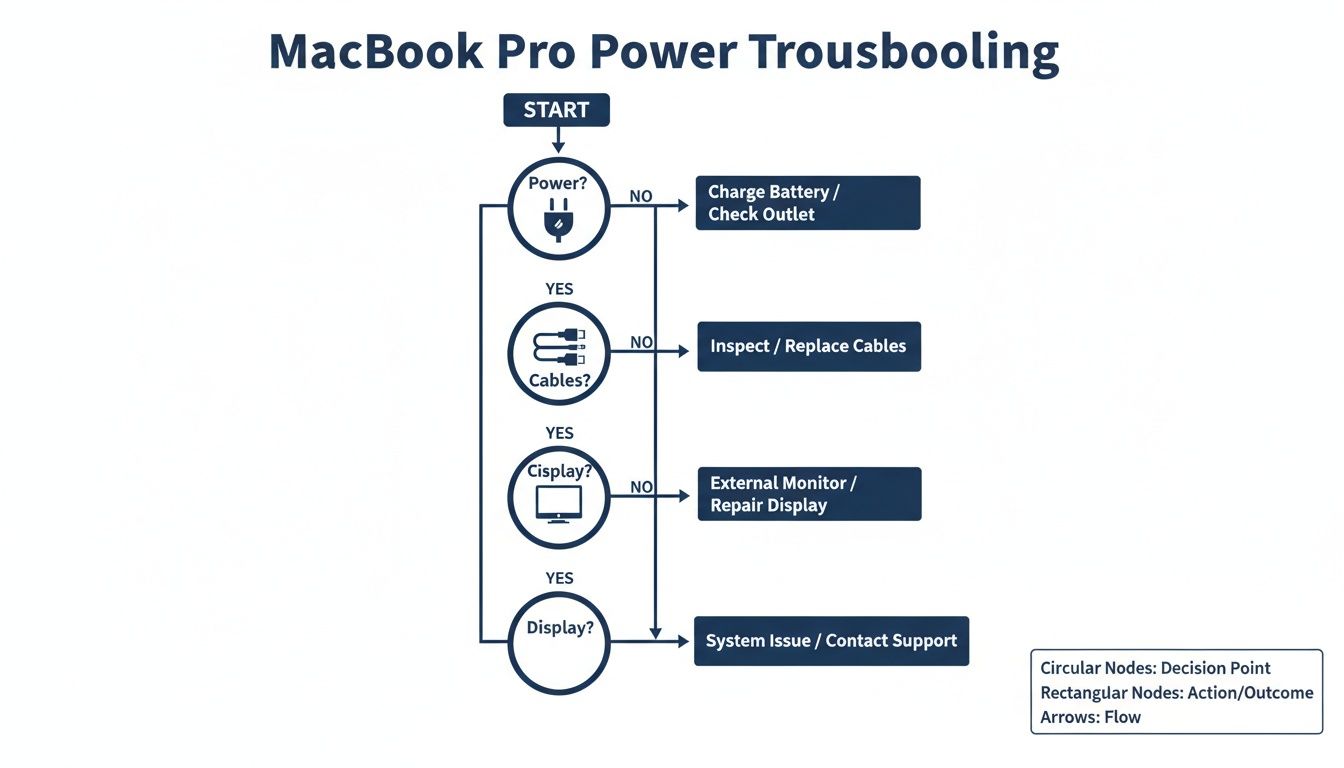
As the chart shows, systematically ruling out the simple external factors—power, cables, and the display—is the most efficient way to get to the root of the problem.
Mastering The Essential Resets For Power Issues
When your MacBook Pro plays dead, it's easy to jump to the worst conclusion—a fried logic board or a completely shot battery. But before you panic, you need to know that the problem is often rooted in firmware, not a catastrophic hardware failure. Your Mac has low-level controllers managing everything from charging to startup, and sometimes, they just need a good old-fashioned reboot.
Before you even think about booking a repair, there are two powerful, non-destructive resets every technician tries first: the SMC reset and the NVRAM/PRAM reset. These are the go-to first steps because they fix a surprising number of power-related glitches, and they won't touch any of your data.

What Is The System Management Controller?
Think of the System Management Controller (SMC) as the backstage manager for your MacBook’s physical hardware. It’s a dedicated chip that handles all the fundamental stuff: power management, battery charging, fan speeds, and even what happens when you press the power button or close the lid.
If the SMC's settings get scrambled, you can get symptoms that look terrifyingly like a major hardware failure.
- The MacBook Pro is completely unresponsive and won't turn on.
- The battery isn't charging, or the system doesn't recognise it's there.
- Cooling fans are blasting at full speed for no apparent reason.
- The keyboard backlight or other indicator lights are acting erratically.
Resetting the SMC is like giving this controller a hard reboot. It wipes its temporary settings and restores everything to factory defaults. It's a completely safe procedure that doesn't affect your personal files, apps, or macOS settings. The exact method, however, depends on whether you have a newer Apple Silicon Mac, one with a T2 Security Chip, or an older Intel model.
How To Perform An SMC Reset
The procedure for an SMC reset is specific to your Mac's architecture, so it's critical to follow the right steps for your model to make sure it actually works.
For MacBook Pros with Apple Silicon (M1, M2, M3 models):
On these newer machines, Apple integrated the SMC functions directly into the M-series chips. There's no secret key combination; the equivalent is just a proper power cycle.
- Shut down your MacBook Pro completely.
- Leave it off for at least 30 seconds to let any residual power dissipate.
- Now, press and hold the power button for a full 10 seconds, then release it.
- Wait another moment, then press the power button again to start it up normally.
For MacBook Pros with a T2 Security Chip (most 2018–2020 Intel models):
This process needs a very specific keyboard combination while the machine is off.
- Shut down your MacBook Pro.
- On the built-in keyboard, press and hold these three keys: Control (left side) + Option (left side) + Shift (right side).
- Keep holding them for exactly 7 seconds.
- After 7 seconds, press and hold the power button as well, without letting go of the other three. Hold all four keys for another 7 seconds, then release them all at once.
- Wait a few seconds, then press the power button to turn your MacBook on.
A common mistake here is using the wrong Shift key. For the T2 chip reset, you must use the right-side Shift key, along with the left-side Control and Option keys. Get this combination wrong, and the SMC simply won't reset.
Resetting The NVRAM (or PRAM)
Next on the list is the NVRAM (Non-Volatile Random-Access Memory)—or PRAM on very old Macs. This is a tiny slice of memory that holds settings your Mac needs to access instantly, even before macOS starts loading. Think screen resolution, speaker volume, which disk to boot from, and recent kernel panic info.
If this data gets corrupted, it can stop your MacBook Pro from finding its startup disk or booting properly, making it seem like it's dead. An NVRAM reset clears these settings and forces your Mac to re-scan its hardware from scratch.
How to Reset NVRAM/PRAM (Intel-based Macs only):
This reset doesn't apply to Apple Silicon Macs, as they handle these startup parameters in a different way.
- Shut down your MacBook Pro completely.
- Press the power button to turn it on.
- Immediately press and hold these four keys together: Option + Command + P + R.
- Keep holding the keys for about 20 seconds. On older models, you might see the screen flash or hear a second startup chime. On newer ones, you'll just see the Apple logo appear and disappear.
- Release the keys, and your MacBook Pro will boot as usual.
After an NVRAM reset, you might have to pop into System Settings to fix your speaker volume or display resolution, but all your personal data will be perfectly safe. If your "MacBook Pro not powering on" issue still isn't solved after trying these resets, it’s time to start looking at the hardware, starting with the battery itself.
Diagnosing A Failing MacBook Pro Battery
Alright, you’ve checked the charger and zapped the SMC and PRAM. If your MacBook Pro is still playing dead, it's time to zero in on one of the most common culprits: the battery. All batteries wear out, and when a MacBook's battery reaches its final days, it can cause all sorts of power-related chaos, including refusing to turn on at all.
A completely shot battery can’t provide the stable voltage your MacBook needs to kickstart the boot process. This is a crucial point many people miss—even if it's plugged in, a severely degraded battery can prevent the machine from starting up because the system isn't getting the clean, reliable power it requires.

Classic Signs Of Battery Degradation
A battery almost never fails out of the blue. It usually drops hints that it's getting tired. Learning to spot these clues can help you figure out what’s wrong before your MacBook Pro goes completely dark.
Here are the tell-tale signs we see all the time:
- Sudden Shutdowns: The machine dies abruptly, even when the menu bar shows a decent charge, like 30% or 40%. This is a dead giveaway that the battery can't handle the power demands anymore.
- "Service Recommended" Warning: If you manage to get it to boot, macOS itself will often tell you what's up. That "Service Recommended" message in the battery menu is your Mac's cry for help.
- Only Works When Plugged In: This one's a classic. Your MacBook Pro runs fine as long as it's tethered to the wall but dies the second you pull the plug. The battery is essentially a brick at this point.
- Physical Swelling: This is the most serious symptom. A failing battery can puff up, causing the bottom case to bulge or the trackpad to become stiff and unclickable. If you notice any swelling, stop using it immediately—it's a safety hazard.
These symptoms all point to a battery that’s lived its life. If you're dealing with a similar problem on a different model, our guide on how to replace the battery in a MacBook Air might offer some extra insight.
A dead battery is often the most straightforward fix for a no-power issue. This table breaks down what you might see and what it means.
Battery Condition Vs Power On Symptoms
| Battery Condition | Typical Symptom | Recommended Action |
|---|---|---|
| Severely Degraded | Won't power on, even when plugged in. May show a brief charging icon then go dark. | The battery is likely preventing boot-up. Replacement is almost certainly required. |
| Failing (but not dead) | Powers on only when plugged in; dies instantly when unplugged. | The battery can no longer hold a charge. A replacement will restore portability. |
| Swollen | Bottom case is bulging, trackpad is hard to click, or there's a visible gap. | Stop use immediately. Disconnect power and get the battery replaced professionally. |
| High Cycle Count | Shuts down unexpectedly at 30-40% charge. "Service Recommended" warning appears. | The battery is worn out. Plan for a replacement soon to avoid a no-power situation. |
Ultimately, if the symptoms in this table match what you're seeing, a battery swap is the most logical next step.
Understanding Battery Cycle Counts
Every MacBook battery has a finite lifespan, measured in charge cycles. Think of a "cycle" as one full 100% discharge and recharge. It doesn't have to happen in one go—using 50% one day, recharging, and using another 50% the next day adds up to one complete cycle.
Apple designs modern MacBook Pro batteries to keep up to 80% of their original capacity after 1,000 charge cycles. Once you fly past that number, things get unpredictable. The battery's ability to hold a charge and deliver consistent power drops off a cliff, which is often when the real problems start.
A scenario we see constantly in our Brisbane workshop is a MacBook Pro with well over 1,000 cycles that just won't turn on. The owner insists it was working perfectly yesterday. In reality, this "sudden" failure is the final act after a long, slow decline.
How To Check Your Battery's Health
If you can get your MacBook Pro to boot, even for a few minutes, you can get the proof you need. Checking the battery health is easy.
- Hold down the Option key and click the Apple menu () in the top-left corner.
- Choose System Information.
- From the window that pops up, find the Power section in the left-hand Hardware list.
- You'll see the Cycle Count and Condition status (e.g., Normal, Service Recommended).
This screen is your diagnostic goldmine. If the cycle count is creeping up to or over 1,000 and the condition is anything but "Normal," you've found your culprit. A new battery is the clearest path back to a working, reliable Mac.
Recognising Deeper Logic Board And Chip Failures
So you’ve worked through the essential resets, you've confirmed your charger is pushing out power, and you've even ruled out a dead battery. If you’re still left with a completely lifeless MacBook Pro—no sounds, no fan spin, not even a flicker from the keyboard backlight—it's time to consider a more serious problem. The fault likely lies deep within the core hardware, specifically the logic board or its related security chips.
The logic board is the central nervous system of your MacBook Pro. It's the bustling city where the CPU, memory, and storage all live and communicate. A single microscopic failure in one of the thousands of components on this board can break the entire power-on sequence, leaving the device as responsive as a brick.
The Role Of The Logic Board And T2 Chip
Think of the logic board as the main circuit that manages absolutely everything. When you press that power button, it kicks off a complex sequence of power checks and signals. If any part of this "power rail" is broken—maybe due to a failed capacitor, a tiny short circuit, or even old corrosion from a long-forgotten liquid spill—the sequence halts before it can even properly begin. The result? A completely dead Mac.
To make things more complicated, many MacBook Pro models from 2018 to 2020 have the Apple T2 Security Chip. This chip is a great idea for security, managing the boot process, encryption, and Touch ID. The downside is that a T2 chip with corrupted firmware can also stop the Mac from starting up. It essentially puts the system into a complete lockdown, giving you the exact same symptoms as a major hardware failure.
This is where DIY troubleshooting usually hits a frustrating dead end. You can have a perfectly good battery and a working charger, but if the logic board or the T2 chip refuses to play ball, your MacBook Pro simply will not power on.
We see this all the time at our Screen Fixed Brisbane repair centre. A customer comes in convinced they just need a new battery, but after a proper diagnosis, we find the real culprit is a logic board fault. That requires a much more specialised approach to fix.
Symptoms Pointing To A Board-Level Problem
How can you tell if you’re dealing with something more sinister than a bad battery? Often, the clues are about what isn't happening. If your MacBook Pro is showing these signs, it’s highly likely the issue is on the logic board itself:
- Absolute Silence: You get nothing. No chimes, no fan whirs, not even a faint electronic hum when you press the power button or plug in the charger.
- No Response to Resets: You've tried the SMC and NVRAM resets, which are the go-to fixes for firmware glitches, and they do absolutely nothing.
- Charger Gets Ignored: You've tested your charger on another Mac and you know for a fact it works, but your MacBook Pro shows zero signs of recognising it—no charging light, nothing on the screen.
- History of a Spill: Even a tiny liquid spill from months ago can cause slow-burn corrosion on the logic board. Over time, that corrosion finally breaks a critical power connection, and the machine dies.
Why Data Recovery Becomes A Concern
These deeper failures create a risk that goes way beyond just a broken computer. Australian data recovery specialists report that a huge number of MacBook Pros brought in as "completely dead" are actually suffering from logic board failures or T2 chip firmware issues. This is especially common on models made between 2018 and 2020, where the T2 chip was standard.
Here’s the real kicker: the solid-state drive (SSD) is soldered directly onto the logic board in these modern MacBooks. This design means a board failure often means your data is trapped. Unlike older laptops where you could just pull out the hard drive, here the storage is physically part of the broken component.
This is how a simple "MacBook Pro not powering on" problem can quickly escalate into a complex data recovery job, one that requires micro-soldering and serious technical skills just to get your files back. As specialists who handle these cases explain, this is the point where DIY repairs are off the table; you can learn more about the link between T2 chip failures and data recovery to see just how intertwined they are. When you get to this stage, professional help is essential to both fix the device and, more importantly, save your data.
When It's Time To Call In The Pros For MacBook Repairs In Brisbane
So, you’ve meticulously worked your way through all the troubleshooting steps. You’ve confirmed the charger and cable are good to go, you’ve done the SMC and NVRAM resets, and you've even considered a tired old battery. But your MacBook Pro is still playing dead. This is the crossroads. Pushing further with DIY fixes at this stage can easily do more harm than good, and it’s the perfect time to hand the problem over to a professional.
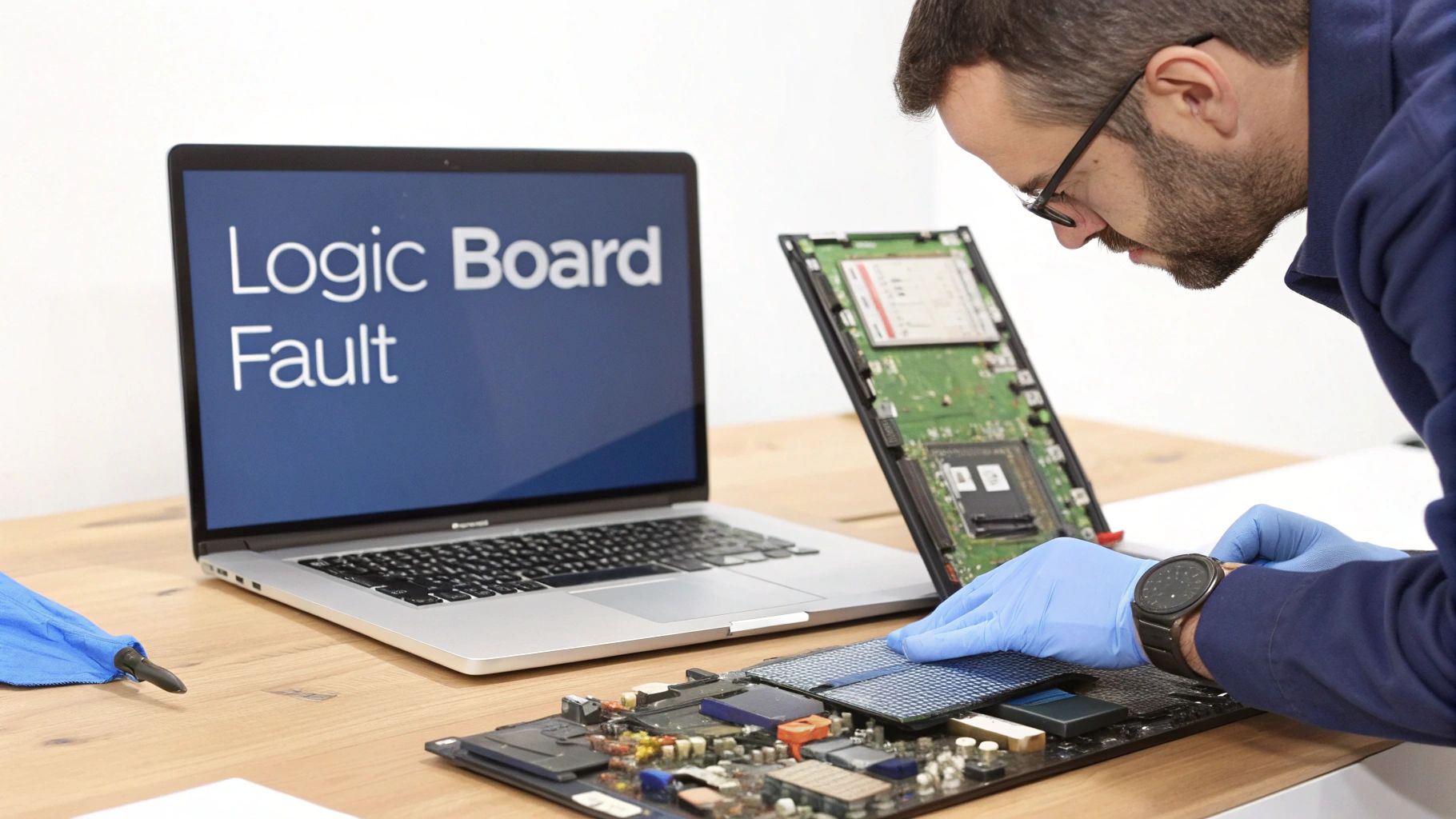
Trying to diagnose deep hardware issues without the right gear and experience is a high-stakes game. Modern MacBooks, especially the models from 2016 onwards, are incredibly complex machines. Everything is packed in so tightly that one simple slip-up—like using the wrong screwdriver or accidentally knocking a tiny capacitor off the board—can turn a fixable problem into a catastrophic failure.
Clear Signs You Need An Expert
Knowing your limits is the most important skill in DIY repair. Certain symptoms are giant, flashing neon signs that the problem has graduated beyond simple fixes and now needs specialised diagnostic equipment and a skilled technician. If you’re seeing any of the following, it’s time to stop what you're doing and get some help.
These are the red flags we see every single day that point to something serious:
- Completely Dead: You've used a charger and cable you know works, you've done all the resets, and you’re getting absolutely no sign of life. No fan spin, no keyboard light, no chime. Nothing. This is a classic symptom of a fault on the logic board's power rails.
- Any Hint of Liquid Damage: If you know your MacBook has had any encounter with liquid—even a tiny spill from months ago—stop immediately. Liquid damage is a ticking time bomb. It causes corrosion that can create unpredictable short circuits on the logic board.
- A Burning Smell or Smoke: This is an emergency stop. A burning electronic smell is a dead giveaway of a serious short circuit. Unplug it from the wall straight away and don't even think about trying to turn it on again.
- Physical Damage: If the MacBook took a tumble, even if the case looks fine, an internal component could easily be dislodged or cracked.
The single biggest mistake we see is people repeatedly plugging a charger into a Mac that might be liquid-damaged or has a short. Every time you do that, you risk sending voltage where it shouldn't go, causing more—and often permanent—damage to the logic board.
Getting Your Mac Ready For Its Service Appointment
Once you've decided to bring your device in, a little bit of prep can make the whole process smoother and faster. It helps the technicians get right to the heart of the problem without delay.
Before you pop into the repair shop, just run through these quick steps:
- Bring Your Accessories: Pack your power adapter and the charging cable you normally use. Faults can sometimes be intermittent, and testing with your specific accessories is a crucial diagnostic step.
- Jot Down Some Notes: Write a quick history of the problem. When did it stop working? Did it do anything weird beforehand, like shutting down randomly or getting unusually hot? Was there an event like a drop or a spill? The more context you can give, the better.
- Don’t Try To Open It: Please, resist the temptation to open the case yourself. It's incredibly easy to cause static damage, lose one of the many tiny screws, or tear a delicate ribbon cable, which just makes the repair more complicated and expensive.
Trusting a professional means your MacBook will be diagnosed correctly using specialised tools like multimeters and board schematics. An experienced technician can trace the power flow on the logic board, pinpoint failed micro-components, and perform the delicate micro-soldering required for a proper fix. While you're weighing up your options, you can check out other common device problems and fixes in our guide to mobile phone repair in Brisbane.
When your MacBook Pro won't power on and the issue is more than just the basics, a professional repair is the safest, most reliable way to bring it back to life.
Your Top Questions About MacBook Pro Power Issues
When your MacBook Pro decides not to wake up, the first feeling is often that sinking sense of panic. This is usually followed by a rush of very practical questions. How much is this going to sting my wallet? Is all my data gone for good? Could that coffee I spilled near it last year finally be getting its revenge? Trust me, these are the exact same concerns we hear from our customers every single day.
So, let's tackle the most common questions our clients in Brisbane ask when they're staring at a dead MacBook Pro. The goal here is to give you clear, no-nonsense answers so you know what to expect.
How Much Does It Cost To Fix A MacBook Pro That Won't Turn On In Australia?
This is the big one, and the honest answer is: it varies. The cost to fix a MacBook that won't turn on is tied directly to what’s actually wrong with it. A simple problem is a relatively cheap fix, but a major failure will, of course, cost more to sort out.
To give you a realistic idea, here’s a breakdown of the usual suspects and their repair costs:
- Faulty Charger or Cable: If it's just your power adapter or the USB-C cable that's given up the ghost, a replacement will likely set you back under $100. This is the best-case scenario, and thankfully, it's a common one.
- Battery Replacement: A completely drained or failed battery is another frequent culprit. A professional battery replacement typically ranges from $250 to $500, depending on your MacBook Pro model.
- Logic Board Repair: This is where things can get pricey. If the logic board has failed due to a short circuit or a fried component, the repair can be $600 or more. The final figure really depends on whether we can perform a component-level repair on the board itself or if the whole thing needs replacing.
At Screen Fixed, we believe in total transparency. We always start with a full diagnosis and give you a detailed quote before any work begins. You approve the cost first, so there are absolutely no surprises down the line.
Will I Lose My Data If My MacBook Pro Needs A Repair?
For many people, the thought of losing their files is far more worrying than the repair bill. The good news is that in most situations, your data is completely safe. If the reason your MacBook Pro isn't powering on is a dodgy charger, a bad cable, or even a straightforward battery replacement, your files are not at risk.
Things get a bit more serious if we're looking at a logic board failure. On nearly all modern MacBook Pro models, the storage (the SSD) is soldered directly onto the logic board. This design means that if the board dies, getting to your data becomes a real challenge.
While keeping regular backups is your best line of defence, we always make data preservation a top priority. Our technicians do everything possible to protect your files during the repair. For severe logic board issues, we also offer specialised data recovery services to retrieve your critical documents, photos, and projects.
Can A Past Liquid Spill Stop My MacBook Pro From Turning On?
Yes, absolutely. Liquid damage is one of the sneakiest and most common reasons for a MacBook to suddenly die. That little spill you cleaned up in a hurry months ago might have seemed harmless, but it can be a ticking time bomb.
Moisture can easily get under components on the logic board and just sit there, out of sight. Over time, it causes slow, creeping corrosion on tiny circuits and metallic contacts. Eventually, that corrosion can eat right through a vital power line, creating an open circuit and preventing your machine from ever starting up again.
If you have any memory of a liquid spill—no matter how small it seemed—it's incredibly important to tell your repair technician. This one piece of information can save a huge amount of diagnostic time and point us directly to the likely source of the problem.
When you've tried all the DIY tricks and you're still stuck with a lifeless MacBook, it's time to call in the experts. The team at Screen Fixed has the diagnostic tools and hands-on experience to tackle everything from simple fixes to complex logic board repairs, always putting the safety of your device and your data first.
Book your repair with Screen Fixed Brisbane today and let us bring your MacBook back to life. https://www.fixo.com.au
Disclaimer: Apple, MacBook Pro, MagSafe, and macOS are trademarks of Apple Inc., registered in the U.S. and other countries and regions. Screen Fixed is an independent repair service and is not affiliated with or endorsed by Apple Inc.