

It’s one of the most common—and frustrating—iPhone problems out there. You go to restart your device, and it just… stops. The iconic white Apple logo appears, but that’s it. You’re left staring at a screen that promises action but delivers nothing, turning your expensive phone into a very sleek paperweight.
Before you start panicking and thinking the worst, it’s worth understanding what’s actually happening behind the scenes. This situation, often called a "boot loop," is a sign that your iPhone's operating system (iOS) has hit a critical error during its startup sequence. It's like a car engine trying to turn over but repeatedly stalling on the same step.
Why Does This Happen?
Most of the time, the culprit is a software conflict. The startup process is a delicate dance where the software checks all its components, and any little interruption can throw the entire system off balance. Think of it as a domino rally—if one piece is out of place, the whole thing grinds to a halt.
Let's break down the usual suspects.
Common Software Triggers
Most boot loop issues we see in our workshops come down to a handful of software-related problems. They’re frustratingly common but often fixable.
Here are the most frequent triggers we've come across:
- A Botched iOS Update: This is a big one. An update might fail halfway through because of a dodgy Wi-Fi connection, a low battery, or a corrupted download file. When your phone reboots to finish installing, it hits a roadblock it can't get past.
- Corrupted Data: Sometimes, a single critical system file can get corrupted. This can happen seemingly at random or during a data transfer, and it's enough to prevent the operating system from loading properly.
- Jailbreaking Gone Wrong: If you've tried to jailbreak your iPhone, you're modifying iOS outside of Apple’s official playground. This can introduce instability, often leading to boot loops when the system tries to load unofficial software it doesn't recognise.
- A Problematic Restore: Trying to restore from an old or corrupted backup can be a double-edged sword. You might inadvertently reintroduce the very software issue you were trying to fix, trapping the device right back in the same loop.
A boot loop doesn't always mean your phone is toast. More often than not, it's a sign of a software hiccup that can be resolved without losing your data, provided you follow the right steps.
To help you narrow down the cause, here’s a quick table breaking down the most common triggers we see.
Quick Diagnosis: Common Causes of the Apple Logo Loop
This table breaks down the primary reasons your iPhone might be stuck, helping you quickly diagnose the potential issue based on what happened right before the problem started.
| Cause | Common Trigger | Initial Symptom |
|---|---|---|
| Failed iOS Update | Started an update, then the phone died or Wi-Fi dropped out. | The progress bar gets stuck or the phone reboots to the Apple logo. |
| Full Storage | Received "Storage Almost Full" warnings for days or weeks. | The phone becomes sluggish, then won't boot past the logo after a restart. |
| Corrupted App/Data | Installed a new app from an untrusted source or had an app crash repeatedly. | The phone freezes and gets stuck on the logo after a forced restart. |
| Hardware Fault | The phone was recently dropped or exposed to water. | The screen might flicker briefly before settling on the Apple logo. |
Pinpointing what you were doing just before the issue started is often the key to figuring out the right fix.
The Hidden Culprit: Full Storage
One of the most overlooked causes is simply a lack of storage space. Your iPhone needs a bit of digital breathing room to perform essential tasks like booting up and running updates. When your storage is completely maxed out, the operating system can't load temporary files or complete its startup checks, causing it to freeze on the spot.
This is a particularly common issue for Australian iPhone users, especially when combined with an update. Data from local repair specialists shows that failed updates on devices with full storage accounted for about 45% of "stuck on logo" cases reported in Sydney workshops between 2022 and 2024. If you want to dive deeper, you can explore more about these common iPhone issues from Fix My Mobile to see just how widespread the problem is.
Ultimately, understanding the "why" is the first step toward finding the right "how." Whether it's a bungled update, a storage crisis, or a deeper software conflict, identifying the likely cause helps you choose the most effective solution, which we’ll get into next.
First-Aid Fixes You Can Try Right Now
Seeing your iPhone stuck on the Apple logo can be alarming, and your first thought might be to find the nearest repair shop. Before you panic, there are a few powerful software fixes you can try yourself, right from the comfort of your home.
Often, these simple steps are all it takes to get your phone working again, saving you a whole lot of time, stress, and money. We'll start with the easiest, most common fix and work our way up to the more advanced stuff if needed. The main goal here is to knock out whatever software glitch is causing this boot loop without losing your photos and files.
This whole mess usually starts with a small trigger. Think of a Wi-Fi dropout during an update or a minor software bug. That can cause the system to freeze up completely, preventing it from starting properly.
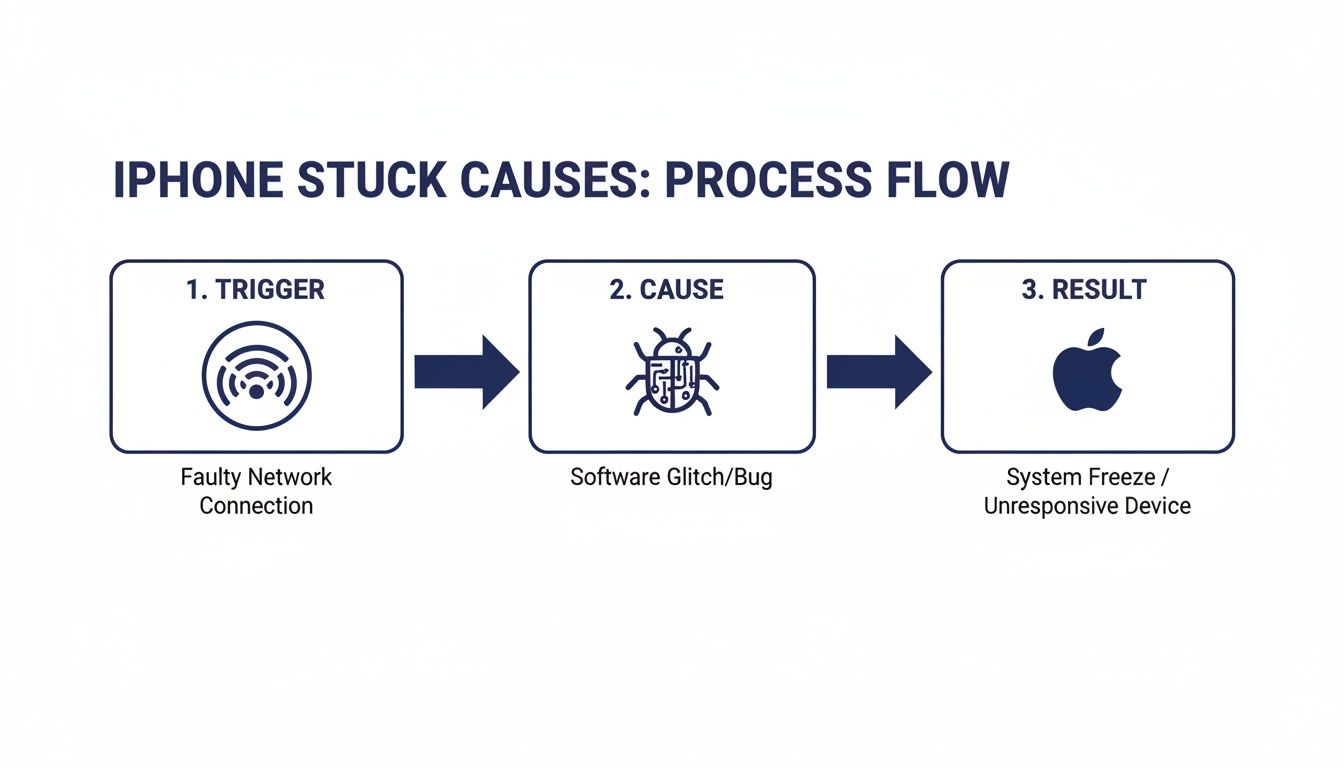
As you can see, what seems like a minor hiccup can easily snowball into a major system failure that leaves your iPhone in limbo.
The Force Restart: Your Go-To First Step
A force restart is the classic "turn it off and on again," but with a bit more oomph. It's more powerful than a regular reboot because it completely cuts power to the logic board, forcing the system to start fresh from square one. This one simple action can clear out the temporary glitches and corrupted memory that are likely causing the iphone stuck on apple logo problem.
Best of all, a force restart will not erase any of your data. It’s totally safe, which is why it should always be your first port of call. The button combination is a little different depending on your model, though.
- For iPhone 8 and newer (including SE 2nd & 3rd gen): Quickly press and release the Volume Up button. Immediately do the same with the Volume Down button. Then, press and hold the Side button until that beautiful Apple logo finally appears.
- For iPhone 7 and 7 Plus: Press and hold both the Volume Down button and the Sleep/Wake (Side) button at the same time. Keep them held down until you see the Apple logo.
- For iPhone 6s and older (including SE 1st gen): Press and hold both the Home button and the Sleep/Wake (top or side) button together until the Apple logo pops up.
If that works, your phone will boot up as normal, and you can breathe a sigh of relief. If it just reboots back to the same stuck logo, don't worry—it’s time to try the next method.
Using Recovery Mode to Update Your iPhone
When a force restart doesn’t cut it, the next logical step is Recovery Mode. This is a special troubleshooting state that allows your phone to talk to a computer through Finder (on a Mac) or iTunes (on a Windows PC), even when it won't boot up properly. From here, you can reinstall or update the operating system.
The trick here is to choose the 'Update' option when it appears. This will try to reinstall iOS without touching your personal data, which is exactly what we want. It's a fantastic fix for corrupted system files that might be behind the boot loop. The principles are quite similar to other freezing issues, which you can read more about in our guide on how to fix phone hanging.
To get into Recovery Mode, plug your iPhone into a computer and follow the exact same button sequence you used for the force restart. There's one crucial difference: do not let go of the buttons when you see the Apple logo. Keep holding them until you see the Recovery Mode screen, which looks like a computer and a cable.
Your computer should then detect the phone and show a pop-up with two choices.
Critical Tip: Always, always choose 'Update' first. The 'Restore' option is the nuclear option—it will completely wipe your device and install a fresh copy of iOS, resulting in total data loss if you don't have a backup. Only use 'Restore' as an absolute last resort.
Your computer will start downloading the latest iOS software and try to install it. This can take a bit of time, so be patient. If the update is successful, your iPhone should restart normally with all your data right where you left it.
The Last Resort: DFU Mode
If even Recovery Mode fails, there's one final, more advanced software fix you can attempt: Device Firmware Update (DFU) Mode. This is the deepest restore you can possibly do. It bypasses the iPhone’s bootloader entirely, allowing the firmware to be reinstalled from the ground up.
Getting into DFU Mode is tricky and involves a very precise sequence of button presses. It's important to know that a DFU restore will erase everything on your iPhone, no exceptions. It should only be used if Recovery Mode's 'Update' option has failed you.
Because it's complex and guarantees data loss, we usually suggest this step for more tech-savvy users. If you've reached this point and feel out of your depth, or if your data is irreplaceable, it might be time to bring it to a professional. If even a DFU restore can't fix the iphone stuck on apple logo issue, that's a very strong sign that you're dealing with a hardware problem, not a software one.
The Hidden Role of Full Storage
It’s a scenario we see all too often in our workshop. An iPhone that's been faithfully capturing memories for years—packed with holiday videos, thousands of photos, and countless apps—suddenly gives up after a simple restart. Now, it refuses to boot, leaving you staring at an unmoving Apple logo. It might seem completely random, but a full or nearly full storage drive is one of the most common—and insidious—causes of the dreaded boot loop.
Think of your iPhone's operating system (iOS) like a busy workshop. To get any job done, especially a complex one like starting up, it needs clear workbench space to lay out its tools and temporarily store files. When your storage is maxed out, it’s like trying to build a piece of furniture in a room already crammed floor-to-ceiling with boxes. There's simply no 'breathing room' for the system to operate.
During boot-up, iOS needs to write temporary files, check system integrity, and load essential services. A lack of free space can interrupt this critical sequence, causing a system-wide failure that prevents it from loading completely.

Why Full Storage Causes a System Failure
When storage is critically low, the operating system can't perform its most basic functions. Something as simple as updating an app or even receiving a large message can push it over the edge, leading to data corruption. The next time you restart your device, iOS encounters these corrupted files and freezes, unable to proceed.
This is a particularly nasty problem because it often happens without any immediate warning. Your phone might feel a bit sluggish, but you dismiss it. Then, one final restart tips it into a non-functional state. At that point, you’re dealing with a classic case of an iPhone stuck on the Apple logo with no easy way to just delete files to free up space.
Proactive Steps to Avoid This Problem
Prevention is always better than a cure, especially when your precious data is at stake. Keeping your iPhone's storage in check is a crucial maintenance task. Fortunately, Apple provides some excellent built-in tools to help you manage your space effectively.
Here are a few simple strategies you can implement today:
- Embrace iCloud Photos: This is the single most effective way to manage your photo and video library. By turning on 'Optimise iPhone Storage' in your iCloud settings, your phone keeps smaller, lower-resolution versions on the device while the full-resolution originals are safely stored in the cloud. You can free up gigabytes of space this way.
-
Offload Unused Apps: We all have apps we downloaded for a one-time use and then forgot about. Go to
Settings > General > iPhone Storage, and you'll see a list of your apps sorted by size. You can enable 'Offload Unused Apps' to automatically remove apps you don't use—but it keeps all their data, so you can reinstall them later without losing anything. - Clear Browser Cache and App Data: Safari and other apps accumulate a lot of temporary data over time. Periodically clearing the cache can reclaim a surprising amount of storage.
By regularly checking your storage and taking these preventative measures, you can dramatically reduce the risk of your iPhone falling victim to the full-storage boot loop.
When It's Too Late: Data Recovery Challenges
If your phone is already stuck, the situation gets a whole lot tougher. You can't simply connect it to a computer and start deleting files. This is where the real panic sets in, as the thought of losing irreplaceable photos and important documents becomes very real. Standard software fixes like a 'Restore' in iTunes or Finder will solve the boot loop, but at the cost of erasing everything.
This specific issue is a major headache for users across the country. Data recovery statistics from Australian labs reveal that iPhones stuck on the Apple logo due to full storage represent a massive 35% of hardware-software hybrid failures nationwide. One leading lab handled over 500 such cases in 2024 alone, highlighting just how common this is. You can learn more about these complex data retrieval scenarios from Payam Data Recovery and see the advanced techniques required.
When faced with this dilemma, professional help is often the only viable path forward. Specialised services, like those offered by Screen Fixed Brisbane, have the tools and expertise to perform advanced data recovery. Technicians can often access the device's storage directly, bypassing the non-functional operating system to carefully extract your data before restoring the device. It’s a delicate process, but it’s often the only lifeline for retrieving those priceless memories.
When Software Fixes Are Not Enough
So you’ve tried all the software tricks in the book. You’ve done the force restart, wrestled with Recovery Mode, and maybe even braved a full DFU restore. But that stubborn Apple logo just won’t budge.
If you’ve hit a wall with software troubleshooting, it’s time to start thinking about what’s going on inside the phone. It's a common trap to assume the issue is with iOS, but more often than you'd think, a hardware fault is the real culprit, perfectly mimicking a software glitch. These physical problems can stop the boot-up process dead in its tracks, leaving your iPhone completely unresponsive.
Recognising the clues is the key. You need to know when to stop forcing software restores and consider that the problem might be more than skin deep.
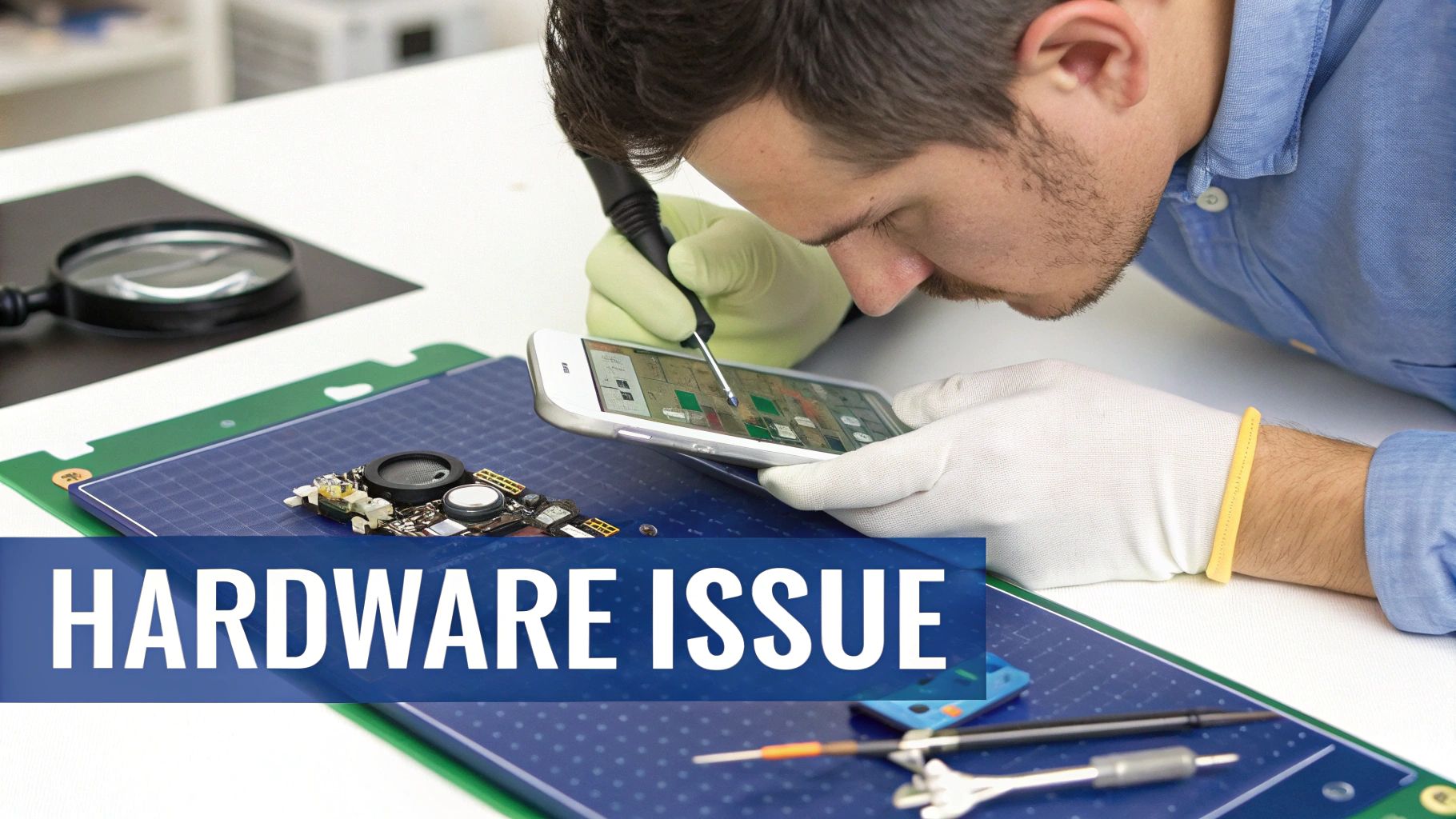
Tell-Tale Signs of a Hardware Failure
Some symptoms are classic giveaways that you’re dealing with a hardware problem, not just a buggy update. If your iPhone is doing any of the following, there’s a good chance a physical component has failed.
The most obvious sign is the flashing Apple logo. You’ll see the logo pop up, vanish after a few seconds, and then reappear, stuck in a frustrating loop. This almost always points to a battery that can no longer supply enough stable power to finish the startup sequence. You can learn more about how a failing battery messes with your phone in our guide on when to consider an Apple iPhone battery replacement.
Another huge red flag is when your computer refuses to see the iPhone at all, even when you put it in Recovery or DFU mode. If Finder or iTunes acts like nothing is plugged in, it’s a strong indicator of a faulty charging port or, worse, a problem on the logic board itself.
The Most Common Hardware Culprits
When an iPhone stuck on the Apple logo is a hardware issue, it usually comes down to one of a few key components that handle power and data.
Here are the usual suspects:
- A Failing Battery: An old, degraded battery might have just enough juice to flash the Apple logo, but it can’t deliver the steady power needed to actually boot up iOS.
- Damaged Charging Port: If the port is clogged with lint or physically damaged, it can’t maintain a solid connection to your computer or charger, which will cause any restore attempt to fail.
- Logic Board Faults: This is the brains of the operation. A nasty drop or a bit of water damage can create tiny fractures or short circuits on the logic board, leading to a complete boot failure.
A notorious point of failure on the logic board is the Tristar/U2 IC chip. This little chip is in charge of the USB functions and charging. When it goes bad, the phone often can't charge correctly or talk to a computer, which is a one-way ticket to a permanent boot loop.
Knowing these possibilities gives you a much clearer idea of what’s actually happening inside your device. If you've exhausted software fixes and the symptoms still point to something deeper, it's possible you've found a bug. When reporting issues like this, being clear is crucial; this guide to effective bug reporting has some great tips on what details matter.
Ultimately, once you’ve ruled out software, you know you’ve hit the DIY limit. If all signs point to hardware, your best move is to get the phone to a qualified technician who has the tools to properly diagnose and fix the physical problem.
Making the Call: DIY vs Professional Repair
You’ve reached a crossroads. After trying the restarts and maybe even dipping your toes into Recovery Mode, you’re facing the big question: do you press on with a more advanced DIY fix, or is it time to hand your iPhone over to a professional? This decision isn't just about getting the phone working again; it’s a careful balance of risk, your own comfort level, and how much you value your data.
There’s no single right answer here—it all comes down to your specific situation. If a simple force restart magically brought your phone back to life, brilliant! You’ve dodged a bullet. But if the ‘Update’ option in Recovery Mode didn’t work, you're probably staring down the barrel of the ‘Restore’ button—the one that wipes everything clean. This is where you really need to pause and think things through.
Assessing Your Technical Comfort
The next logical step for a DIY-er is often a DFU (Device Firmware Update) restore. It’s a seriously powerful fix, but it's also the most invasive software solution out there, guaranteeing 100% data loss. It requires precise timing with button presses and a solid understanding of what you're doing.
Be honest with yourself here:
- Are you actually comfortable connecting your phone to a computer and navigating Finder or iTunes to perform a full system restore?
- Do you have a recent, reliable backup of your photos, messages, and important files?
- What's your plan if the DFU restore fails halfway through? A failure like that often points to a deeper, underlying hardware problem.
If the thought of permanently erasing your data sends a shiver down your spine, or if you're not confident you can pull off the steps without a hitch, that’s a pretty clear sign to seek out an expert.
The Risks of DIY Hardware Repair
Maybe you’re suspecting a hardware issue, like a dying battery causing that dreaded flashing Apple logo. While you can find DIY repair kits all over the internet, cracking open a modern iPhone is a delicate, high-stakes operation. These devices are marvels of engineering, packed with tiny, fragile connectors and components just waiting to be damaged.
Attempting a DIY battery replacement without the proper tools or a bit of experience can easily create much bigger problems. One slip of a tool could tear a critical display cable or, even worse, damage the logic board. That turns a simple fix into a very expensive, complex repair.
For anything beyond a straightforward software restore, getting a professional diagnosis is invaluable. A good technician can quickly tell if it’s a simple battery swap or a more complex issue like a faulty logic board chip. This is especially true for services that handle intricate jobs like iPhone Repairs Brisbane, where experts have the specialised gear to diagnose and fix these problems safely and correctly the first time.
A Checklist for Your Decision
To make it a bit easier, run through this quick checklist. Your answers should point you in the right direction.
| Consideration | Choose DIY If... | Choose Professional Repair If... |
|---|---|---|
| Data Importance | You have a complete, recent backup and are okay with erasing the device. | Your data is not backed up, and losing it is not an option. |
| Technical Skill | You are confident using DFU mode and understand the risks involved. | You're unsure about the process or worried about causing more damage. |
| Urgency | You have time to troubleshoot and are not in a rush to get the phone working. | You need a reliable, working phone back in your hands as quickly as possible. |
| Suspected Cause | You're fairly certain it's a software glitch (e.g., happened after an update). | You suspect a hardware issue (e.g., it was dropped, or has a flashing logo). |
Historically, we see a surge in reports of an iPhone stuck on the Apple logo right after major iOS updates are released in Australia. While many of these are software-based glitches you can fix at home, professional help is often needed for the more stubborn cases. You can discover more insights about these troubleshooting steps on SUPCASE.
Ultimately, choosing between DIY and professional repair comes down to balancing risk and reward. For those curious about the broader world of phone fixes, our guide on mobile phone repairs offers a great overview. But when in doubt, letting an expert take the wheel is always the safer, and often quicker, solution.
Your Top Questions Answered
When your iPhone suddenly refuses to boot past the Apple logo, it’s easy to jump to the worst conclusions. We get it. You've got questions, and you need clear, straightforward answers. Here are the most common queries we handle every day from people in your exact situation.
Will a Force Restart Erase My Data?
Absolutely not. This is easily the biggest worry we hear, and the answer is a firm no. A force restart is just a deeper, more powerful way of switching your iPhone off and on again. It’s the safest first step you can possibly take.
Think of it as hitting the reset button on a frozen computer. It doesn’t touch your photos, messages, apps, or any of your personal data. It’s designed to clear out minor software hiccups that might be stopping iOS from loading correctly. It's worlds away from a factory reset or a restore, both of which will wipe your device clean.
How Long Should I Wait on the Apple Logo Screen?
Patience is a virtue, but you don't need to wait forever. A standard boot-up only takes a minute or two. If you see a progress bar underneath the logo—which often appears during an iOS update—it’s worth giving it some time, as the phone is actively trying to work through something.
However, if that progress bar hasn’t budged for over 30 minutes, something is definitely wrong. If there's no progress bar at all and you've been staring at a static Apple logo for more than 15-20 minutes, it’s not going to finish booting on its own. That's your cue to move on to other troubleshooting steps, starting with that force restart.
Can a Broken Screen Cause This Issue?
It's not the usual suspect, but yes, it’s possible. A badly damaged screen or, more specifically, a faulty display connector can create a hardware conflict that stalls the startup sequence, leaving you stuck.
What we see more often, though, is that the event that cracked the screen—like a hard drop onto concrete—has also rattled something else loose inside. If your phone got stuck on the logo immediately after taking a tumble, a hardware issue is almost certainly the culprit. In that case, you'll need a technician to open it up and inspect the internal connections properly.
A sudden boot loop right after an impact is a massive red flag for physical damage. Even if the screen itself seems okay, a delicate connector on the logic board could have easily been dislodged, halting the entire startup process.
What Is the Difference Between Recovery Mode and DFU Mode?
Knowing the difference here is critical, because one is a rescue attempt and the other is a last resort. Both are powerful tools for communicating with a stuck iPhone, but they operate at different levels.
-
Recovery Mode: This is the standard failsafe built into your iPhone. It allows a computer to talk to your device so you can reinstall or update the operating system. It relies on the iBoot bootloader, which acts as a gatekeeper to ensure you're only installing official, Apple-signed software. Always try Recovery Mode first and choose the 'Update' option. This attempts to fix iOS without erasing your data.
-
DFU (Device Firmware Update) Mode: This is the deepest level of restore you can perform. It completely bypasses the iBoot bootloader, allowing you to install firmware from scratch. Think of it as a clean slate. Because it's so fundamental, a DFU restore will completely and irreversibly erase everything on your iPhone. There is no 'update' option here; it’s a full wipe.
When you're trying to fix the Apple logo problem, Recovery Mode is your first port of call. DFU mode is the final card you play before you have to accept it's likely a hardware fault.
If you've run through these solutions and your iPhone is still stuck, or if you're worried about losing precious data, don't hesitate to get in touch with the experts. Book your repair with Screen Fixed Brisbane today and let our team diagnose the real problem and get your device back to life. Book your repair.