

It's a familiar, frustrating story: one day your iPhone battery lasts all day, and the next, it's dead by lunchtime. If you've noticed your battery on iphone draining fast, your first thought might be that the battery itself is on its last legs. But more often than not, the real culprit is hiding in your software.
Think of it this way: a sudden, sharp drop in performance usually points to a software change, not the slow, gradual decline of an ageing battery. This guide will walk you through the common causes and provide simple, effective solutions to get your iPhone's battery back on track.
Understanding Why Your iPhone Battery Drains Suddenly
So, what's happening behind the screen? It could be a number of things. Perhaps a newly updated app has a bug that's causing it to chew through power. Or maybe you've just installed a major iOS update. These updates often kick off a heap of background tasks, like re-indexing all your photos and files, which puts a serious—though temporary—strain on your battery for a day or two.
The good news is that your iPhone has built-in tools that let you play detective and figure out what’s really going on.
Pinpointing the Software Culprits
Before you start pricing out a new battery, let's take a look at the software. The first place to check is Settings > Battery. Here, you'll get a detailed breakdown of exactly which apps are the hungriest for power.
You’ll probably find that just one or two apps are responsible for the lion's share of the drain. It might be a social media app that's constantly fetching new data or a GPS app that got stuck tracking your location long after you reached your destination. Naming and shaming these power hogs is the first real step to getting your battery life back under control.
This infographic lays out the usual suspects when it comes to software-driven battery drain.
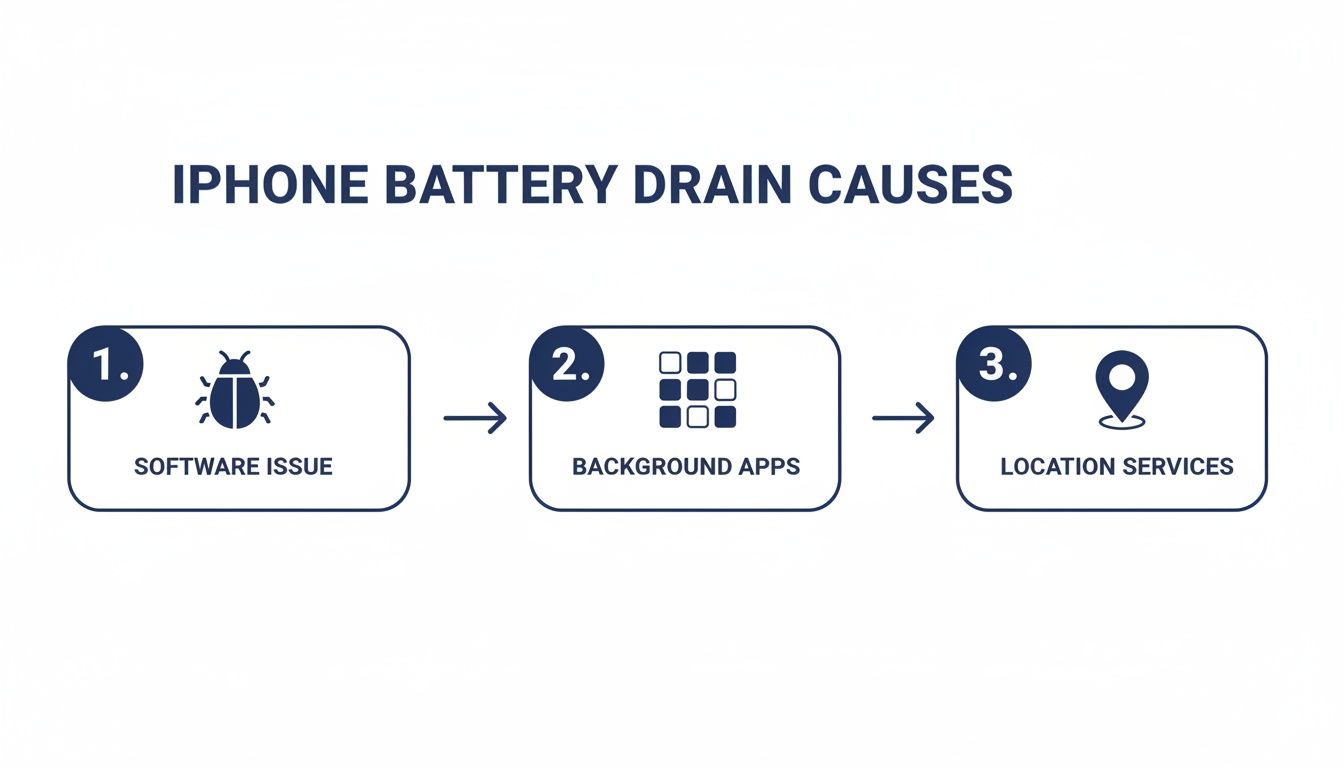
Alt text: Infographic showing the top three iPhone battery drain causes: software issues, background apps, and location services.
As you can see, the path to a dead battery is often paved with software bugs, runaway background processes, and relentless location tracking.
To make it even easier, here’s a quick-glance table to help you spot the problem and take immediate action.
Top Software Causes for Sudden iPhone Battery Drain
| Software Culprit | Typical Drain Impact | Your Quick Fix |
|---|---|---|
| New iOS Update | High, temporary drain for 24-48 hours | Be patient. The phone is re-indexing. If it persists, perform a hard reset. |
| Buggy App Update | Moderate to Severe | Check the App Store for a patch. If none, delete and reinstall the app. |
| Background App Refresh | Can account for 30-40% of daily drain | Go to Settings > General > Background App Refresh and turn it off for non-essential apps. |
| Location Services | High, especially with "Always On" apps | Go to Settings > Privacy > Location Services and switch apps to "While Using" or "Never". |
| Push Notifications | Constant, low-level drain | Go to Settings > Notifications and disable them for apps that don't need to alert you instantly. |
By running through these common scenarios, you can usually identify and fix the problem yourself without needing to visit a technician for iPhone repairs in Brisbane.
The Impact of Background Activity in Australia
This isn't just a random issue; it's a big deal for iPhone users right across Australia. From what we see in repair shops, Background App Refresh is hands-down one of the biggest offenders, sometimes accounting for 30-40% of unnecessary power consumption on newer iPhones.
Local technicians have seen a massive spike in battery-related complaints that are ultimately traced back to apps constantly pulling data in the background. If you want to dive deeper, you can read more about how background app refresh impacts iPhones from Fix My Mobile’s guide. Understanding these common software drains empowers you to take targeted action and often solve the problem without spending a cent on repairs.
Practical Settings Tweaks That Actually Save Battery
Alt text: A hand holds an iPhone displaying a battery usage graph and statistics on screen.
Caption: Checking the iPhone's battery usage stats can quickly identify power-hungry apps.
Alright, you've figured out why your battery is taking a nosedive. Now it's time to actually do something about it. Let's get past the obvious advice like "turn down your brightness" and dig into the iOS settings that truly make a difference. These are the changes that will give you noticeable results, fast.
Taming Background App Refresh
One of the biggest wins you can get is by taming Background App Refresh. This feature lets apps quietly update in the background, which is great for your messaging apps but a total power hog for that game you played once or the food delivery app you only open at dinner time.
The best way to handle this is with a bit of a strategic audit. Head over to Settings > General > Background App Refresh and take a good look at that list. Be ruthless. If an app doesn't need to be constantly up-to-date, switch it off. You'd be surprised how much juice this one simple cleanup can save.
Taming Location Services and Notifications
Right up there with background refresh, Location Services are a notorious battery killer. Think about it: so many apps ask for your location, but how many really need it 24/7? Every time an app pings the GPS, your iPhone’s hardware is working hard and chewing through power.
The fix is simple. Navigate to Settings > Privacy & Security > Location Services. Go through the list, app by app, and ask yourself if it truly needs your location "Always". For most, switching this to "While Using the App" or even "Never" is the smarter choice. Your weather app, for instance, doesn't need to track your every move.
Push notifications are another one of those silent drains. Each little buzz and screen wake-up uses a tiny bit of power. On its own, it’s nothing. But when you get hundreds of alerts a day from apps that aren't critical, it all adds up.
The constant buzzing and screen waking from non-essential notifications create a slow but steady drain on your battery throughout the day. Taking a few minutes to manage these settings can add hours to your phone's uptime.
By turning off notifications for games, shopping apps, and social media feeds you can live without, you’re not just saving battery—you're also cutting down on distractions.
The Less Obvious Power Savers
Okay, we've tackled the main offenders. But if you’re still seeing a battery on iPhone draining fast, there are a few smaller settings that contribute. These are mostly visual effects that look nice but make your iPhone’s processor work just a little bit harder.
- Reduce Motion: This tones down that slick parallax effect on your Home Screen. You can find it under Settings > Accessibility > Motion and just toggle on "Reduce Motion."
- Limit Frame Rate: If you have an iPhone Pro with a ProMotion display, you can cap the refresh rate at a less power-hungry 60 frames per second. This is tucked away in Settings > Accessibility > Motion > Limit Frame Rate.
- Disable "Hey Siri": Do you actually use the "Hey Siri" voice command? If not, turning it off stops your iPhone from constantly listening for it, which saves a small but steady amount of power. Head to Settings > Siri & Search to disable it.
Beyond tweaking your phone's settings, simply being more mindful of your usage can have a massive impact. There are plenty of 10 actionable ways to reduce screen time that, as a side effect, will dramatically improve your battery life.
For more tailored advice, especially for newer models, check out our guide on iPhone 14 Pro battery tips. Combining these software fixes with smarter habits is the real secret to all-day power.
What to Do When an iOS Update Kills Your Battery
It’s a story I hear all the time. You've just installed the latest iOS update, keen to try out the new features, and suddenly your battery percentage is dropping like a stone. If you've noticed your battery on iPhone draining fast right after an update, don't worry. This is a very common, and usually temporary, problem.
Alt text: An iPhone displaying 'Save Battery Now' on its screen, with 'Background App Refresh' box in the background.
Caption: Managing Background App Refresh is crucial after an iOS update.
Here's what’s really happening: your iPhone is quietly working overtime in the background. It's busy re-indexing everything—your photo library, your files, all your app data. Imagine your phone is reorganising a massive filing cabinet after a big move. It’s a huge job that uses a lot of energy upfront, but once it's finished, everything is back to normal.
This intense background activity is the real culprit behind the initial battery drain. It can even make your iPhone feel a bit warmer than usual while it’s sorting itself out.
The Post-Update Timeline: How Long Should You Wait?
So, how long does this last? From my experience, you should see your battery life stabilise within 24 to 48 hours. My best advice during this time is to simply be patient.
To give your iPhone a helping hand, leave it plugged in and connected to Wi-Fi overnight. This gives it uninterrupted power to finish all those heavy-duty tasks without you noticing.
This phenomenon is widespread. It’s not unusual to see a temporary 20-30% faster drain in the first day or two as the phone gets its house in order. It's a shared experience for a huge number of iPhone users after almost every major update. You can discover more local insights on post-update battery performance and see for yourself how common this really is.
When the Battery Drain Just Won't Quit
If a couple of days have passed and your battery is still taking a nosedive, it’s time to dig a little deeper. Sometimes, a big iOS update can clash with older apps that haven't caught up yet.
Here are a few things I always recommend trying:
- Update Your Apps: First things first, head to the App Store and hit 'Update All'. Developers often push out new versions of their apps specifically to keep them running smoothly on the latest iOS.
- Try a Hard Reset: You'd be surprised how often a good old-fashioned hard reset can clear up minor software bugs that might have popped up during the update.
- Reset All Settings: If you’re still stuck, this is a more powerful option. Go to Settings > General > Transfer or Reset iPhone > Reset > Reset All Settings. This won't erase your photos or contacts, but it will wipe your system settings back to factory defaults, which often fixes stubborn battery gremlins.
Just a heads-up: resetting your settings means you'll have to re-enter Wi-Fi passwords and set up your wallpaper and other customisations again. It’s a bit of a pain, but it's often worth it.
If you’ve tried all these software tricks and the battery drain persists, it might be a sign of something more. An underlying hardware issue could be the real problem. At that point, getting a professional diagnosis for your iPhone repairs in Brisbane is the quickest way to get a clear answer and a permanent fix.
How to Interpret Your iPhone's Battery Health
When you find your iPhone's battery draining fast day after day, it's tempting to point the finger at a recent software update. But often, the real culprit is much simpler: the battery itself is just getting on in years. The 'Battery Health' screen tucked away in your settings is where you can find the truth.
You'll find it by navigating to Settings > Battery > Battery Health & Charging. This screen provides a clear, no-nonsense look at your battery's long-term condition. The figure you want to pay attention to here is Maximum Capacity.
This percentage doesn't show your current charge level. Instead, it measures your battery's ability to hold a charge compared to when it was brand new. A fresh-out-of-the-box iPhone will proudly display 100%. As you use and recharge it, this number naturally creeps down over time due to a process called chemical ageing. It’s completely normal.
What Your Battery Health Percentage Means for You
Think of your iPhone's battery like a water bottle that shrinks just a tiny bit every single time you fill it up. In the beginning, you won’t even notice. But after a year or two, you’ll find that smaller bottle just doesn't hold enough to get you through the day.
To make it even clearer, here’s a quick breakdown of what to expect at different stages.
What Your Battery Health Percentage Means for You
| Battery Health % | Expected Daily Performance | Recommended Action |
|---|---|---|
| 90-100% | Excellent. You should easily get through a full day of normal use. Performance is at its peak. | No action needed. Enjoy your phone! |
| 85-89% | Good, but noticeably shorter. You might find yourself reaching for a charger in the late afternoon or evening. | Start monitoring background app usage. Consider enabling Low Power Mode more often. |
| 80-84% | Degraded. The phone may not last a full day, especially with heavy use. You might notice occasional slowdowns. | This is the typical point where a battery replacement starts to make sense for a better experience. |
| Below 80% | Significant Issues. Expect unexpected shutdowns, major performance drops, and a constant need for a charger. | A battery replacement is strongly recommended. Your iPhone will display a "Service" message. |
As you can see, a capacity above 90% is perfectly healthy, and you shouldn't be running into any battery-related performance problems. Once it dips into the high 80s, that's when you might start to feel the pinch, needing a top-up charge before your day is done.
Once the Maximum Capacity drops below 85%, the decline often feels like it speeds up. This is the threshold where many people start getting 'battery anxiety'—that nagging worry that their phone won't make it to the evening.
This isn't just a feeling; it's what we see in repair shops all the time. Local Aussie technicians have found that below 85% health, users can experience 2-3 times faster battery drain, with a full charge lasting just a few hours of mixed use. You can read the full findings on iPhone battery health cutoffs to see just how much this affects daily usability.
When Your iPhone Asks for Help
Your iPhone is smart enough to let you know when the situation is getting critical. If you see a "Service" message under the Battery Health screen, that’s your phone’s way of raising a red flag. It's a clear signal that the battery's health has significantly degraded.
At this point, you'll likely be dealing with other frustrating symptoms:
- Unexpected shutdowns, where the phone just dies, even when the battery meter showed plenty of charge left.
- Performance throttling, a feature where your iPhone deliberately slows itself down to stop the weak battery from causing a sudden shutdown.
- Inaccurate battery percentage, with the number jumping up and down erratically.
If any of this sounds familiar, all the software tweaks in the world won't fix the underlying hardware problem. While recalibrating your battery can sometimes help with inaccurate percentage readings, it's usually just a temporary band-aid on an ageing component. You can learn more about how to calibrate your iPhone battery in our guide, but a replacement is the only real long-term solution.
When It’s Time for a Professional Battery Replacement
So, you’ve tweaked every setting, updated the software, and even performed a full reset, but your iPhone’s battery life is still frustratingly short. At this point, you’re no longer dealing with a software quirk; you’re up against the physical limits of an ageing battery. When your battery on iPhone draining fast becomes a daily headache, it's time to consider that the hardware itself is the problem.
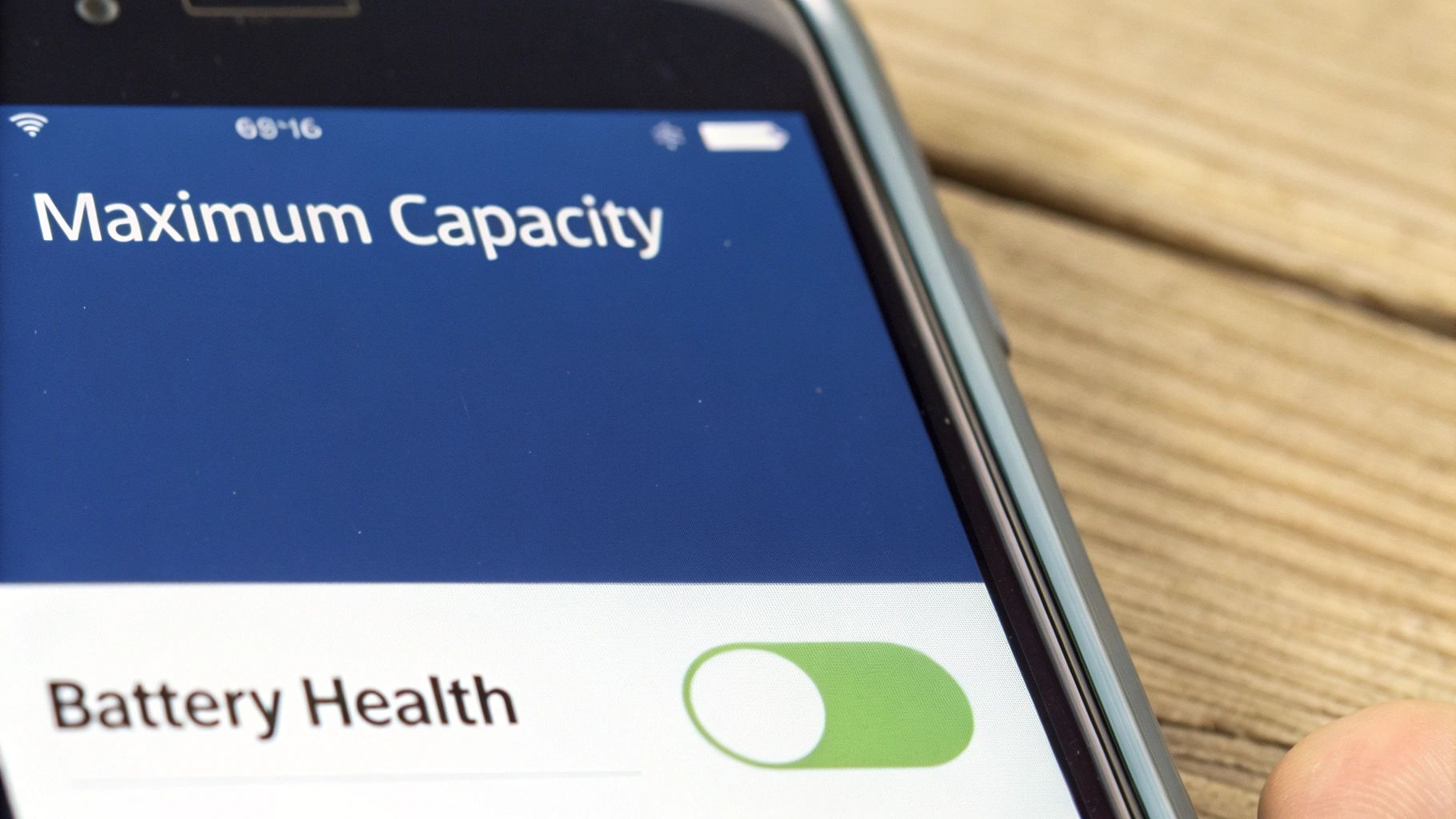
Alt text: A smartphone screen displays battery health information including 'Maximum Capacity' with a green toggle.
Caption: iPhone 13 Pro showing Maximum Capacity under Battery Health settings in Brisbane.
The most obvious clue is waiting for you in your settings. If you navigate to Battery Health and see the Maximum Capacity has dropped below 80%, it's a clear sign. You might even see a "Service" message from Apple—that’s your phone telling you directly that the battery can no longer hold a proper charge and is compromising performance.
Beyond the numbers, think about your daily experience. Are you constantly looking for a charger, suffering from what we call "battery anxiety"? Or worse, does your phone suddenly die when it still shows 20% or 30% left? These are the classic signs of a degraded battery that’s on its last legs.
The Benefits of a Professional Repair Service
When a replacement is needed, the temptation to grab a cheap DIY kit or a marketplace battery can be strong. I’d strongly advise against it. These low-quality parts often fail to meet safety standards, have a much shorter lifespan, and can sometimes even cause further damage to your iPhone's delicate internals.
Going with a professional service is simply the smarter choice. Here’s why:
- High-Quality Parts: A reputable technician uses premium, tested batteries that perform reliably and meet safety specifications.
- Expert Installation: It's not just a simple swap. Technicians have specialised tools and, more importantly, the experience to open your iPhone without damaging fragile cables or components.
- Service Warranty: Nearly all professional repairs come with a warranty. This is your safety net, giving you peace of mind that the new battery is covered if anything goes wrong.
Choosing a pro ensures the job is done correctly from the start, bringing your iPhone back to life without creating new problems.
A professional battery replacement isn't just about getting more hours out of your phone; it's about restoring its reliability. You're paying for expertise and quality parts, which eliminates the risk and guesswork.
Making an Informed Decision
Ultimately, getting a new battery is about reclaiming your phone's freedom. You shouldn't have to plan your day around a power outlet. If you've exhausted all the software fixes and your battery health is poor, a replacement is a surprisingly cost-effective way to get a few more years out of your device.
It restores your iPhone to peak performance, letting you go about your day with confidence. To get a better handle on the process and what’s involved, our detailed guide on iPhone battery replacement in Brisbane walks you through everything you need to know.
Your Top iPhone Battery Questions, Answered
Let's wrap things up by tackling some of the most common questions people ask when their iPhone battery starts draining too quickly. Think of this as a handy cheat sheet to clear up any lingering concerns and help you build better battery habits for the long haul.
Is It Safe to Charge My iPhone Overnight?
This is easily one of the most common worries I hear, and the answer is a simple, resounding yes. Your iPhone is a lot smarter than people give it credit for. It has sophisticated battery management software built right in that cuts off the power as soon as the battery hits 100%.
Better yet, iOS has a feature called Optimised Battery Charging. This clever bit of tech learns your daily routine—when you go to bed and when you wake up. It then holds the charge at around 80% for most of the night and only tops up that final 20% just before you typically start your day. This little trick minimises the time your battery spends at full capacity, which is a big help for its long-term health.
Does Extreme Heat or Cold Actually Affect My Battery?
Absolutely. Lithium-ion batteries, like the one in your iPhone, are creatures of comfort. They work best at a comfortable room temperature, and exposing them to extremes is one of the fastest ways to permanently damage their capacity.
- Extreme Cold: In chilly weather, you might notice your battery level seems to plummet out of nowhere. This is usually just temporary. Once your phone warms back up to a normal temperature, its performance should return to what you'd expect.
- Extreme Heat: This is the real danger zone. Leaving your iPhone cooking on a car dashboard on a sunny day can permanently slash its ability to hold a charge. Apple officially recommends avoiding ambient temperatures above 35° C.
If there's one thing to remember, it's this: treat your iPhone's battery like you would yourself. It doesn’t appreciate being left in a freezing car or baking in the Aussie sun. These environmental factors can often have a bigger impact than any software setting you could possibly change.
Should I Let My Battery Drain to 0% Before I Charge It?
That's a myth that’s stuck around from the days of old battery technology. Modern lithium-ion batteries don’t suffer from the "memory effect," so there’s absolutely no need to drain them completely before plugging them in.
In fact, it's much healthier for your battery to do shallow discharges. What that means in practice is trying to keep its charge level somewhere between 20% and 80% whenever you can. Constantly letting it die completely puts unnecessary stress on the battery and speeds up its chemical ageing process.
If you’ve gone through all the software tips and tricks and your battery life is still giving you grief, it's a strong sign you're looking at a hardware problem. At that point, getting a professional diagnosis is the best way to find out what’s really going on.
At Screen Fixed, we provide premium replacement parts and expert advice for all your repair needs. If you’re ready to restore your iPhone’s performance, explore our DIY kits or get in touch with our team today.
Book your repair with Screen Fixed Brisbane today.
Disclaimer: All third-party brand names, such as Apple and iPhone, are trademarks of their respective owners. Screen Fixed is an independent repair service and is not affiliated with or endorsed by these companies.