

When your HP notebook stops holding a charge, dies far too quickly, or starts to look a bit puffy, it's a sure sign you're due for a battery replacement. The process is pretty straightforward: you'll need to find the right battery for your specific HP model, carefully take out the old one, and pop in the new one. Getting this done will bring back your laptop's freedom from the power outlet and restore its performance.
How to Tell If Your HP Notebook Battery Is Failing
We’ve all been there—that frustrating moment your laptop dies right in the middle of typing something important. If you're using an HP notebook, a failing battery is almost always the prime suspect. It slowly turns your portable machine into a glorified desktop that can't stray from the wall socket. Spotting the warning signs is the first step to getting things sorted.
A dying battery usually doesn't just quit on you overnight. It gives you little hints along the way, which get more and more obvious over time. Catching these signs early can save you from the headache of sudden shutdowns and losing your work.
Common Symptoms of a Worn-Out Battery
The most obvious clue is a massive drop in runtime. Remember when your HP could go for hours? Now, you're lucky if it lasts 30 minutes off the charger. This rapid drain means the battery's internal cells are worn out and just can't hold a charge like they used to.
Another dead giveaway is when your notebook won't even turn on unless it's plugged in. If pulling the plug causes the screen to go black instantly, the battery is completely done. It's not doing anything except taking up space inside your laptop.
You might also run into some really frustrating performance quirks, such as:
- Sudden Shutdowns: The laptop powers off without any warning, even when the battery icon says you still have 20% or more left.
- Failure to Charge: You leave it plugged in for hours, but the battery level never hits 100%. It just gets stuck somewhere along the way.
- Overheating: An old, struggling battery can get seriously hot when it's charging or in use, making the bottom of your laptop feel like a stovetop.
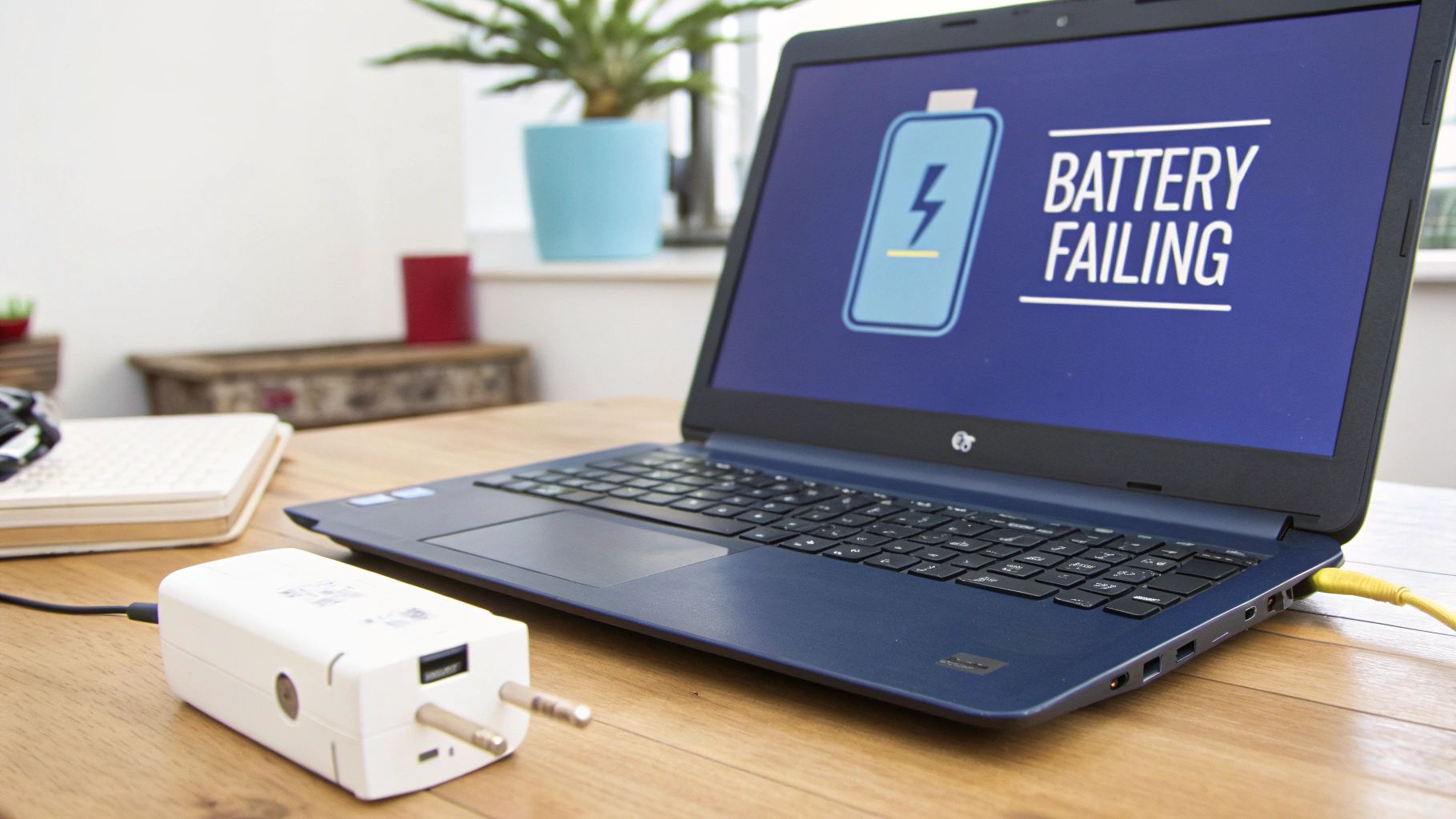 Alt text: HP laptop on a wooden desk showing a battery failing error message.
The Most Serious Warning Sign: Swelling
Forget performance problems for a second—a physically swollen battery is a serious safety risk that you need to deal with immediately. As lithium-ion batteries get older, the chemical reactions inside can create gas, causing the battery to puff up like a pillow.
This swelling can push against other parts inside your laptop, messing up your trackpad, keyboard, or even the main circuit board. A swollen battery is a genuine fire hazard and needs to be handled with extreme care.
If you notice the case of your laptop is bulging, the trackpad is hard to click, or the keyboard looks like it's being pushed up from underneath, stop using it right away. It's time for an immediate hp notebook battery replacement. This isn't just about getting your laptop working again; it's about keeping you and your property safe. For the more technically inclined, you can learn how to use a multimeter for beginners to check the voltage, but honestly, a quick visual check is usually all you need.
Finding the Right Replacement Battery for Your HP Model
Once you've figured out your battery is on its last legs, the next challenge is tracking down the right replacement. With what feels like a million different HP models out there, it can seem a bit overwhelming. But don't stress—a little bit of know-how is all you need to pinpoint the exact part for a successful hp notebook battery replacement.
First things first, you need to properly identify your laptop. It's not enough to know you have an "HP Pavilion"; you need the specific model number. This little detail is everything when it comes to compatibility.
How to Find Your HP Model Number
Usually, your laptop's model number is printed right on the bottom case. Just flip your notebook over and look for a sticker that might say "Model," "Product," or "P/N." You're looking for something specific, like "HP Pavilion 15-cs3003na" or "ProBook 450 G8."
If that label is long gone or too worn to read, you can always find the info digitally:
- HP Support Assistant: Most HP laptops come with this software pre-installed. Open it up, and it will tell you your exact product name and number.
-
System Information: This is a classic trick. Just press the Windows key + R, type
msinfo32into the run box, and hit Enter. Look for the "System Model" line—that's what you need.
With that number in hand, you're ready to find a battery that's a perfect match. A few minutes of detective work here will save you the massive headache of ordering a part that doesn't even fit.
OEM vs Aftermarket Batteries: What's the Difference?
Now that you have your model number, you’ll face a common crossroads: do you buy an Original Equipment Manufacturer (OEM) battery from HP, or go for a high-quality aftermarket option from a trusted supplier? Both have their place.
An OEM battery is the genuine article—the exact same part that was in your laptop when it was brand new. This guarantees a perfect fit and performance, but they often come with a much higher price tag. They can also be tough to find, especially for older models that are no longer supported.
High-quality aftermarket batteries, on the other hand, are produced by third-party specialists to meet or even exceed the original specs. They’re a brilliant, cost-effective alternative. The catch? The market is absolutely flooded with cheap, dodgy batteries that are unreliable at best and dangerous at worst. This is exactly why it’s so critical to buy from a reputable Australian supplier that offers a solid warranty.
Choosing between an OEM battery and a premium aftermarket one can feel tricky. To make it clearer, here’s a straightforward comparison.
OEM vs. High-Quality Aftermarket HP Batteries
| Feature | OEM Battery | Premium Aftermarket Battery |
|---|---|---|
| Source | Made by or for HP directly. | Made by a third-party specialist. |
| Price | Typically much more expensive. | More affordable and budget-friendly. |
| Compatibility | Guaranteed to be a perfect match. | Engineered to match original specs. |
| Warranty | Varies, can be limited. | Often includes a comprehensive warranty. |
| Availability | Can be hard to find for older models. | Wide availability for new and old models. |
| Quality | Consistently high quality. | Varies by supplier; reputable sources ensure premium cells. |
Ultimately, a premium aftermarket battery from a trusted source gives you the best of both worlds. You get a reliable, well-tested product that performs just like the original, but without that hefty OEM price tag.
The demand for reliable replacement parts in Australia isn't new. HP Australia itself has had to expand its battery replacement and recall programs several times, with major updates in January 2017 and again in August 2019. These recalls covered internal lithium-ion batteries across a huge range of HP notebooks, creating a surge in demand for safe, reliable replacements. You can read more about HP's Australian recall programs to see just how widespread the issue was.
Making the Right Choice for Your Repair
So, what's the verdict? For most people doing a DIY repair, a premium aftermarket battery is the smartest path forward. You save a good chunk of money without sacrificing the performance or longevity your laptop needs. We apply this same logic to sourcing parts for other brands, which we cover in our guide on choosing Samsung replacement batteries. The most important thing is to buy from a specialist who stands behind their products.
At Screen Fixed Brisbane, we ensure our customers have access to high-quality parts for all repairs. By skipping the gamble on sketchy online marketplaces, you ensure your HP notebook gets a new lease on life with a battery you can actually trust.
A Practical Walkthrough for Replacing Your HP Battery
Alright, let's get our hands dirty. Tackling an hp notebook battery replacement yourself might seem like a big job, but with a bit of patience and the right guidance, it's something you can absolutely handle. We’re here to walk you through it, step by step, so you can get the job done with confidence.
Before you even touch a screwdriver, the most important thing is to set up your space. You need a clean, well-lit area where you won't be disturbed. A kitchen table or a desk is perfect—just lay down a soft cloth or an anti-static mat to keep your laptop from getting scratched.
Preparing Your Tools and Workspace
Having the right tools ready to go is the difference between a smooth repair and a frustrating afternoon. You don't need a professional workshop, just a few key items.
Here’s a quick checklist of what we recommend having on hand:
- A set of precision screwdrivers: Most HP laptops use small Phillips-head screws, but some might throw a Torx screw at you. A decent kit will cover all your bases.
- Plastic prying tools (spudgers): These are non-negotiable for safely popping open the plastic clips on the laptop case without leaving marks or breaking them. Seriously, don't use a metal screwdriver for this.
- An anti-static wrist strap: This is your best friend for this job. It grounds you and stops any static electricity from your body frying the sensitive electronics inside.
- A small container: A little bowl or magnetic mat to hold onto all those tiny screws. Trust us, they have a habit of vanishing into thin air.
Once your tools are laid out and your workspace is ready, completely power down your laptop. We don't mean just putting it to sleep—do a full shutdown. Unplug the charging cable and any USB devices. You want it totally disconnected from any power source before you start.
This handy visual shows you the first part of the process—making sure you've got the correct battery before you even open up the machine.
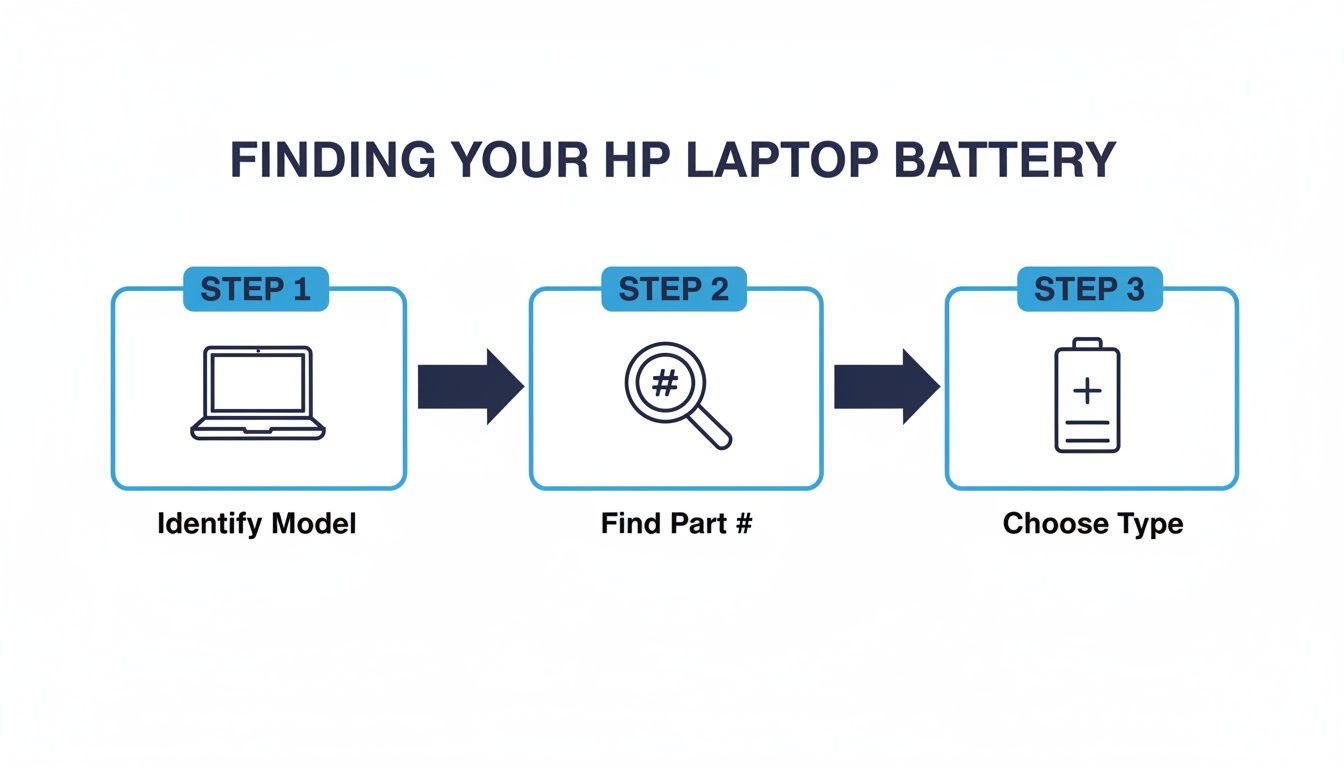 Alt text: Infographic with icons showing how to find your HP laptop battery in three steps.
Nailing these three steps—identifying your model, finding the part number, and choosing the right type—is the foundation for a successful replacement.
Opening the Laptop Casing
This is where people often get nervous, but it’s pretty simple if you go slow. Flip the laptop over so the bottom is facing up. If you have an older HP model with an external battery, you might see a couple of sliding latches. If so, you're in luck! Your job will be done in about ten seconds.
For most modern HP notebooks with internal batteries, you’ll need to take off the bottom cover. Start by undoing all the screws you can see. Look closely, because manufacturers love to hide them under the rubber feet—you can usually peel these back gently to check. It's a good idea to keep track of which screws came from where, as they're often different lengths.
With the screws out, grab a plastic prying tool. Slide it into the seam between the bottom cover and the main body of the laptop and gently work your way around the edge. You'll hear a series of little "pops" as the internal clips release. Just be patient and never force it. If a clip feels stubborn, try approaching it from a slightly different angle.
Careful handling of parts is more important than you might think. Back in 2009, HP had to recall over 3,405 lithium-ion battery packs here in Australia for models like the Pavilion dv6000 series because of safety risks. This event really drove home how crucial it is for local repair shops and DIYers to have access to reliable parts from trusted sources to keep devices safe.
Disconnecting and Removing the Old Battery
Once the bottom cover is off, you'll see all the internal components. The battery is hard to miss—it's usually the largest, flattest part, typically black or silver. The very first thing you need to do is find where it connects to the motherboard.
This connector is your priority. Disconnect it carefully. Some slide straight out, while others have a tiny latch you need to flip up. It's always best to use a plastic tool for this, not your fingers, to avoid any chance of causing a short.
Safety First: Disconnecting the battery before touching anything else is the golden rule of laptop repair. It cuts all power to the board, protecting both you and your computer from any accidental damage.
With the connector unplugged, you can start removing the screws holding the battery in place. Keep these screws separate from the case screws. Some HP batteries are also held down with adhesive strips. If you find yours is stuck down, you'll need to pry it up gently and evenly. Our guide on dealing with double-sided tape adhesive has some great tips that can help here. Take your time to avoid bending or, worse, puncturing the old battery—especially if you notice it's swollen.
Installing the New Battery
Putting the new battery in is just doing everything in reverse. Line up the new battery in the exact same spot as the old one. It should sit perfectly flat, with the screw holes matching up.
Secure it with the screws you put aside. If your original battery had adhesive, your new one should come with fresh strips. Just peel off the backing and press it down firmly.
Now, reconnect the battery cable to the motherboard. You should feel it click or slide snugly into place. This is a critical step—a loose connection is one of the most common reasons for a laptop not turning on after a replacement. Give the cable a very gentle tug to make sure it's secure.
Finally, put the bottom cover back on. Start by lining up one edge and then work your way around, pressing gently until you hear all the clips snap back together. Put all the screws back in, and don't forget to stick the rubber feet back on if you removed them. And that's it! You've just finished the physical part of your hp notebook battery replacement. Now it's time to power it on and make sure everything is running smoothly.
What to Do After Installing Your New Battery
Getting the new battery seated and connected feels like a massive win, but don't close up your laptop just yet. There are a few crucial final steps to make sure your new power source performs flawlessly and gives you the long runtime you’ve been missing. This whole post-installation process is really about making sure your HP notebook and its new battery get properly introduced.
First thing's first: reassemble your laptop, plug in the AC adapter, and power it on. As it boots up, keep a close eye on the battery icon in your system tray. You're looking for confirmation that it's plugged in and, most importantly, charging. This simple check tells you that all your physical connections are secure and the laptop recognises the new hardware.
If it doesn't show as charging, don't panic. This is a common hiccup. Just power down, unplug the AC adapter, and double-check that the battery's connector is fully and snugly seated on the motherboard. A slightly loose connection is the culprit nine times out of ten, and it's a super easy fix.
Why You Absolutely Must Calibrate Your New Battery
Once you’ve confirmed the battery is charging, the single most important next step is calibration. Think of it as a handshake between your new battery and your laptop's software. The process involves a full charge, a full discharge, and then another full recharge to get its internal power meter in sync with your notebook's power management system.
If you skip this, your laptop might not have a clue what 100% or 0% actually means for this new battery. This leads to all sorts of frustrating problems, like your device suddenly shutting down when it says you still have 30% charge left, or the percentage getting stuck and never reaching a full charge.
Proper calibration ensures you get accurate battery life readings right from the get-go and helps maximise the battery's overall lifespan. It's a small investment of time that pays off big in the long run.
A Simple Guide to Battery Calibration
Calibrating your new HP battery is straightforward and doesn't require any special tools or software. You just need to follow this simple cycle.
- Charge It to 100%: Plug in your laptop and let the new battery charge completely to 100%. To be on the safe side, we recommend leaving it plugged in for another hour or two even after it hits full. This ensures it's truly topped up.
- Let It Drain Completely: Now, unplug the AC adapter and use your laptop as you normally would. The goal is to run the battery all the way down until the laptop shuts itself off from low power.
- Let It Rest: After the laptop has turned itself off, leave it sitting unplugged for at least three to five hours. This allows the battery to cool down and settle.
- Recharge to 100% Again: Finally, plug the AC adapter back in and let the battery charge all the way back up to 100% without interruption.
Once you've completed this cycle, your battery is officially calibrated. Your laptop now has an accurate map of the battery's capacity, which means more reliable performance for you. You can now use and charge your notebook as you normally would.
This initial calibration is a one-time process for a new battery. For ongoing battery health, it's good practice to perform a full discharge and recharge cycle once every month or two. This helps keep the power gauge accurate over the battery's entire life.
Beyond these initial steps, understanding what preventive maintenance is can help you get the most out of your new battery for years to come. This approach is all about regular care to prevent future problems, which is the perfect mindset for extending the life of your new component. A successful hp notebook battery replacement isn't just about the physical swap; it's about setting the new part up for a long and healthy service life.
So, you've swapped in the new battery, screwed the case back together, and you're ready for that sweet, untethered laptop life again. But then you hit the power button, and... something’s off. It's a frustrating moment, but don’t panic. More often than not, it's a simple fix.
Before you start thinking you’ve received a faulty part, let's walk through the most common hiccups that pop up after an hp notebook battery replacement. Think of this as your post-op checklist.
Your Laptop Is Not Turning On at All
This one’s a heart-stopper, but it's almost always caused by something simple. The number one culprit? A loose connection.
Power everything down, unplug the AC adapter, and pop the back cover off again. Take a close look at where the battery connector meets the motherboard. It's worth disconnecting it completely and then reseating it firmly. You should feel a solid click or see it slide all the way into place. While you're in there, just give a quick glance to make sure you didn't accidentally nudge any other important cables, like the one for the power button.
The New Battery Is Not Being Detected
You’ve made it to your desktop, but the battery icon has an angry red 'X' on it, or a "No battery is detected" message is taunting you. This is usually a software glitch; your laptop is still clinging to the memory of its old, dead battery.
A hard reset is the go-to fix here, and it works wonders. Here's what to do:
- Shut the laptop down and unplug the AC adapter.
- Carefully disconnect the new battery from the motherboard.
- Now, press and hold the power button for about 25-30 seconds. This drains any leftover charge from the mainboard and clears its memory.
- Reconnect the battery, plug the AC adapter back in, and fire it up.
You'd be surprised how often this simple trick gets things talking again. If it's still playing stubborn, your next move is to head into the Device Manager in Windows and update the battery drivers.
The Battery Isn't Charging Past a Certain Point
This is another common headache. You see the battery charging, but it gets stuck at a certain level—like 80%—and refuses to go any higher. It feels like you've been sold a dud, but it's usually just a calibration issue or a power management setting getting in the way.
First things first, make sure you've done that full calibration cycle we talked about earlier. If that doesn't sort it, it's time to dig into your laptop's power settings. Many HP models have a "battery health" or "longevity" mode tucked away in the BIOS or HP's own software. This feature deliberately stops the charge early to prolong the battery's overall lifespan. You might need to find that setting and switch it off to get a full 100% charge.
When a battery's charge level gets "stuck," it’s often just a communication breakdown between the battery's internal controller and your laptop's software. Running it flat and then charging it all the way back up is usually all it takes to get them back in sync.
And don't forget the obvious: a dodgy power adapter can also be the problem. If your charger isn't delivering enough juice, it might struggle to top off a brand-new, healthy battery. If you've got another compatible HP adapter lying around, give it a try and see if that solves it.
Quick Fixes for Common Battery Issues
Even the most experienced techs run into these little gremlins from time to time. The trick is to work through the problem logically instead of jumping to the worst-case scenario. This little table should help you pinpoint the issue fast.
| Problem | Possible Cause | Solution to Try |
|---|---|---|
| Laptop won't power on | Loose battery connector | Power down and reseat the battery cable firmly. |
| 'Battery not detected' error | Software/driver conflict | Perform a hard reset and/or update battery drivers. |
| Stuck at a specific charge % | Calibration or power setting issue | Complete a full calibration cycle or check BIOS settings. |
| Charges very slowly | Faulty AC adapter or USB-C port | Test with a different, known-good power adapter. |
By patiently working through these steps, you can tackle the vast majority of post-replacement dramas yourself. You'll have that HP notebook up and running perfectly on its new battery in no time.
Why Repairing Your HP Notebook Is a Smart Choice
 Alt text: Blue HP laptop, bag and tablet on a desk, promoting repair and reuse.
When your trusty HP notebook starts dying faster than you can find a power point, it’s tempting to start browsing for a new model. But hold on a second. Opting for an hp notebook battery replacement is often a much savvier move, both for your bank account and the planet.
Think about it: you get to extend the life of a perfectly good machine you already know and love. A simple, affordable battery swap can add years to your laptop's usability, all for a fraction of what a brand-new notebook would cost. It's a fantastic return on investment, and you get to skip the headache of transferring files and reinstalling all your programs.
The Financial and Environmental Benefits
Let's talk numbers. Choosing to repair is a clear win for your finances. Instead of forking out hundreds, or even thousands, for a new laptop, you're looking at a much smaller bill for a replacement battery. That’s cash that stays right where it belongs—in your pocket.
Beyond the savings, you're also making a genuinely positive environmental impact. Electronic waste, or e-waste, is a huge global problem. By replacing just one component, you’re saving an entire laptop from ending up in a landfill, where toxic materials can leach into the soil and water. For many eco-conscious Aussies embracing the right-to-repair movement, it’s a no-brainer.
And there's a real demand for this. HP laptops are everywhere in Australia, from offices to homes, so the market for repairs is massive. We see it every day. A typical battery degrades to 50-80% of its original capacity after about 300 charge cycles, which for most people is within two to three years. This means local repair shops are handling thousands of these jobs every year. You can learn more about the local demand for HP laptop batteries to see just how common this is.
How to Responsibly Dispose of Your Old Battery
So, you’ve successfully installed your new battery. What do you do with the old one? It’s crucial that you don’t just toss it in the regular rubbish bin. Lithium-ion batteries contain materials that can be pretty hazardous if they aren't handled correctly.
Fortunately, recycling them safely in Australia is quite straightforward.
- Local Council E-Waste Programs: Most local councils have dedicated e-waste drop-off points or special collection days.
- Retailer Take-Back Schemes: Big retailers like Officeworks and Battery World usually have recycling bins right in-store for old batteries.
- MobileMuster: While they're famous for phones, this government-accredited program also accepts laptop batteries at many of their drop-off locations.
Taking a few extra minutes to recycle your old battery properly closes the loop on a truly sustainable repair. You’re not just fixing your device; you’re making sure its old parts are handled in an environmentally responsible way.
Ultimately, choosing an hp notebook battery replacement is about more than just solving a problem. It’s a practical, economical, and eco-friendly decision that puts you in control. You save money, cut down on waste, and get the satisfaction of bringing your reliable device back to life.
Meta Title: HP Notebook Battery Replacement Guide | Screen Fixed Brisbane Meta Description: Is your HP notebook battery failing? Our complete guide covers identifying a bad battery, finding the right replacement, and installation steps in Australia. Disclaimer: Screen Fixed is an independent repair service provider and is not affiliated with HP Inc. The trademarks HP, Pavilion, Spectre, ProBook, and Compaq are the property of HP Inc.
Ready to give your HP notebook a new lease on life? Screen Fixed offers professional repair services to get your device back to peak performance. Book your repair with Screen Fixed Brisbane today and experience fast, reliable service from Australian experts. Book your HP Notebook Battery Replacement with Screen Fixed