

Meta Title: How to Factory Reset Samsung Tab A: A Complete Guide
Meta Description: Is your Samsung Tab A slow or are you selling it? Learn how to safely factory reset your device with our step-by-step guide. Protect your data now.
Is your Samsung Tab A feeling a bit sluggish, or are you preparing it for a new owner? A factory reset is often the best solution to restore its performance and ensure your personal data is secure. This process wipes everything clean, returning the tablet to its original software state—just like it was when you first took it out of the box.
Why You Might Need to Factory Reset Your Samsung Tab A
Alt text: A Samsung Galaxy Tab A on a desk, ready for a performance-boosting factory reset.
Deciding to factory reset your Samsung tablet isn't a small decision. It's a powerful fix designed to solve stubborn issues or protect your information. Over time, these devices can get clogged with junk files, conflicting app data, and minor software bugs that all add up to a noticeable drop in speed and reliability.
While a simple restart can sometimes sort out temporary glitches, a factory reset goes much deeper, giving your tablet a completely fresh start. It’s the tool you turn to when a basic reboot just won't cut it.
Solving Performance Problems
Does your tablet lag every time you open an app? Maybe it freezes up randomly or your favourite apps crash without warning. These are classic signs that the software is getting bogged down. In most cases, a factory reset can bring back that snappy, responsive feel your Tab A had when it was brand new.
Think of it as a digital spring clean. You’re not just tidying up; you're clearing out all the clutter that has built up over months or even years of use. This is particularly effective for older tablets that have been through a few major operating system updates.
Securing Your Personal Data
This is probably the most important reason to do a factory reset. If you’re planning to sell, trade-in, or give your tablet to someone else, you absolutely must wipe your personal data first. Just deleting files isn't enough, as that data can sometimes be recovered with the right tools.
A factory reset completely and permanently erases:
- Your accounts: This includes Google, Samsung, and any other social media or email accounts you’ve logged into.
- Personal files: All your photos, videos, documents, and downloads will be deleted for good.
- App data: This means saved games, app settings, and login details will be gone.
- System settings: Wi-Fi passwords, Bluetooth connections, and all your customisations will be reverted to default.
By doing a full factory data reset, you make it practically impossible for the next owner to get their hands on your sensitive information. It’s all about peace of mind.
Understanding Soft Reset vs Factory Reset
It’s crucial to know the difference between these two actions, as they solve very different types of problems.
A soft reset is just the simple act of turning your device off and on again. It clears out the temporary memory (RAM) and can fix minor issues, like a single app that's become unresponsive. The key thing here is that it does not delete any of your personal data.
A factory reset, on the other hand, is the full wipe. It reformats the internal storage, getting rid of all your data and returning the software to its original factory settings. For anyone in Brisbane dealing with tablet problems that a restart just won't fix, understanding this difference is the first step toward getting it sorted.
Ultimately, whether you need to reclaim lost performance or protect your privacy before passing the device on, a factory reset is an essential tool every tablet owner should know how to use safely and correctly.
Your Pre-Reset Checklist: Safeguarding Your Data
Diving headfirst into a factory reset without a bit of prep is a recipe for disaster. Before you wipe your Samsung Tab A, taking a few minutes to get organised can save you from the heartache of losing precious memories and important files forever. Think of this as your pre-flight checklist; it’s your safety net to make sure the whole process is smooth and stress-free.
Create a Failsafe Backup
The absolute first thing you need to do is back up your data. A factory reset is permanent. Every photo, contact, document, and app setting will be gone for good. You need to have a secure copy of everything you want to keep. Luckily, both Samsung and Google have built-in cloud backup solutions that make this incredibly easy.
Your Samsung Tab A gives you two main ways to back up your data. My advice? Use both. You can never be too careful.
-
Samsung Cloud: This is baked right into your tablet's software. It's great for saving things like your home screen layout, app installations, system settings, contacts, and messages. To get it running, just head to
Settings > Accounts and backup > Back up dataand look for the Samsung Cloud section. -
Google Drive: Your Google account is a powerhouse for backups. It can handle your photos and videos (through Google Photos), app data, contacts, and calendar events. You'll find the options for this in the same place:
Settings > Accounts and backup > Back up data, but under the Google Drive heading.
For a really thorough walkthrough on securing your data, check out our detailed guide on how to back up your Samsung phone. The steps are almost identical for your tablet. A solid backup means that once the reset is done, you can restore your device and get right back to where you were without missing a thing.
Just remember, a factory reset is final. There’s no undo button once you hit 'Delete all'. Always double-check that your backup has finished completely before you even think about starting the reset.
Sign Out of Your Accounts to Avoid Lockouts
Okay, this next step is critical and something people forget all the time. Before you even begin the factory reset samsung tab a process, you must manually sign out of your Google and Samsung accounts. Why is this so important? It all comes down to a security feature called Factory Reset Protection (FRP).
FRP is a clever anti-theft measure. It’s designed to stop a thief from wiping your stolen tablet and using it as their own. If the tablet detects an unauthorised reset, FRP kicks in and locks the device, demanding the login details of the last Google account used. The catch is, if you don't sign out first, the system might see you as the unauthorised user, locking you out of your own tablet after the reset. It's a massive headache you can easily avoid.
To prevent this nightmare scenario:
- Navigate to
Settings > Accounts and backup > Manage accounts. - Tap on your Google account, then choose
Remove account. - Repeat the process for your Samsung account.
This simple action tells the tablet that you're authorising the reset, deactivating FRP and ensuring you can set everything up again without a hitch.
Final Checks Before You Begin
With your data safely stored and your accounts removed, there are just a couple of final things to tick off the list. First, make sure your tablet has at least 50% battery life. Even better, just plug it into the charger. If the device dies midway through a reset, it can cause serious software corruption—a problem often called "bricking" because it can turn your tablet into a useless brick.
Second, if you're using a microSD card for extra storage, it’s a good idea to pop it out. The factory reset should only wipe the internal storage, but removing the card completely eliminates any tiny risk of it being accidentally erased. Better safe than sorry.
For a broader look at data protection practices when you're getting rid of old electronics, there are some great guides on securely disposing of mobile devices.
Performing a Factory Reset via the Settings Menu
If your Samsung Tab A is still playing nice—meaning you can unlock it and get to the home screen—the best way to wipe it is right through the settings menu. I always recommend this route first. It’s the safest and most straightforward approach, giving you full control and showing you exactly what’s about to be deleted before you pull the trigger.
Think of this method as a controlled demolition rather than an emergency fix. It’s perfect for when you're preparing to sell the tablet, pass it on to a family member, or just want to clear out years of digital clutter for a fresh start.
Navigating to the Reset Option
Finding the factory reset option can sometimes feel like a bit of a treasure hunt, as Samsung occasionally moves things around between Android updates. Don't worry, though; the general path is pretty consistent across most Tab A models.
First up, open the main Settings app. You'll need to scroll down a bit until you find a section called General management. This is where Samsung bundles options for language, time, and, most importantly for us, resetting the device.
Tap on 'General management', and you'll see an option labelled Reset. Inside this menu, you'll be presented with a few choices. This is where you need to be careful. You're looking for Factory data reset. Ignore the others like 'Reset all settings' or 'Reset network settings'—those are much less drastic and won't wipe your personal data.
Before it lets you finalise anything, the tablet will show you a comprehensive summary screen. This is a critical checkpoint. It lists every account you’re logged into (Google, Samsung, your banking apps, etc.) and all the types of data that will be permanently erased. It's your last chance to stop and double-check that your backups are complete.
This quick visual checklist covers the non-negotiables before you hit that final button.
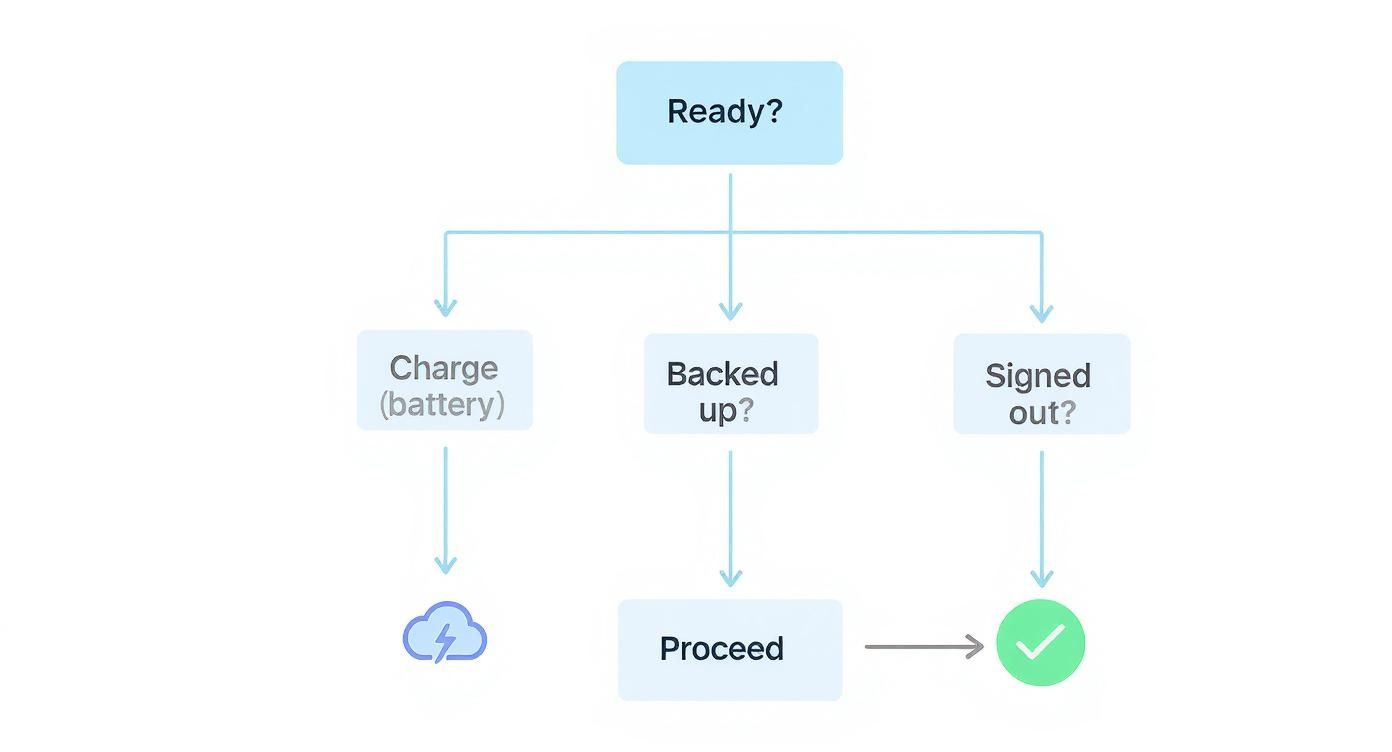
Alt text: Flowchart showing preparation steps for a factory reset: charge device, back up data, and sign out of accounts.
As the chart shows, make sure your device is charged, all your important files are saved elsewhere, and you've signed out of your key accounts.
By using the settings menu, you are authorising the reset from inside the operating system. This is the cleanest way to do it and helps avoid potential headaches, like the Factory Reset Protection (FRP) lock that can otherwise trip you up.
Once you’ve scanned the summary screen and you’re confident your data is safe, go ahead and tap the final 'Delete all' button. The tablet will power down, wipe everything from its internal storage, and restart completely fresh. The next thing you’ll see is the same "Welcome!" screen you got when you first took it out of the box, ready for a new beginning.
If you go through all this and the tablet still has issues, it might be time for some expert tablet repairs in Brisbane, as the problem could be with the hardware itself.
Using Recovery Mode for a Hard Reset

Alt text: A user navigates the home screen of a Samsung Tab A before attempting a hard reset in Brisbane.
Sometimes, the easy path through the Settings menu is completely blocked. What do you do when your Samsung Tab A is frozen solid, caught in an endless restart loop, or worse, you've forgotten the PIN to unlock it?
In these frustrating scenarios, you can’t get into the tablet's software, so a standard reset is off the table. This is where Recovery Mode comes to the rescue.
Think of Recovery Mode as a hidden control panel for your tablet. It operates separately from the main Android system, giving you a powerful way to perform a hard reset even when the device seems completely unresponsive. It’s a forceful method, but it's often the only way to get a malfunctioning tablet working again.
A big word of caution here: if your device is locked, you won't be able to do a last-minute backup. This process will wipe everything, and any data not previously saved to the cloud or an SD card will be gone for good.
Accessing the Recovery Menu
Getting into Recovery Mode involves a specific combination of button presses. It can feel a bit technical, but it’s straightforward once you know the sequence. The exact buttons can vary slightly between different Tab A models, especially between older and newer versions.
Here are the most common combinations:
- For newer models (without a physical Home button): First, power the tablet off completely. Press and hold the Power button and the Volume Up button at the same time. Keep holding them until you see the Samsung logo, then release both buttons.
- For older models (with a physical Home button): Again, start with the tablet off. This time, you'll press and hold three buttons at once: the Power button, the Volume Up button, and the Home button. Hold all three until the Samsung logo appears on the screen, then let go.
If your tablet is frozen and won't turn off, you might need to force a shutdown first. Just hold the Power and Volume Down buttons for about 10 seconds. Once it powers down, you can immediately switch to the Recovery Mode button combination. Timing is key, so don't be discouraged if it takes a couple of tries.
If you find your Samsung Galaxy tablet won't turn on at all, there might be other issues at play that a reset won't fix.
Navigating the Recovery Mode menu feels a bit old-school. It’s a text-based interface with no touch controls. You'll use the Volume Up and Volume Down buttons to move the selection highlight, and the Power button to confirm your choice.
Performing the Factory Reset
Once you're in the Recovery Mode menu, you'll see a list of options like "Reboot system now." Be careful here, as selecting the wrong one can cause problems.
Using the volume buttons, scroll down until you highlight the option that says Wipe data/factory reset. Press the Power button to select it.
The system will then ask for confirmation, usually on another screen that says "Factory data reset." This is your point of no return. Highlight it using the volume keys and press the Power button one last time to start the wipe.
The reset process itself is pretty quick, usually taking just a minute or two. You'll see some text scrolling at the bottom of the screen showing the data wipe is in progress. When it's finished, you’ll be returned to the main Recovery Mode menu.
The option Reboot system now should already be highlighted. Just press the Power button to restart your tablet. It will then boot up to the initial "Welcome!" screen, completely wiped and ready for a fresh setup—just like it was when you first took it out of the box.
How to Remotely Reset a Lost or Stolen Tablet
That sinking feeling when you realise your Samsung Tab A is lost or stolen is something else. Your first thought might be recovery, but your top priority needs to be protecting your personal information. Thankfully, both Samsung and Google give you powerful tools to find, lock, and even completely wipe your tablet from a distance.
This gives you a critical line of defence, even when the device isn't in your hands. A remote factory reset is your ultimate security blanket, erasing all your photos, accounts, and private files to stop them from being accessed by someone else.
For this to work, though, a few things need to be in place. The tablet must be on and have an internet connection, either through Wi-Fi or mobile data. Most importantly, you had to have been signed into your Samsung and Google accounts on the device before it went missing.
Using Samsung's Find My Mobile
Samsung's own tracking service, Find My Mobile, is built specifically for Galaxy devices and offers a whole suite of remote management features. If you enabled this when you first set up your tablet, you're in a great position to secure your data.
You'll need to use another device, like a computer or a different phone, to kick off a remote wipe.
- First, open a web browser and head to the Find My Mobile website (
findmymobile.samsung.com). - Sign in with the exact same Samsung account details that are on your missing Tab A.
- Once you're in, you'll see a map showing your tablet's last known location. Over on the right, there's a panel with several commands you can send.
- Look for and select Erase data. The system will ask you to verify your identity one more time just to be sure.
- After you confirm, the command is sent. The next time your tablet pings a network, it will start the full factory reset Samsung tab a process, wiping everything.
Be warned: this is a one-way street. Once you erase the data, you can no longer track the tablet with Find My Mobile. The connection to your account will be permanently cut.
Wiping Your Tablet with Google's Find My Device
Just like Samsung's service, Google’s Find My Device is another excellent and reliable option. The great thing about Google's tool is that it works for any Android device linked to your account. The process is very similar and just as powerful.
You can get to it from its dedicated website or by using the Find My Device app on another Android phone.
From a browser, just go to google.com/android/find and sign into the Google account that's on your tablet. The interface is straightforward: you'll see your device on a map with three main options: Play Sound, Secure Device, and Erase Device.
Choosing 'Erase Device' does exactly what it says—it permanently wipes all data from your tablet's internal storage. Like the Samsung service, this is your final move. One thing to note is that it won't erase an SD card if you had one in there, but it will absolutely protect your personal accounts and files on the device itself.
If you're looking for other security measures, you can also explore our guide on other methods of tracking your Android device. In a stressful situation like losing a tablet, having these powerful tools ready to go gives you the best possible chance to safeguard your privacy.
Setting Up Your Tablet After the Reset
Once the final reboot finishes, your Samsung Tab A will show you the familiar "Welcome!" screen. You've officially done it—the factory reset samsung tab a is complete, and now it’s time to set your tablet back up and make it yours again. Think of this as a chance to start fresh, rebuilding your digital space exactly how you want it.
The first few screens are pretty standard. You'll need to pick your language, hop onto a Wi-Fi network, and sign back into your Google account. This is the bedrock for everything that comes next.
Restoring Your Data and Apps
During this initial setup, your tablet will ask if you want to bring back data from a backup. This is where that prep work you did earlier really pays off. You’ll see an option to restore from a Google Drive backup, which is a lifesaver for getting your contacts, calendar, and app data back in one go.
If you also backed up to Samsung Cloud, you can restore those specific settings after the initial setup wraps up. Just head into Settings > Accounts and backup > Restore data. This is perfect for restoring things like your old home screen layout, alarms, and other Samsung-specific tweaks.
After that, the Google Play Store will kick into gear and start automatically downloading all your previously installed apps. This can take a fair bit of time, so it's a good idea to leave the tablet plugged in and on a stable Wi-Fi connection while it does its thing.
Maintaining Performance Post-Reset
With your tablet feeling snappy and new again, a little proactive care can keep it that way for a long time. You don't want to be doing another reset anytime soon, right?
- Be selective with apps: Only install apps you actually use and trust. Having dozens of apps running in the background is a surefire way to slow things down.
-
Clear the cache regularly: Every so often, pop into
Settings > Device care > Storageto clear out cached data. It frees up valuable space and can sort out weird app-specific glitches. - Restart it weekly: Seriously, a simple reboot once a week clears out temporary memory and keeps everything running much more smoothly.
As you set up your tablet from scratch, it’s the perfect time to think about online security. To keep your data safe, especially on public Wi-Fi, it's worth exploring the best VPN options for Android for your Tab A.
When the Problem Comes Back
So, what happens if the original problem—maybe constant freezing or apps crashing—comes back after all this? If the issue shows up again on a completely clean slate, it’s a massive clue that the software wasn't the culprit. This usually points to a deeper hardware fault, like a failing motherboard or dodgy memory.
At this point, you could spend hours trying more software fixes, but you'd likely just be going around in circles. Instead of getting caught in a frustrating loop, it’s time to bring in the pros. For a proper diagnosis and reliable tablet repairs, our team at Screen Fixed Brisbane can pinpoint the real problem and get it sorted for good.
Disclaimer: Screen Fixed is an independent repair service and is not affiliated with Samsung. All brand names and trademarks are the property of their respective owners.
Frequently Asked Questions
It's completely normal to have a few last-minute questions before you wipe a device. Wiping everything sounds serious, so let's clear up some of the most common things people ask when they need to factory reset a Samsung Tab A.
This should help you move forward with total confidence.
Does a Factory Reset Delete the Operating System?
This is a big one, and you can breathe easy—the answer is no. A factory reset is designed to get rid of your personal stuff: photos, downloaded apps, accounts, and any settings you’ve changed.
It wipes the slate clean, returning the tablet's software to how it was the day you first unboxed it. The core Android operating system remains untouched and ready to go.
What if My Tablet Gets Stuck on the Samsung Logo?
It’s a sinking feeling when your Tab A gets stuck on the Samsung logo after a reset. This is usually called a "boot loop," and it’s frustrating but often fixable.
The first thing to try is a forced restart. Just press and hold the Power and Volume Down buttons together for about ten seconds until it reboots.
If you’re still staring at that logo, you'll need to jump back into Recovery Mode. This time, before you select 'Wipe data/factory reset' again, find the option called 'Wipe cache partition' and run that first. This clears out temporary system files that can cause conflicts and is a classic fix for boot loops.
Will a Factory Reset Remove a Virus?
In almost every situation, yes. A factory reset is one of the most effective ways to get rid of malware or a virus because it erases all the user data and third-party apps where that malicious software is hiding.
The real trick is to be smart about restoring your data afterwards. If you restore a backup that was made after your tablet was infected, you’ll likely bring the virus right back. Your safest bet is to reinstall your essential apps one by one directly from the Google Play Store, rather than restoring from a potentially compromised backup.
If you're still running into these issues or other strange problems, it could point to a deeper hardware fault. For expert iPhone repairs in Brisbane, or professional help with your Samsung tablet, our team is always here to lend a hand.
When DIY fixes just won't cut it, it's time to call in the professionals. For reliable parts and expert advice for your Samsung Tab A and other devices, Fixo has you covered. Book your repair with Screen Fixed Brisbane today at https://www.fixo.com.au.