

Meta Title: Touchpad Not Working? 6 Quick Fixes to Try in Australia
Meta Description: Is your laptop touchpad not working? Our guide walks you through simple software and hardware fixes for Windows & Mac before you need a repair.
When your touchpad stops working, the first thought is often a costly hardware failure. But in our experience, the problem is almost always a simple software glitch or a setting that's been accidentally knocked out of place. Before you start looking up laptop repairs in Brisbane, let's explore the common culprits you can fix yourself.
We're talking about things like function keys, drivers, or system settings that can often be sorted in minutes.
Why Did My Touchpad Suddenly Stop Working?
That moment of panic when your cursor freezes is something we've all felt. Before you jump to conclusions and start pricing a new laptop, take a breath. A dead touchpad rarely means your computer is on its last legs.
Most of the time, the issue falls into one of three buckets: a simple user error, a software conflict, or, less commonly, a physical hardware problem. We’ll walk you through each of these, starting with the most frequent and easiest to fix.
Alt text: A person frustrated by their laptop, which has a "touchpad not working" error message.
Common Culprits Behind a Failed Touchpad
Think of this as your first-pass diagnostic check. More often than not, the solution is hiding in one of these common scenarios:
- Accidental Disabling: This is the big one. Most laptops have a function key combination (like Fn + F7) or a dedicated button to turn the touchpad off. It’s incredibly easy to hit this by mistake.
- Outdated or Corrupted Drivers: The driver is the piece of software that lets your touchpad talk to the operating system. If it gets corrupted during a system update or is just plain old, the touchpad can go silent.
- Incorrect System Settings: A recent Windows or macOS update can sometimes change your settings without you realising, disabling the touchpad or messing with its behaviour.
- Hardware Connection Issues: This is less common, but it happens. A drop or bump could loosen an internal cable. In some cases, a swelling battery underneath the touchpad can exert pressure and cause it to stop working.
This is a widespread problem. With so many of us working and studying from home, a faulty touchpad can bring productivity to a screeching halt. In Australia, touchpad failures are a common technical complaint, reflecting just how much we rely on our laptops. As portable device usage grows, so do reports of component issues. You can learn more about these trends in Australian computer retailing from IBISWorld.
Key Takeaway: Don't assume the worst. A step-by-step approach, starting with the simplest software checks, solves the vast majority of "touchpad not working" problems without ever needing a trip to the repair shop.
The goal here is to rule out the easy fixes first. Before you start thinking about reinstalling drivers or opening up your laptop, let's run through a few simple checks that often solve the problem instantly.
Quick Diagnostic Checklist for Your Touchpad
Use this table to quickly identify the potential cause of your touchpad issue based on common symptoms.
| Symptom | Most Likely Cause | First Action to Take |
|---|---|---|
| Cursor is completely frozen, no movement. | Accidental disabling via function key. | Look for a key with a touchpad icon (e.g., F5, F7, F9) and press it with the Fn key. |
| Touchpad stopped working after a system update. | Driver conflict or corruption. | Go to Device Manager and check for driver updates or try rolling back the current driver. |
| Cursor moves erratically or "jumps" around. | Dirty surface or a conflicting external mouse. | Clean the touchpad with a microfibre cloth and unplug any connected USB mice. |
| Physical buttons work, but the touch surface doesn't. | Specific touchpad driver setting or hardware fault. | Check advanced touchpad settings in your OS; if that fails, suspect a hardware issue. |
This table should give you a solid starting point. Our next sections will guide you through these software and hardware checks in more detail.
Solving Common Software and Driver Glitches
Before you start pricing out new laptops or worrying about a hardware failure, let's look at the most common source of touchpad problems: the software. More often than not, a "touchpad not working" drama is just a simple software hiccup you can sort out yourself in a few minutes.
We'll start with the dead-simple checks first and then work our way into the more technical stuff. Think of yourself as a detective; the clues are all there in your laptop's settings and Device Manager. We just need to know where to look.
Alt text: A close-up of a laptop with an "Enable Touchpad" message displayed on the touchpad area.
The First and Simplest Check
Let’s start with the most frequent culprit, and it's one that catches people out all the time: the touchpad disable key. It's ridiculously easy to accidentally hit a function key combo that just turns your touchpad off.
Glance at the top row of your keyboard, where the F1 through F12 keys live. One of them probably has a little icon that looks like a touchpad, maybe with a line striking through it. Try pressing that key by itself. If nothing happens, try pressing it again while holding down the Fn key (usually tucked in the bottom-left corner).
Honestly, this one simple action solves the problem for a huge number of people, saving them a trip to a repair shop. If that didn't do the trick, no worries. Let's dig into your system settings next.
Confirm Your Touchpad Is Enabled in Settings
Sometimes, a random software update or a newly installed program can mess with your settings without you even realising it. Both Windows and macOS have specific control panels where the touchpad can be toggled on or off, so it's vital to make sure everything is set correctly.
For Windows Users:
- Head to Settings > Bluetooth & devices > Touchpad.
- Make sure the main toggle switch right at the top is turned On. If it’s already on, try flicking it off and on again. This classic "turn it off and on again" trick can often reset a minor glitch.
For macOS Users:
- Open up System Settings (or System Preferences on older versions) > Trackpad.
- Have a look through the settings here. While macOS doesn't have a big on/off switch like Windows, conflicting gesture settings or a strange configuration can sometimes cause it to act up.
Pro Tip: If you find that your touchpad settings are greyed out or the whole section is missing, that's a massive clue. It means your system isn't even seeing the hardware, which almost always points to a driver issue. We'll tackle that next.
Diving into Device Manager for Driver Fixes
Think of a driver as the translator between your touchpad hardware and the operating system. If that translator gets confused, corrupted, or outdated, communication breaks down, and your cursor goes nowhere. For Windows users, the Device Manager is your command centre for sorting this out.
To get there, just right-click the Start button and choose Device Manager from the list. You'll need to look for categories like Human Interface Devices or Mice and other pointing devices. Your touchpad will be hiding in one of those, often named "HID-compliant touch pad" or something specific like Synaptics or ELAN.
Once you've found it, you have a few powerful options:
- Update Driver: Right-click the touchpad device and select "Update driver." Always choose to search automatically first. Windows is pretty good at finding a newer, more stable driver if one is available.
- Roll Back Driver: Did this problem start right after a big Windows update? Right-click the device, go to "Properties," and click the "Driver" tab. If the "Roll Back Driver" button isn't greyed out, click it. This will take you back to the previously installed driver, which might be all you need.
- Uninstall Device: This sounds a bit scary, but it's one of the most effective fixes. Right-click the touchpad, choose "Uninstall device," and—this is important—if a little box pops up asking to "delete the driver software for this device," tick it. Then restart your laptop. When it boots back up, Windows will be forced to find and reinstall a fresh, default driver, which often clears up any corruption.
Consumer sensitivity to touchpad performance has a long history in the Australian market. When HP launched its TouchPad tablet in Australia back in 2011, early reviews criticised its sluggish performance, highlighting how crucial responsive input devices are for user satisfaction. You can read more about the HP TouchPad's market reception and its impact.
If you’ve methodically worked through all these software-based solutions and your cursor is still stuck, then it's time to start considering a physical problem. We'll explore the hardware side of things next.
Hardware Checks You Can Do at Home
If you’ve ticked every software box and your cursor still isn’t budging, it’s time to switch gears from digital fixes to a physical inspection. It’s less common, but a hardware problem can absolutely be the culprit behind a dead touchpad. Don’t reach for the screwdriver just yet, though—a careful look at the outside can tell you a surprising amount.
This first external check is vital because what seems like a simple trackpad failure could be a red flag for a more serious issue, like a failing battery.
The Swollen Battery Check
One of the most common—and often missed—hardware reasons for a dead trackpad is a swollen lithium-ion battery. As a laptop battery gets older or starts to fail, the chemical reactions inside can create gas, causing it to puff up like a small pillow. Since the battery is almost always sitting right under the trackpad, this expansion puts direct upward pressure on it.
This pressure is often enough to mess with the touchpad’s sensitive mechanics, stopping it from registering clicks or tracking your finger. In bad cases, it can physically lift the entire touchpad assembly, popping its tiny internal cable right off the motherboard.
Here’s how to spot the signs of a swollen battery without opening up your laptop:
- Do the wobble test: Close the lid and pop your laptop on a completely flat table. Does it spin or wobble if you gently press on a corner? A bulge in the bottom case is the most likely reason it won't sit flat.
- Check the seams: Take a close look at the seams where the top keyboard deck joins the bottom case, especially around the trackpad area. Is there a gap that looks wider than it should be?
- Feel the trackpad: Run your finger over the touchpad. Does it feel raised, even slightly, compared to the palm rest around it? Is it stiff or really difficult to physically click? These are classic giveaways that something underneath is pushing it up.
A swollen battery isn’t just a simple repair—it's a serious safety risk. If you even suspect your battery is expanding, you need to stop using the laptop immediately. Don't charge it, and definitely don't try to puncture or squeeze it. It’s time to get professional help.
Checking for Loose Connections and Debris
Even with a perfectly healthy battery, other physical issues can still be at play. Laptops lead a rough life—they get bumped, dropped, and jostled around in bags. A solid knock can be all it takes to dislodge the tiny ribbon cable that connects the touchpad to the main logic board.
It’s not always that dramatic, either. Grime, dust, and even a bit of moisture can work their way into the tiny gap around the edge of the touchpad, interfering with its sensors. Sometimes, all you need is a thorough clean with a dry microfibre cloth and a few blasts of compressed air to get things working again.
Ruling Out Environmental Interference
Finally, take a look at your surroundings. It's rare, but strong static electricity or electromagnetic interference from other powerful devices can sometimes make a touchpad behave erratically.
Here’s a quick way to test for this: shut down the laptop completely, unplug the charger, and if your battery is removable, take it out. Now, press and hold the power button for about 30 seconds. This discharges any lingering static electricity. Put it all back together and power it on. This simple "power cycle" can often clear up temporary electrical glitches.
If you’ve exhausted these checks and suspect an internal issue, you might consider a DIY repair. However, this carries risks. Our guide on how to test continuity with a multimeter is a great resource for understanding the principles before you decide to open your device.
When to Call a Professional for Your Touchpad Repair
Knowing when to throw in the towel and call a professional is a skill in itself. While tackling a DIY repair can be satisfying, it's crucial to know your limits. Many touchpad problems are straightforward, but some are just too complex or risky to handle on your kitchen table.
If you've run through all the software tricks and basic hardware checks with no luck, that’s a pretty clear sign the issue is more serious. Continuing to poke around inside your laptop without the proper diagnostic tools can easily cause more damage, hitting you with a much bigger repair bill later on.
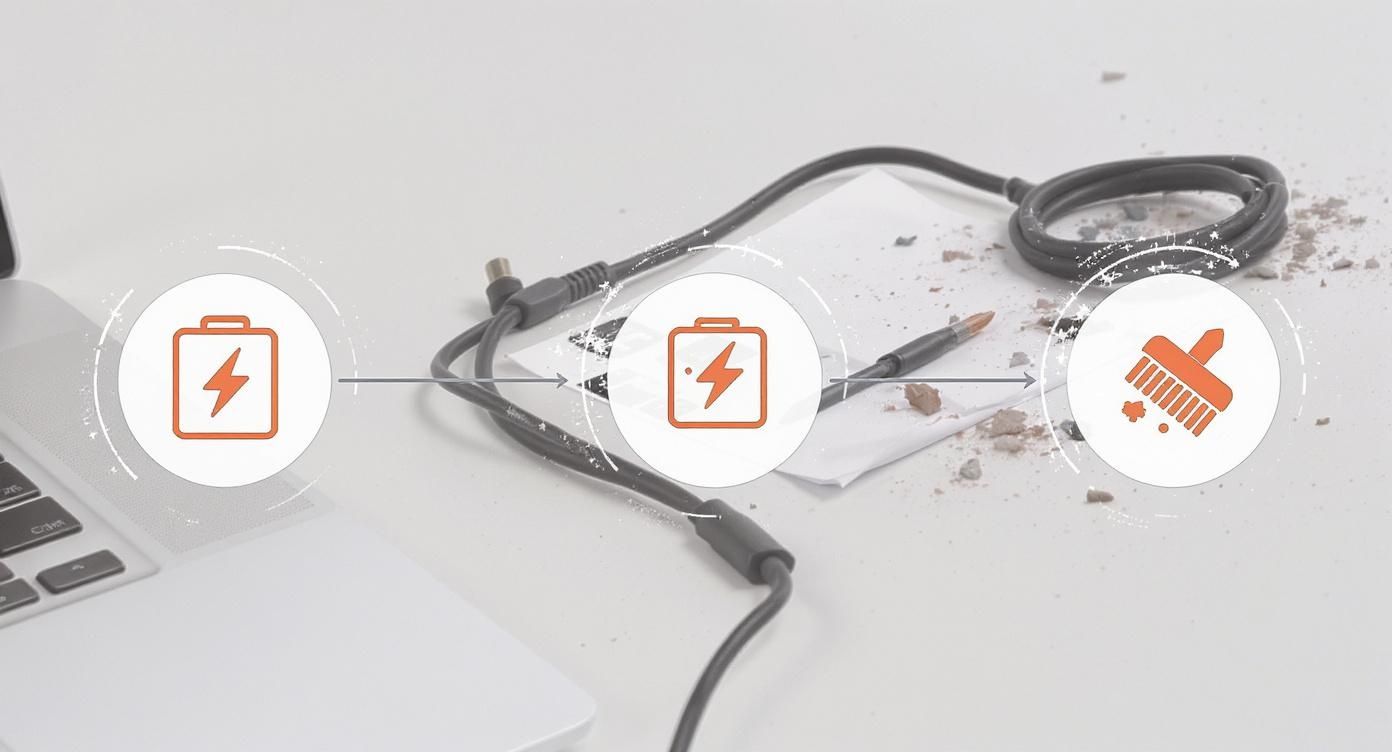
Alt text: A diagram showing the steps for a physical laptop check: charging, cleaning debris, and professional inspection.
Clear Signs It’s Time for an Expert
Sometimes, the laptop gives you a very clear signal to back off. A swollen battery, for example, is not a DIY project—it's a genuine safety hazard. These need to be handled and disposed of by people who know what they're doing.
Here are a few other scenarios where calling in a pro is your best bet:
- You've tried a replacement touchpad, but it still won't work. This often points to a fault with the motherboard's controller chip.
- The laptop is dead after your repair attempt. Stop immediately. You could be dealing with a short circuit.
- Multiple things failed at once. If your keyboard and touchpad both die at the same time, it usually signals a deeper logic board problem.
- Your device is still under warranty. Cracking open your laptop will void that warranty in a heartbeat. Let the manufacturer sort it out.
Key Insight: A professional repair isn't just about fixing what's broken. It's about diagnosing the real cause to prevent it from happening again, something that’s almost impossible without professional-grade equipment.
The Value of Professional Service
When you hand your device over to a specialist, you're getting more than just a component swap. Technicians have access to sophisticated diagnostic tools, genuine replacement parts, and the hands-on experience to work on delicate electronics without causing collateral damage.
Here at Screen Fixed Brisbane, our team can quickly determine if you're looking at a loose cable or a more complex logic board failure, saving you hours of frustrating guesswork. This kind of expertise is essential for modern devices like high-end MacBooks, where everything is tightly integrated. A seemingly simple part replacement can be incredibly intricate, as we detail in our guide on the MacBook Pro display replacement process.
Making the Final Call
If a repair turns out to be particularly complex or expensive, you have to weigh your options. For an older laptop, if the cost of a professional touchpad repair is more than half the machine's current value, it might not be a smart investment. Should the touchpad issue prove unfixable, you could look into ways to recycle your laptop for cash.
For most modern devices, though, a professional repair is a cost-effective and sustainable choice that breathes new life into your laptop. Don't let a "touchpad not working" headache send your device to the scrap heap before its time. If you've tried everything and are still stuck, book your repair with Screen Fixed Brisbane today.
Frequently Asked Questions About Touchpad Issues
Even after trying all the fixes, you might still have a few questions. Let's tackle some of the most common queries we get about misbehaving touchpads.
Could a Virus Be Messing With My Touchpad?
It's not the most common culprit, but yes, it’s absolutely possible. Some malicious software is designed to interfere with core system drivers, and that includes the one that makes your touchpad work. If your touchpad problems appear alongside other weird behaviour—like random pop-ups or a sudden slowdown—malware should be on your suspect list. Run a thorough scan with your antivirus and anti-malware software.
My Cursor Is Jumpy and Erratic. What’s the Fix?
A cursor that jumps all over the screen is a classic sign of interference. First, give the touchpad a good clean with a dry microfibre cloth. Next, check your power adapter. A cheap or faulty third-party charger can create electrical "noise" that confuses the touchpad. Unplug it and see if the problem stops. Finally, check your touchpad sensitivity settings in Windows or macOS; it might be set too high.
What's the Typical Cost for a Touchpad Repair in Australia?
The cost to fix a touchpad in Australia varies depending on the laptop's brand, model, and the actual problem. A simple software fix might just involve a diagnostic fee, typically between $50 and $100. If the hardware needs replacing, the part could cost $40-$150 plus labour, bringing the total to $140-$350. For premium laptops like MacBooks, where the trackpad is part of a larger assembly, the cost can be higher. For an accurate quote, it's always best to get a professional diagnosis from a local expert like Screen Fixed Brisbane.
Disclaimer: Screen Fixed is an independent repair service provider and is not affiliated with the manufacturers mentioned in this article. All brand names and trademarks are the property of their respective owners.