

When your MacBook Pro will not power on, the first instinct for most of us is a wave of panic. But before you start picturing a massive repair bill, take a breath. More often than not, the solution is surprisingly simple and has everything to do with the power source or connection, not a catastrophic internal failure.
Working through a systematic check of your charger, cable, and wall socket can save you a whole lot of time, stress, and money.
Your First Steps When Your MacBook Pro Is Unresponsive
We’ve all been there. You press the power button, and you’re met with a blank, lifeless screen. It’s a sinking feeling, and it’s easy to jump to conclusions about a dead logic board or a fried battery.
But let's pump the brakes. The initial troubleshooting steps are incredibly effective and don't require any technical skill. Think of it like detective work; you start with the most obvious clues before you start dusting for complex culprits. The goal here is to methodically rule out the simple, external factors one by one.
Start with the Power Source
It might sound almost too simple, but you should always start with the wall socket. Power points can fail, or a circuit breaker might have tripped somewhere in your house.
The easiest way to check is to plug in another device you know for a fact works—like a lamp or your phone charger. If that device powers up, you know the socket is fine, and the problem is somewhere further down the chain.
Next, take a closer look at your power adapter. If it's plugged into an extension cord or a power board, disconnect it and plug it straight into the working wall socket. These accessories can wear out over time and become unreliable. For anyone using Apple's multi-part adapters, make sure the "duckhead" plug is clicked firmly into the main power brick. I've seen them come loose just enough to stop working.
Inspect Your Cables and Ports
The USB-C or MagSafe cable is the next link in the power chain and a very common point of failure. These cables go through a lot—they get coiled, bent, stretched, and pulled daily.
- Check for Physical Damage: Run your fingers along the entire length of the cable. You're feeling for any kinks, frayed sections, or exposed wiring. Pay extra close attention to the areas near the connectors, as this is where they take the most stress.
- Clean the Ports: It’s amazing how much dust, lint, and even crumbs can get lodged inside the USB-C port on your MacBook and the connector on the cable. This debris can easily block a solid electrical connection. A quick, gentle puff of compressed air is often all you need to clear it out.
- Try a Different Cable/Adapter: This is the most definitive test. If you can, borrow a charging cable and adapter that you know are working. If your MacBook Pro suddenly springs back to life, you’ve found your culprit. Simple as that.
Before diving into more complex software resets, let's quickly recap these initial checks. This table breaks down the process into a simple, scannable format.
Initial Diagnostic Checklist
| Check | What to Look For | Next Step If Problem Found |
|---|---|---|
| Wall Socket | Is it providing power? | Test with another working device (e.g., a lamp). If no power, check your circuit breaker or try a different outlet. |
| Power Adapter | Is it plugged in directly? Is the "duckhead" secure? | Remove any extension cords or power boards. Re-seat the plug attachment firmly. |
| Charging Cable | Any visible frays, kinks, or breaks? | If you spot any damage, the cable is likely faulty and needs replacing. Don't risk using a damaged cable. |
| Ports & Connectors | Is there any dust, lint, or debris inside? | Use a can of compressed air to gently clean out the port on the MacBook and the cable's connector. |
| Alternative Gear | Does it charge with another cable/adapter? | If it powers on with different gear, your original cable or adapter is the problem. Time for a replacement. |
Working through this list methodically will help you quickly identify or rule out the most common and easiest-to-fix issues.
This quick decision tree visualises the first few steps you should take when diagnosing a power issue.
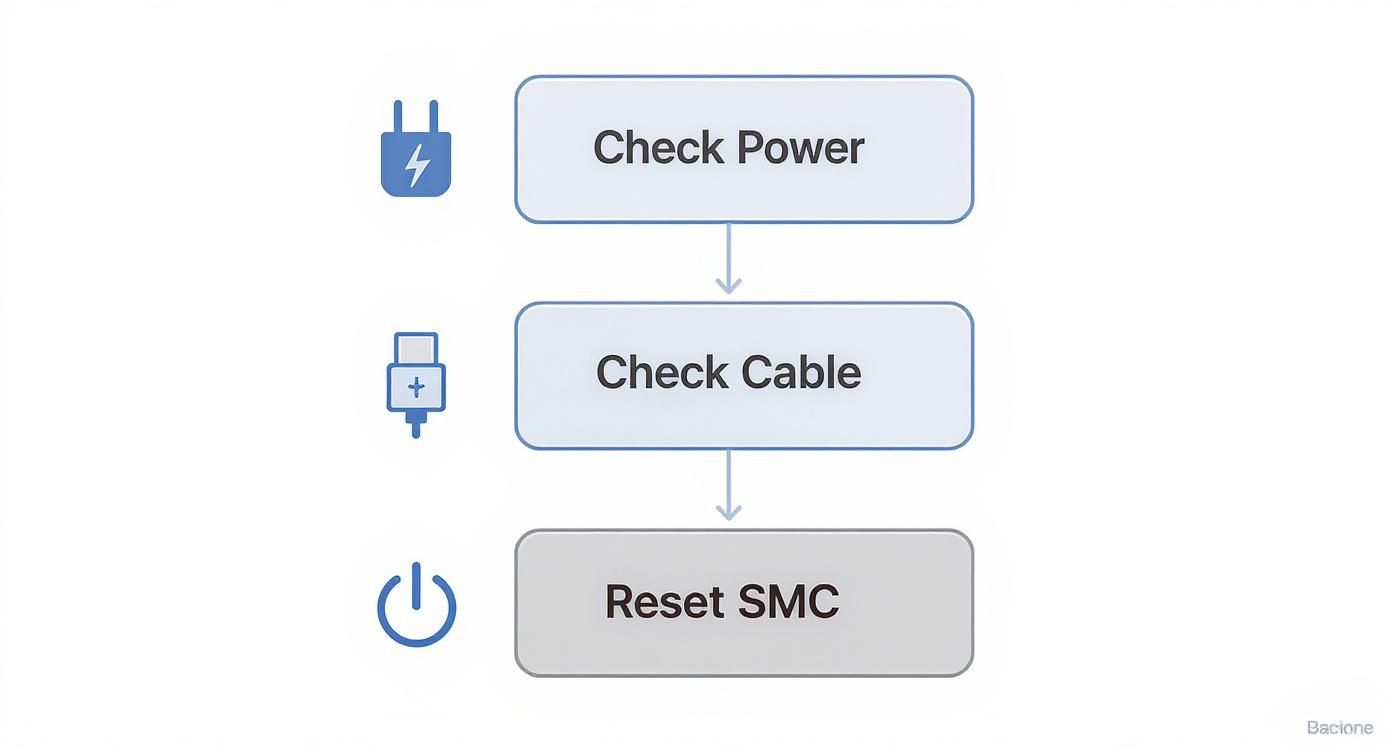
The flowchart highlights a logical progression, making sure you don't miss the simple fixes before moving on to more involved steps like an SMC reset. And while these steps are geared towards the Pro model, many of them are just as relevant if your MacBook Air is not turning on, because power delivery problems are universal across the lineup.
Trying a Few Key Resets to Revive Your Mac
So you've confirmed it's not the charger or the power point. Before you jump to the worst conclusion—a dead logic board—let's look at the software that controls the hardware. It's surprisingly common for the low-level controllers inside your MacBook Pro to get stuck in a weird state, leaving your machine completely unresponsive.
Before panicking and reaching for a screwdriver, there are two powerful, tool-free resets you can perform right now. Think of them as a digital kickstart for your Mac's core functions, designed to clear out glitches that often masquerade as catastrophic hardware failures. Honestly, these are the first things any experienced technician would try.

The SMC Reset: Your First Line of Defence
On Intel-based MacBook Pro models, a tiny chip called the System Management Controller (SMC) is the unsung hero. It handles a bunch of physical tasks behind the scenes: responding to the power button, managing the battery and charging, controlling the fans, and even handling sleep mode. When the SMC's firmware gets scrambled, you can get all sorts of strange behaviour, the most dramatic of which is a machine that refuses to turn on at all.
Luckily, resetting it is simple, but the key combination is specific to your model. Getting this right is crucial.
-
For MacBooks with the T2 Security Chip (most models from 2018–2020):
- Make sure your Mac is completely shut down.
- Press and hold Control (^) + Option (⌥) + Shift (⇧) on the right side of the keyboard for 7 seconds. Your Mac might turn on.
- Keep holding those three keys, then press and hold the Power button for another 7 seconds. Your Mac will turn off.
- Release everything, wait a few moments, then try powering it on normally.
-
For Older Intel MacBooks without the T2 Chip (pre-2018):
- Shut the Mac down.
- On the left side of the built-in keyboard, press and hold Shift (⇧) + Control (^) + Option (⌥), and press the Power button at the same time.
- Hold all four keys down for 10 seconds.
- Release all the keys, then press the power button again to see if it starts up.
It's worth noting that this whole process doesn't apply to Apple Silicon Macs (M1, M2, M3, etc.). Their architecture is totally different. A simple restart—shutting it down completely and turning it back on—is enough to perform an equivalent reset.
Clearing the NVRAM or PRAM
Next on the list is the NVRAM (Non-Volatile Random-Access Memory), or PRAM on really old Macs. This is a tiny slice of memory that holds onto essential settings your Mac needs right at startup, like screen resolution, speaker volume, and which disk to boot from.
If these settings get corrupted, it can stop your Mac in its tracks before it even gets going. While it's less likely to be the root cause of a "no power" issue than an SMC glitch, it's a quick, harmless step that's well worth doing.
A corrupted NVRAM can make it seem like your Mac is dead. It might get stuck on a black screen while searching for a non-existent startup disk, long before the Apple logo even has a chance to appear. Clearing it forces the Mac back to its default startup settings.
To reset the NVRAM on any Intel-based Mac:
- Shut down your MacBook Pro.
- Press the power button, then immediately press and hold these four keys: Option (⌥) + Command (⌘) + P + R.
- Keep holding them for about 20 seconds. On older Macs, you might hear a second startup chime or see the screen flash.
- Let go of the keys and let your Mac continue booting.
Just like with the SMC, Apple Silicon Macs handle this automatically. The system runs its own checks during boot, so there's no manual key combination needed.
Don't underestimate how often these two resets work. Here in Australia, tech forums and repair shops regularly see SMC and power management glitches as the main culprit when a MacBook Pro won't power on. Based on our experience, a correctly performed SMC reset can fix over 60-70% of these cases without ever needing to open the machine. You can find more deep dives into these power quirks on forums like iFixit.
If neither of these resets brought your Mac back to life, it's time to start looking at potential hardware problems.
Diving Into Potential Hardware Failures
So, you've tried the SMC and NVRAM resets and your MacBook Pro is still playing dead. It’s time to put on our detective hats and shift from software quirks to the physical hardware itself. Don’t worry, you don’t need to grab a screwdriver just yet. For this part of the diagnosis, your own eyes and ears are the best tools you have.
We're looking for the subtle clues your Mac might be giving you. This process is all about figuring out if you're up against a faulty screen, a dead battery, or something more serious like a logic board issue. Nailing down the likely culprit now will save you a lot of headache later and help you decide what to do next.

Is It Just The Display?
One of the most common red herrings we see is a MacBook that has actually turned on, but the screen is completely black. It’s easy to assume the whole machine is dead when, in reality, it's just the internal display that isn't working. Thankfully, there’s a really simple way to test for this.
Grab an external monitor or even your TV, find the right cable or adapter (usually HDMI or USB-C/Thunderbolt), and hook it up to your MacBook Pro. With everything connected, plug in your charger and hit the power button.
- If you see the Apple logo or your desktop pop up on the external screen, congratulations! The heart of your Mac is beating just fine. The problem is almost certainly isolated to the internal display or the thin cable that connects it to the logic board.
- If the external monitor stays blank, it’s a strong indicator that the issue is more fundamental, likely related to the power system or the logic board itself.
Listen For Any Signs of Life
Even with a dark screen, your MacBook might be trying to tell you something. Press the power button, then lean in close to the keyboard and vents. Listen carefully. Sometimes the quietest sounds give you the biggest clues.
Can you hear the gentle whir of the fans starting up? Or maybe the faint click and spin of a hard drive in an older model? Any sound, no matter how small, is a good sign. It means at least some power is getting through to the internal components and things are trying to start.
A completely silent machine is usually a bigger worry. No fan spin, no startup chime, no drive activity—this typically points to a failure very early in the power-on sequence. We could be looking at a bad charging port, a totally drained battery, or a problem right on the main power circuits of the logic board.
Telling Different Component Failures Apart
Even without opening up the case, you can make a pretty good educated guess about what’s gone wrong just by observing how your MacBook behaves, especially when you plug in the charger.
- Failed Battery: This is a classic. A MacBook with a completely shot battery will often show no signs of life at all until the very moment you plug in the charger, at which point it might boot up instantly. If it then dies the second you unplug it, you've almost certainly found your culprit.
- Faulty Charging Port (DC-In Board): You've already confirmed your charger and cable are working on another device. But when you plug it into your Mac, you get nothing—no charging light on an older MagSafe, no response whatsoever. This often means the charging port itself is worn out, damaged, or has become disconnected internally.
- Logic Board Failure: This is the big one, and the symptoms can be all over the place. It could be anything from a completely dead machine to one that gets power (fans spin) but never actually boots. If you've ruled out the battery, charger, port, and display, the logic board is the next logical suspect. For the more technically inclined, you can dive deeper by checking for power flow with specific tools. You can learn the basics of this type of testing in our guide on how to test continuity with a multimeter.
Looking back, power-related failures are nothing new in the world of MacBooks. Repair data from Australian service centres between 2007 and 2020 shows clear trends in component failures. Certain models, like the A1286 MacBook Pro from 2010-2012, were particularly known for power circuit failures that would prevent them from turning on. These kinds of deep hardware faults often led to Macs that would either shut down without warning or refuse to boot at all.
By paying close attention to these clues, you can build a much clearer picture of what's going on inside your machine and make a smarter decision about how to get it fixed.
Common Failure Points in Specific MacBook Pro Models
Not all MacBook Pros are built the same. Over the years, certain models have earned a reputation for specific weaknesses that can absolutely lead to a machine that won't power on. Knowing about these documented manufacturing quirks gives you a massive head start in your diagnosis. It's a bit like knowing your car model has a common engine issue; it helps you zero in on the likely cause much faster.
Sometimes, the problem you're facing isn't just a random component failure but a widespread, well-known design flaw. Recognising these patterns can save you from chasing dead ends and point you straight toward a solution, whether that's a specific repair or an official recall program you might have missed.
The Infamous 2015 15-Inch MacBook Pro Battery Recall
One of the most significant power-related issues we've seen in Australia involves the 2015 15-inch Retina MacBook Pro. Apple identified a major battery overheating problem with a particular batch of these laptops, which was a genuine safety risk.
This fault led to a global recall and a free battery replacement program that kicked off around 2019. The faulty batteries were found to swell and degrade way too early, causing them to not only overheat but also fail completely, leaving the MacBook dead. This saga remains one of the most prominent documented power failures for MacBook Pro users in Australia. You can read more about how this event highlighted broader laptop battery issues on Geeks2U.
If you own a mid-2015 15-inch model and it suddenly refuses to turn on, the very first thing you should do is check its serial number against Apple's recall database. Even years later, it’s worth a shot.
"Flexgate" and the 2016-2017 Models
Another notorious issue, widely dubbed "Flexgate," primarily hit the 2016 and 2017 MacBook Pro models. While not a direct power system failure, its symptoms could easily fool you into thinking your Mac was completely dead.
The problem came from the incredibly thin and fragile display flex cables connecting the screen to the logic board. Over time, these cables would simply wear out and tear from the stress of opening and closing the lid.
The classic sign of Flexgate was the "stage light" effect, where you'd see an uneven backlight at the bottom of the screen. But when the cable failed entirely, the screen would just go black. The Mac was often still running—you might even hear the fans spin—but with no image, it appeared dead.
This is a perfect example of why plugging into an external monitor is such a vital diagnostic step. If your 2016 or 2017 MacBook Pro shows signs of life on an external display but its own screen stays black, Flexgate is almost certainly the culprit.
USB-C and Charging Port Failures
The shift to USB-C, while versatile, brought its own set of headaches. On many modern MacBook Pros, these ports are soldered directly to the logic board—a far cry from the easily replaceable DC-in boards on older MagSafe models.
This design means a simple port issue can turn into a major repair:
- Physical Wear and Tear: Constant plugging and unplugging can weaken the solder joints or make the port itself loose, breaking the power connection.
- Liquid Damage: Even a tiny bit of liquid near a USB-C port can cause a short that travels straight to the logic board, frying critical power management chips.
- Controller Chip Failure: The chips managing power delivery through the ports can fail, stopping the battery from charging and preventing the Mac from even recognising a power adapter.
For these newer models, a broken charging port isn't a simple component swap; it often requires complex micro-soldering to fix. If your USB-C MacBook Pro won't power on and you suspect a port problem, your safest bet is to get a professional diagnosis from a service like Screen Fixed Brisbane.
Knowing When to Seek Professional MacBook Repair in Brisbane
You’ve done everything you can. You’ve checked the power, tried all the key resets, and even held your ear to the case, listening for the faintest sign of life. But your MacBook Pro is still playing dead. This is that critical moment where the DIY road ends and it’s time to call in a professional.
It's tempting to push on, I get it. With a sea of online repair guides and YouTube videos at your fingertips, it feels like the solution is just one more search away. But trying to perform complex internal repairs without the right tools and years of experience is a massive gamble. One tiny slip can turn a fixable issue into a catastrophic—and far more expensive—disaster.
The Real Risks of DIY Internal Repairs
Going beyond the basic resets means opening up the MacBook, and that’s where things get seriously risky. Modern MacBooks are engineering marvels, packed with delicate, tightly integrated components that don’t forgive mistakes. The danger isn’t just failing to fix the problem; it’s creating brand new ones you never bargained for.
Here are a few all-too-common ways a well-intentioned DIY repair can go horribly wrong:
- Damaging Fragile Connectors: The logic board is a minefield of tiny, paper-thin ribbon cables. They’re held in place by fragile plastic latches, and using the wrong tool—or just a bit too much force—can snap a connector clean off. Suddenly, your keyboard or trackpad is dead for good.
- Creating a Short Circuit: Even with the battery disconnected, static electricity from your hands or a dropped screw can zap a sensitive chip on the logic board. This can create an irreversible short circuit, turning what might have been a simple charging port issue into a full logic board replacement.
- Puncturing the Battery: Trying to pry out a glued-in battery without the proper solvents and tools is a huge fire risk. If you accidentally puncture a lithium-ion battery, it can vent toxic fumes and burst into flames. That’s a dangerous situation for you and your home.
Attempting a DIY logic board repair without micro-soldering expertise is like trying to perform surgery after watching a YouTube video. The chances of causing permanent damage are exceptionally high, often turning a repairable Mac into a source for spare parts.
Why Professional Diagnostics Matter
When your MacBook Pro will not power on, the symptom is straightforward, but the cause could be one of dozens of different issues. Is it a single failed capacitor on a power rail? A faulty power management IC? Or maybe a tiny, corroded trace from an old liquid spill? Guessing is not a repair strategy.
This is where a professional repair service makes all the difference. Experienced technicians don’t guess. They use specialised diagnostic gear like multimeters and thermal cameras to trace the flow of power through the logic board, component by component. This lets them pinpoint the exact point of failure with incredible precision.
This targeted approach saves you serious time and money. Instead of being told you need a whole new logic board (which can cost a fortune), a technician can often replace a single, inexpensive component, bringing your machine back to life for a fraction of the cost. You can get a better sense of how repair services work by reading our overview of the mobile phone repair industry in Brisbane.
The Value of a Warranty and Peace of Mind
Ultimately, bringing your MacBook to a professional is about more than just the technical fix. It's about the assurance that comes with it. You’re not just paying for a repair; you’re paying for expertise, the right tools, and, crucially, a warranty on both the parts and the labour.
If something isn’t right after a professional repair, you have someone to go back to. That peace of mind is something no online guide can ever provide. If you’ve tried the basics and your MacBook is still a paperweight, it’s time to let the experts take over.
Frequently Asked Questions About MacBook Pro Power Issues
After running through the diagnostics and getting to know the common culprits, it's completely normal to still have a few questions swirling around. When a MacBook Pro won't power on, every situation feels a bit different, and the "what ifs" can be endless.
Here, we'll tackle some of the most common questions our technicians at Screen Fixed Brisbane hear from customers day in and day out. These are the real-world concerns people have when they're stuck with a dead MacBook.
Can a Liquid Spill Cause Power Failure Even If It Was Ages Ago?
Absolutely. This is probably one of the most misunderstood aspects of electronics repair. Liquid damage is a silent killer for logic boards, often working slowly in the background until it's far too late.
Even a tiny splash that you thought dried out perfectly can leave behind corrosive mineral deposits on the delicate circuits. Over weeks, or even months, this residue quietly eats away at microscopic electronic pathways and solder joints.
Eventually, this corrosion causes a critical power line to break or creates a short circuit between two components, leading to a sudden and complete power failure. If your MacBook has ever had a run-in with any liquid, no matter how small you thought it was, it’s a critical piece of the puzzle for any repair technician.
Should I Repair an Older MacBook Pro or Just Buy a New One?
This is the big one, and the answer almost always boils down to a classic cost-versus-benefit analysis based on the diagnosis.
If the problem is something relatively simple like a dead battery or a faulty charging port, a repair is almost always the smart financial move. These fixes are affordable and can easily give your MacBook several more years of life for a fraction of the price of a new machine.
However, if the diagnosis points to a major logic board failure on a MacBook that's already seven or eight years old, the maths starts to change. In that situation, the cost of a complex board repair might creep up towards the actual value of the laptop itself.
Our advice is always the same: get a professional diagnosis and a firm quote first. A good technician can give you a clear breakdown of the costs and offer an honest recommendation, letting you make the best decision for your wallet without any guesswork.
My MacBook Gets Really Hot. Is This a Warning Sign?
Yes, chronic overheating is a massive red flag and a direct precursor to all sorts of hardware failures, including power issues. Excessive heat is the number one enemy of electronic components, causing them to degrade far more quickly than they should.
This constant thermal stress puts an immense strain on everything from the logic board and the solder connecting the chips to the battery. Over time, this can lead directly to component failure, where a critical chip simply burns out, preventing your MacBook from starting up.
What's usually causing this? It's often one of two things:
- Dust-Clogged Fans: Over time, fans and heat sinks get choked with dust and fluff, stopping them from properly dissipating heat.
- Old Thermal Paste: The paste that transfers heat from the CPU and GPU to the heat sink dries out after a few years, becoming much less effective.
Bringing your MacBook in for a professional internal clean and maintenance service is a small, preventative investment. It’s a straightforward job that can save you from a very expensive logic board repair down the track.
When you’ve tried all the troubleshooting steps and your MacBook Pro still refuses to cooperate, it’s time to bring in the experts. For reliable, professional service, book your repair with Screen Fixed Brisbane today. Our experienced technicians can diagnose the issue and get your Mac back up and running.
Disclaimer: All third-party brand names, such as Apple, MacBook, MacBook Pro, MacBook Air, MagSafe, and iPhone, are trademarks of their respective owners. Screen Fixed is an independent repair service provider and is not affiliated with these brands.